BeyondTrust Password Safe

 BeyondTrust Password Safe is an enterprise solution for privileged account, credential, and secrets management. It automates password rotation, enforces strong security policies, monitors and audits privileged sessions, and manages access for human and machine identities across traditional, cloud, and DevOps environments. BeyondTrust Password Safe is an enterprise solution for privileged account, credential, and secrets management. It automates password rotation, enforces strong security policies, monitors and audits privileged sessions, and manages access for human and machine identities across traditional, cloud, and DevOps environments.Versions: 8.0.0 P10 |
Introduction
This plugin integrates RSA Governance and Lifecycle (G&L) with BeyondTrust Password Safe using the BeyondTrust REST API v3 and OAuth 2.0 authentication. It retrieves credentials for use by collectors and connectors. Credentials are not cached; each retrieval fetches the current password directly from BeyondTrust, so password rotation policies are respected automatically.
Prerequisites
Before you begin, ensure you have the following:
- Administrative access to your BeyondTrust Password Safe instance.
- A list of managed accounts that RSA G&L will access.
- The IP address or CIDR range of the RSA G&L instance for API access configuration.
Application Setup
This section describes how to configure BeyondTrust Password Safe for OAuth-based API access by RSA G&L.
This section is provided for reference only. Contact your BeyondTrust administrator to configure BeyondTrust Password Safe in line with your organization's security requirements.
Step 1: Create a User Group and Smart Group
-
Create a User Group:
- Navigate to Configuration > Role Based Access > User Management.
- Click the Groups tab and select Create New Group > Create a New Group.
- Enter
API Accessas the Group Name, provide a Description, and click Create Group.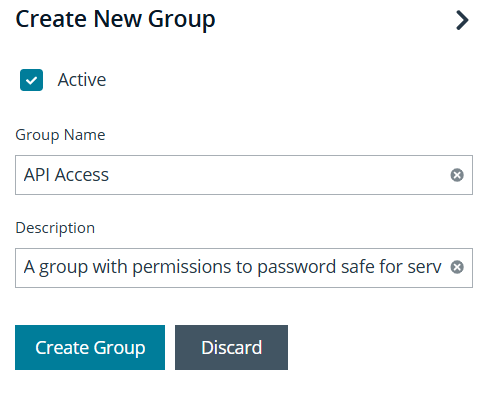
-
Create a Smart Group:
- Navigate to Managed Accounts.
- Select the accounts RSA G&L will access.
- Click Add to Smart Group.
- In the Add To Manual Smart Group dialog, enter
G&Lin the Smart Group (manual) field. - Click Add As New Option.
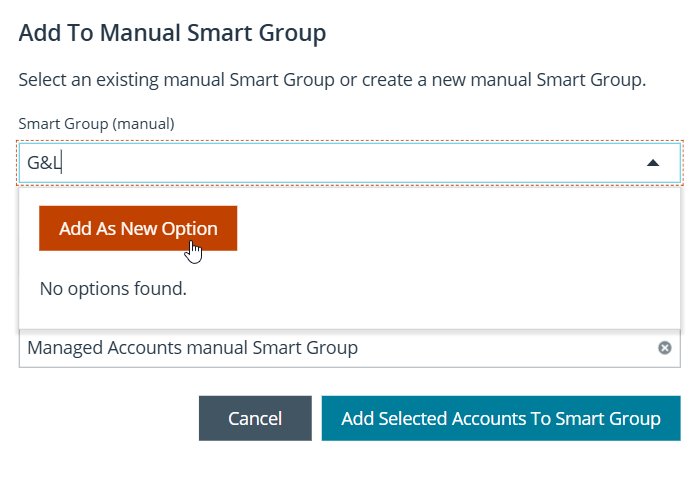
- Set Category to Managed Accounts, provide an optional Description, and click Add Selected Accounts To Smart Group.
Step 2: Configure API Access and Permissions
-
Configure an API Access Policy:
- Go to Configuration > General > API Registrations.
- Click Create API Registration and select API Access Policy.
- Fill in the registration details, including the Access Token Duration.
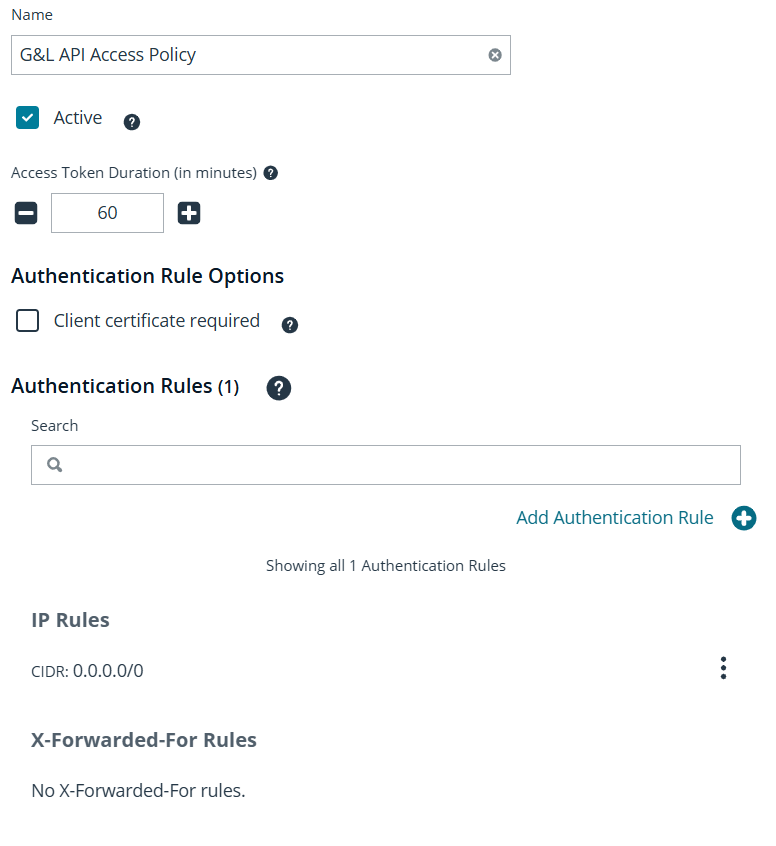
- Click Add Authentication Rule, select CIDR and IP Rule, and enter the CIDR range for your RSA G&L instance.
- Click Create Rule.
-
Assign Permissions:
- Open the
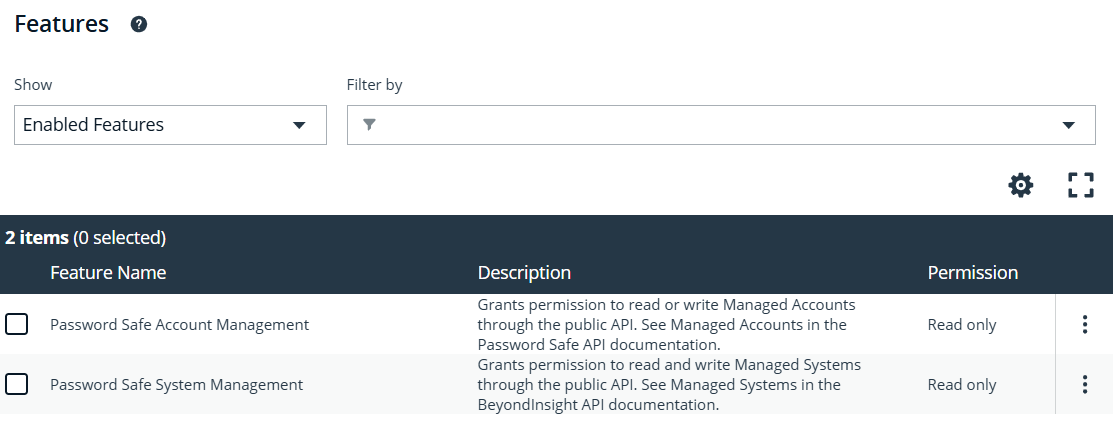
API Accessgroup and select the Features tab. - Select All Features, then search for and select Password Safe Account Management and Password Safe System Management.
- Click Assign Permissions and grant Read Only access.
- Open the
Step 3: Create an Access Policy
- Go to Configuration > Privileged Access Management Policies > Access Policies.
- Click Create Policy.
- Enter
G&L API Auto Approve Policyas the Access Policy Name, provide a Description, and click Create Policy.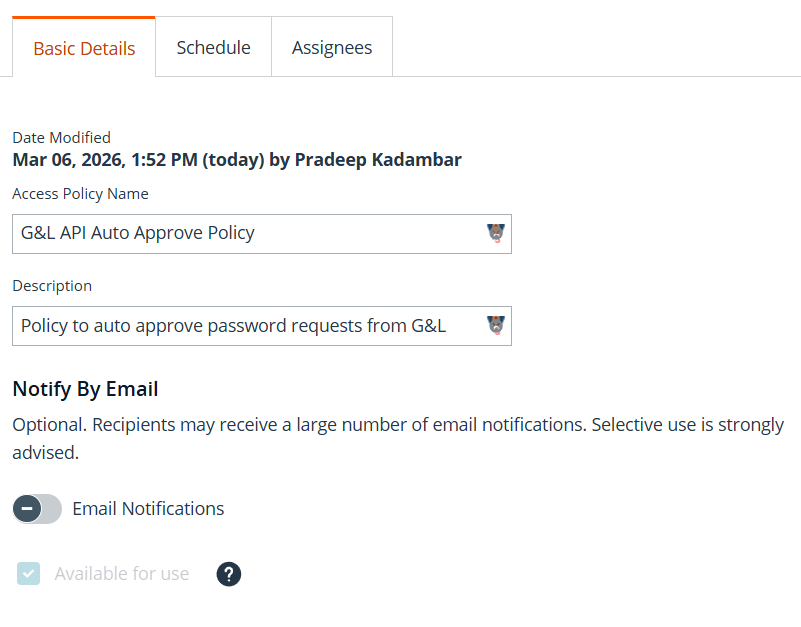
- On the Schedule tab, click Create Schedule.
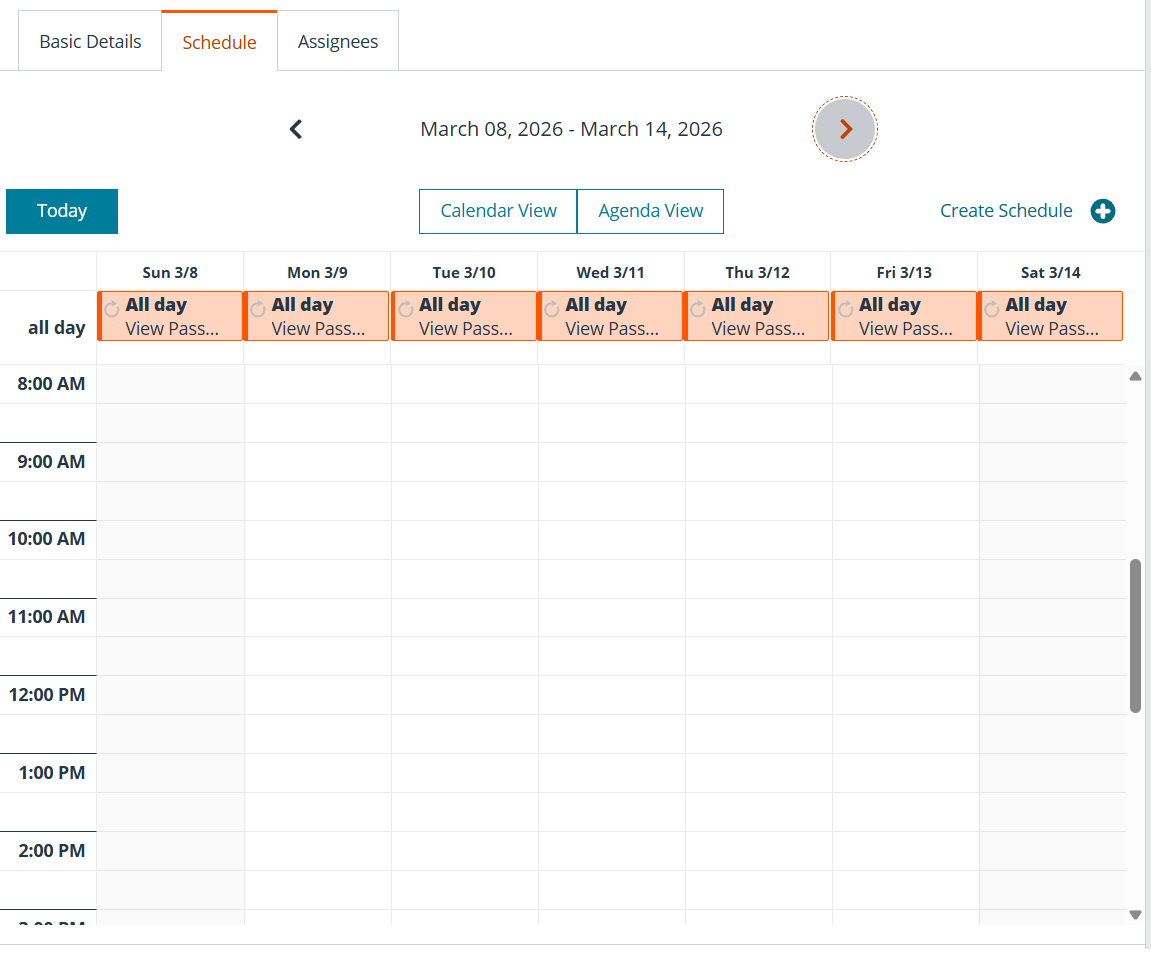
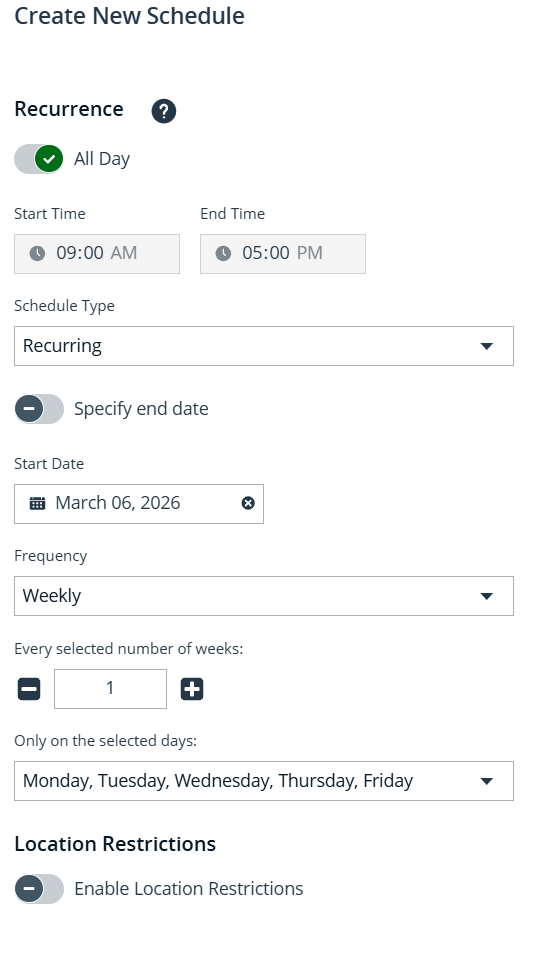
- Enable All Day and verify the Recurrence settings.
- Under Policy Types, select View Password, Auto Approve, and API Only Access.
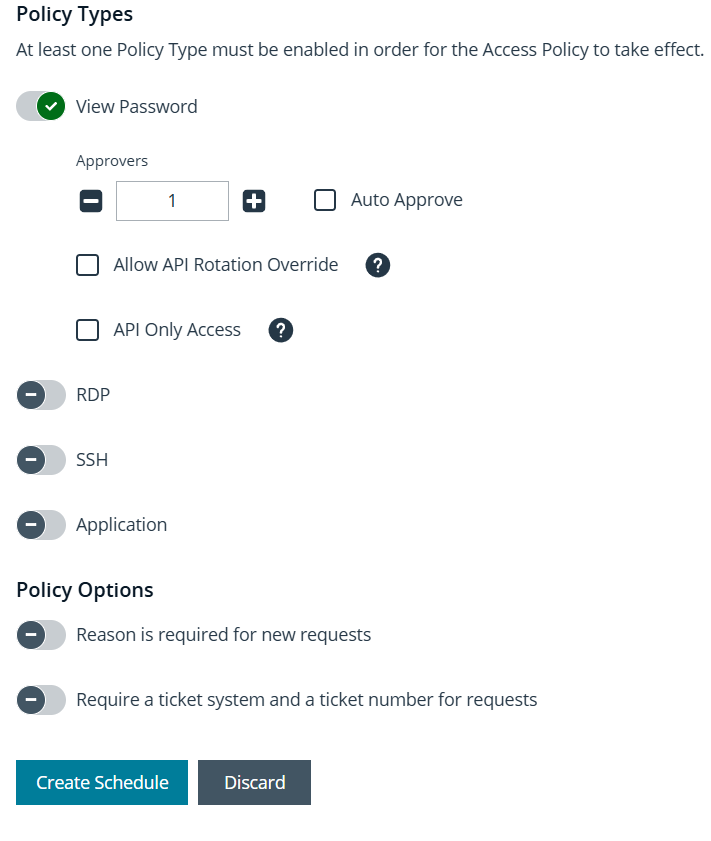
- Click Create Schedule.
Step 4: Assign Smart Group Roles
- Go to User Management > Groups >
API Access. - Click the Smart Groups tab, find the
G&Lsmart group, and select Edit Password Safe Roles. - Select the Requestor role.
- For Access Policy, select
G&L API Auto Approve Policy.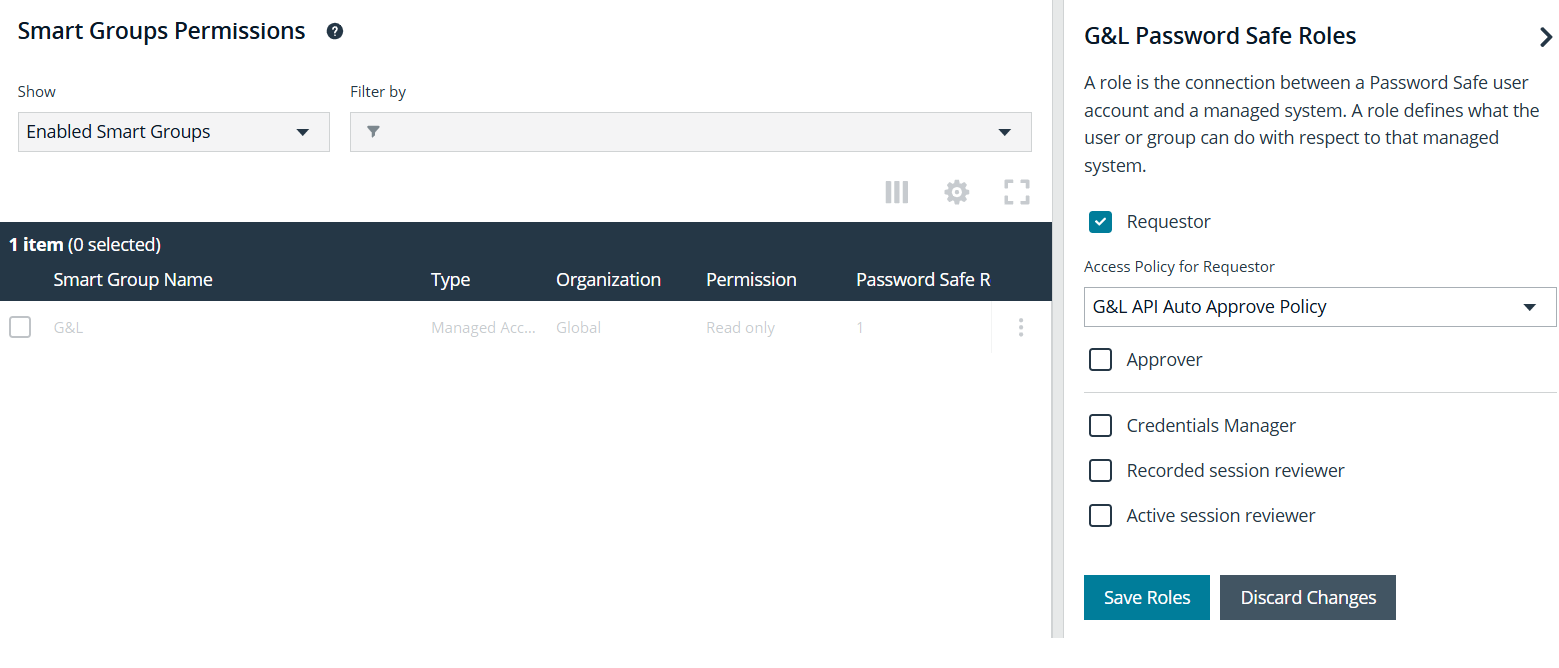
- Click Save Roles.
Step 5: Create an API User
- Go to Configuration > Role Based Access > User Management.
- Click the Users tab and select Add an Application User.
- Enter
svc_gl_pamas the Username. - Under API Access Policy, select the policy you created.
- Copy and store the Client ID and Client Secret. These are required for the G&L configuration.
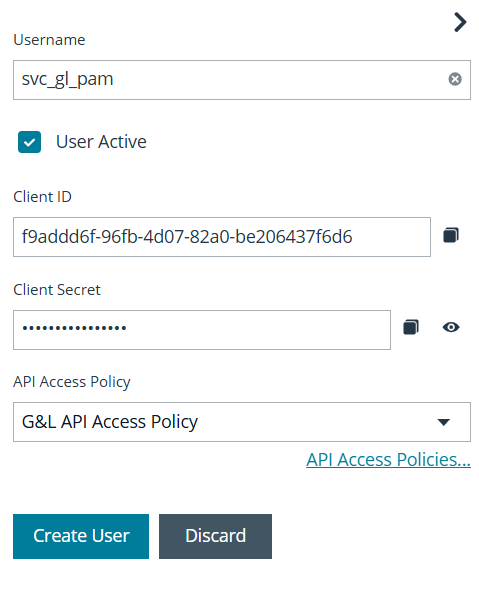
- Click Create User.
- Assign the user to the
API Accessgroup.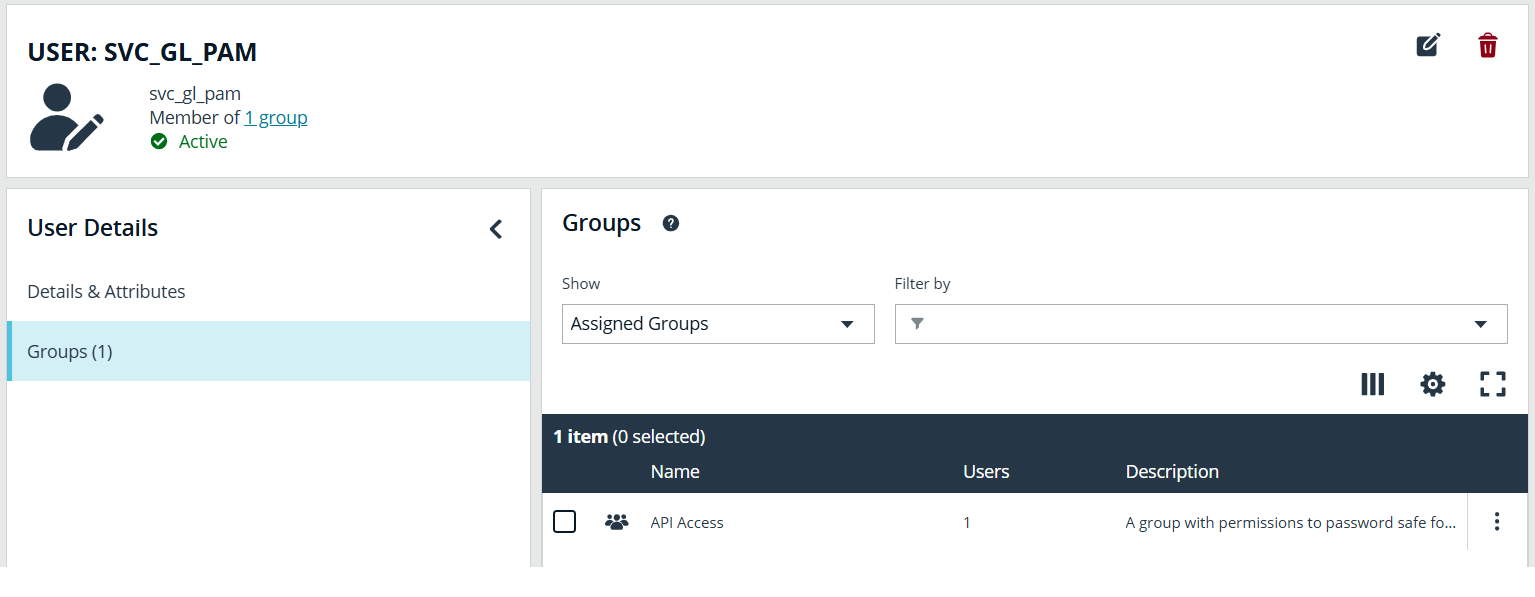
Step 6: Enable API Access on Managed Accounts
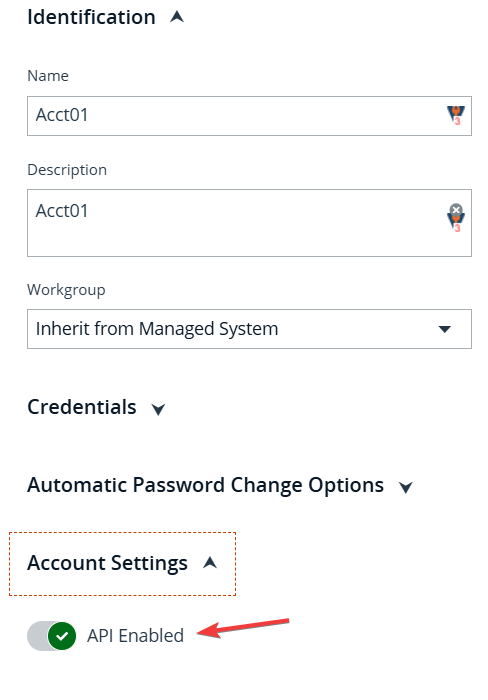
- Go to Managed Accounts.
- For each account, set Enable API Access to Yes in the Account Settings.
Installation and Configuration in G&L
Requires RSA Governance and Lifecycle 8.0.0 Patch 10 or later.
Complete the Application Setup section before proceeding. You will need the Client ID and Client Secret from Step 5.
Step 1: Install the Plugin
-
Log in to the RSA G&L UI as a System Administrator.
-
Open the Admin menu and click System.
-
Click the Password Vault tab.
-
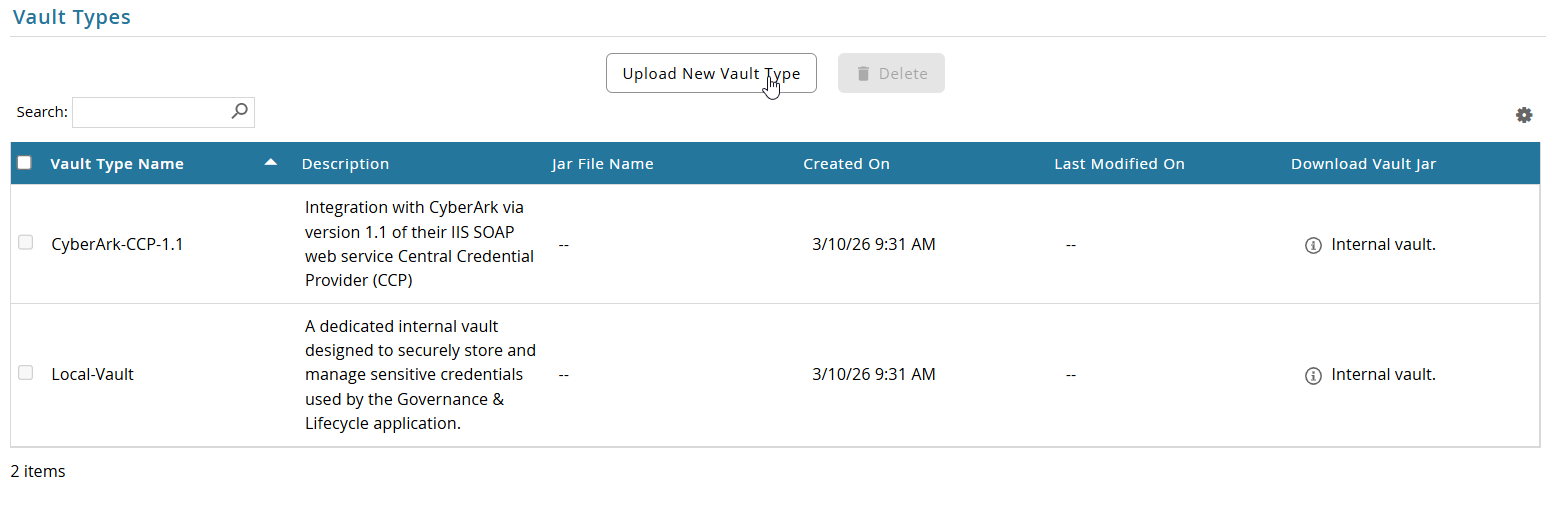
Scroll to the Vault Types section and click Upload New Vault Type.
-
Enter a Vault Type Name (for example,
BeyondTrust-Password-Safe) and an optional description. Click Choose File, select the distribution JAR (beyondtrust-password-safe-plugin-dist-1.0-<timestamp>.jar), and click OK.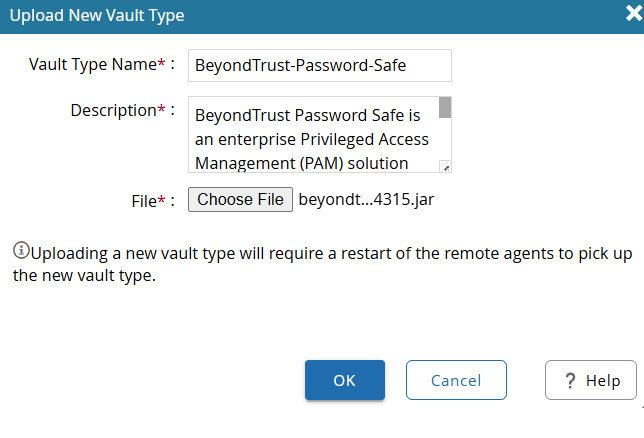 note
noteAfter uploading, restart all remote G&L agents to load the new vault type.
-
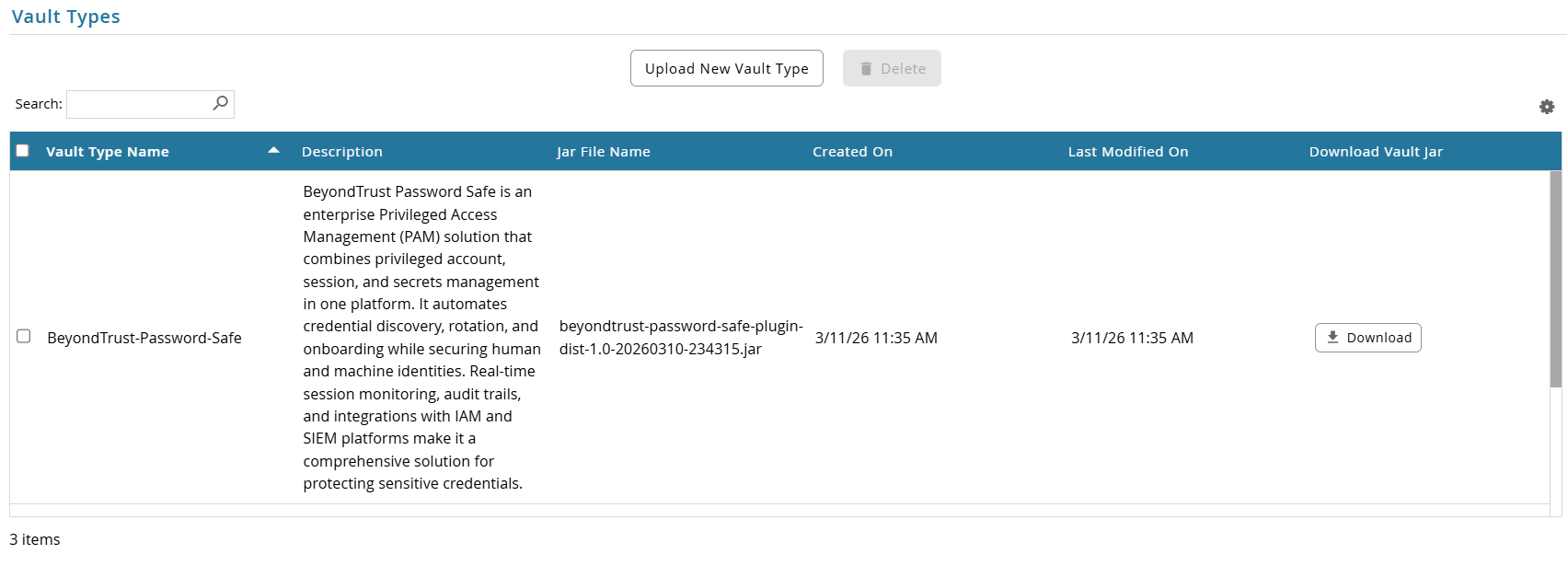
After the upload completes, BeyondTrust Password Safe appears in the Vault Types list.
Step 2: Configure the Password Vault
-
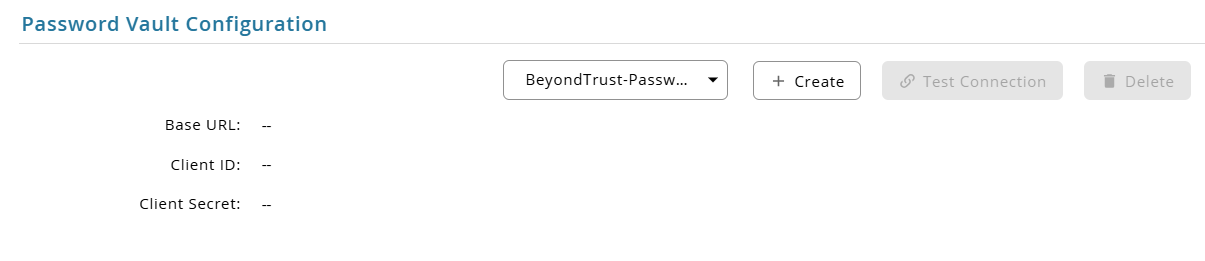
Scroll to the Password Vault Configuration section. Select BeyondTrust Password Safe from the dropdown and click + Create.
-
Complete the following fields, click Test Connection, and click OK to save.
Field Description Base URL Base URL of your BeyondTrust Password Safe instance (for example, https://instance.company.com)Client ID OAuth 2.0 Client ID from the registered BeyondTrust application Client Secret OAuth 2.0 Client Secret from the registered BeyondTrust application (masked) 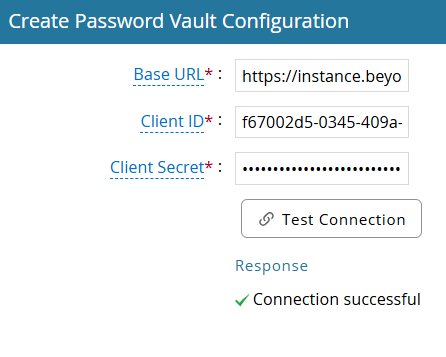
-
The saved configuration shows Edit, Test Connection, and Delete options. Use Test Connection at any time to verify connectivity.
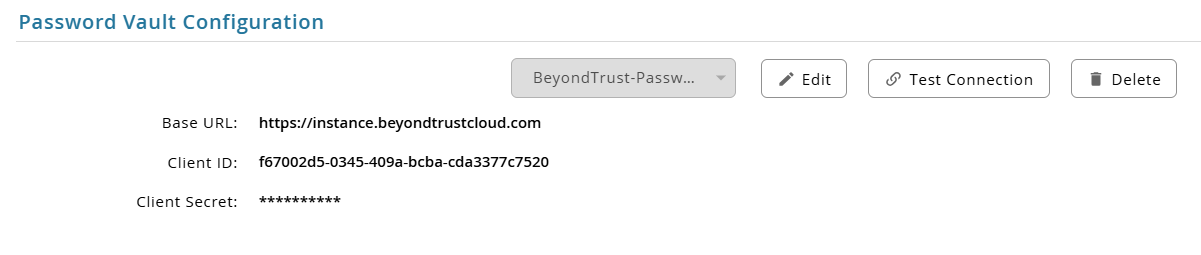
Step 3: Create Vault Profiles
A vault profile maps a G&L managed account to a Managed System and Account in BeyondTrust. Create one profile per account.
-
Navigate to the Password Vault Profiles section and click + Create Profile.

-
Complete the following fields and click Test Profile. A
Credential retrieved successfullyresponse confirms the account is reachable in BeyondTrust. Click OK to save.Field Description Example Name Display name for this profile Oracle DB AdminDescription Optional description Oracle production DBA accountSystem Name Managed System name exactly as it appears in BeyondTrust Password Safe PROD-DB-01Account Name Managed Account name exactly as it appears in BeyondTrust Password Safe oracle_dba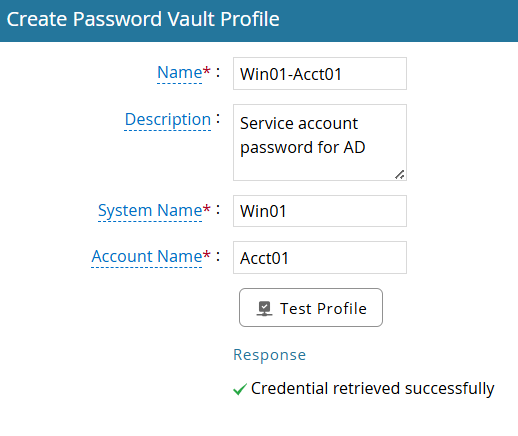
-
The profile appears in the list. The Identifier column shows
System Name (Account Name).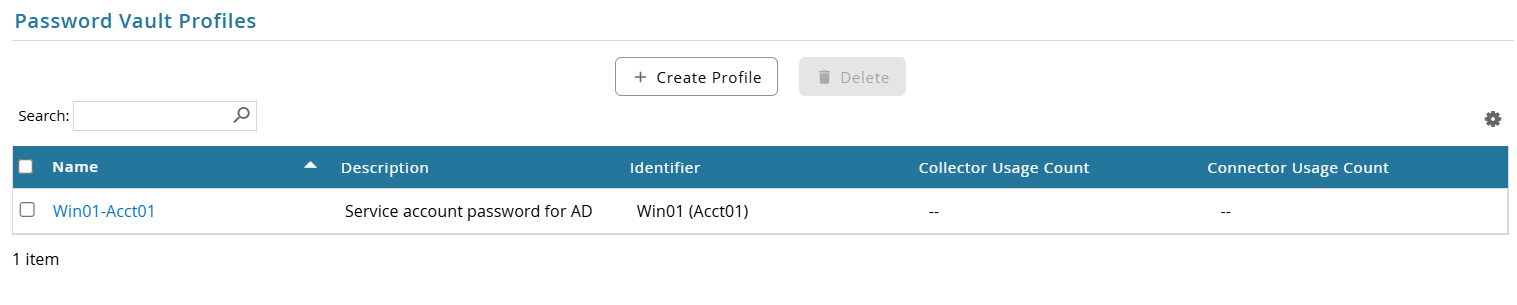
-
Repeat for each account that requires BeyondTrust password retrieval.
-
In G&L, open the collector or connector configuration, locate Use Password Vault, select the profile, click Test, and save.
Known Limitations
- Fixed request duration. Each credential checkout is valid for 1 minute. If a checkout is still active when a new request is submitted for the same account, BeyondTrust returns a 409 Conflict error. Wait for the active request to expire and retry, or manually check in the request from the BeyondTrust Password Safe UI.
- Double-quote characters in passwords. Double-quote characters are removed from retrieved passwords. If an account password contains double quotes, update the password in BeyondTrust to use a different special character.
Troubleshooting
API Authentication Errors
- Verify that the Client ID and Client Secret are correct.
- Confirm that the API user is assigned to the
API Accessuser group. - Confirm that the API access policy is configured with the correct IP address or CIDR range for the RSA G&L instance.
Unable to Retrieve Passwords
- Confirm that the
Requestorrole is assigned to theG&Lsmart group. - Verify that the access policy is configured to auto-approve requests.
- Confirm that API access is enabled on the managed accounts.
Access Denied Errors
- Verify that the
API Accessuser group has Read Only permissions for Password Safe Account Management and Password Safe System Management.