Keeper Enterprise

 Keeper Enterprise is a zero-knowledge, end-to-end encrypted secrets management platform with privileged access management capabilities. It provides secure credential vaulting, just-in-time access, and password rotation for enterprise infrastructure across cloud, on-premises, and hybrid environments. Keeper Enterprise is a zero-knowledge, end-to-end encrypted secrets management platform with privileged access management capabilities. It provides secure credential vaulting, just-in-time access, and password rotation for enterprise infrastructure across cloud, on-premises, and hybrid environments.Versions: 8.0.0 P10 |
Introduction
This plugin integrates RSA Governance and Lifecycle (G&L) with Keeper Enterprise using the Keeper Secrets Manager (KSM) Java SDK. It retrieves credentials for use by collectors and connectors. Credentials are not cached; each retrieval fetches the current password directly from Keeper. All HTTPS transport and end-to-end encryption are handled by the KSM SDK.
Prerequisites
Ensure you have the following:
- Administrative access to your Keeper Enterprise vault.
- The Keeper Secrets Manager CLI installed on a machine used to initialize credentials.
- A list of managed accounts that RSA G&L will access.
Keeper Side Setup
This section describes how to configure Keeper Enterprise for SDK-based access by RSA G&L.
This section is provided for reference only. Contact your Keeper administrator to configure Keeper Enterprise in line with your organization's security requirements.
Step 1: Create a Shared Folder
Keeper Secrets Manager applications can only access Shared Folders. Regular folders are not visible to the SDK.
Use Create New > Shared Folder (identified by a two-person icon). If you use Create New > Folder (plain folder), the KSM application will not see it. If the folder does not appear in Secrets Manager, delete it and recreate it as a Shared Folder.
-
Log in to Keeper Vault at
keepersecurity.com. -
Click Create New > Shared Folder.
-
Complete the following fields and click Create.
Field Value Folder Name A descriptive name, for example AD CredentialsUser Permissions No User PermissionsRecord Permissions View Only
Step 2: Create a Login Record
-
In My Vault, open the shared folder, click the folder menu (...), and select New Record.
-
Select record type Login.
-
Complete the following fields and click Save.
Field Value Title A descriptive name for the account, for example AD Service AccountLogin The username Password The credential password
Step 3: Note the Record UID
The Record UID is the permanent identifier used by the plugin to locate a record. It does not change if the record is renamed or moved.
- Open the record in Keeper Vault.
- Click the record menu (...) at the top-right of the record panel and select Record Info.
- Copy the UID, a 22-character Base64 string, for example
YSq-xxLdgsO2RJbz46EKkA.
This value is entered in the G&L vault profile as the Record UID.
Step 4: Create a KSM Application
- In Keeper Vault, click Secrets Manager in the left sidebar.
- Click Create Application, enter a name (for example
GL-PAM), and click Save. - With the application selected, click the Folders and Records tab.
- Search for and select your shared folder. It is added with Read Only access.
- Click Save. The Records column should show a count greater than zero.
Step 5: Generate an Access Token and Initialize Credentials
One-time access tokens cannot be retrieved after generation. Copy the token before closing this dialog.
-
With the application selected, click the Devices tab and click Add Device.
-
Complete the following fields.
Field Value Device Name A descriptive name, for example GL-PAM-PluginMethod One-Time Access TokenLock external WAN IP Leave unchecked -
Click Generate Access Token and copy the token. The format is
US:xxxxxxxxxxxxxxxxxxxxxxxxxxxxxxxxxxxxxxxx. -
On any machine with the KSM CLI installed, run the following to exchange the token for permanent credentials.
# Install the CLI (one-time setup)pip install keeper-secrets-manager-cli# Exchange the token to create keeper.ini in your home directoryksm profile init --token <YOUR_ONE_TIME_TOKEN> -
Open the generated
keeper.inifile (%USERPROFILE%\keeper.inion Windows,~/keeper.inion Linux/macOS).[_default]clientid = <base64 string>privatekey = <base64 string>appkey = <base64 string>hostname = keepersecurity.comappownerpublickey = <base64 string>serverpublickeyid = 10Each value maps directly to a field in the G&L vault configuration in the next section.
Installation and Configuration in G&L
Requires RSA Governance and Lifecycle 8.0.0 Patch 10 or later.
Complete the Keeper Side Setup section before proceeding. You will need the values from the keeper.ini file generated in Step 5.
Step 1: Install the Plugin
-
Log in to the RSA G&L UI as a System Administrator.
-
Open the Admin menu and click System.
-
Click the Password Vault tab.
-
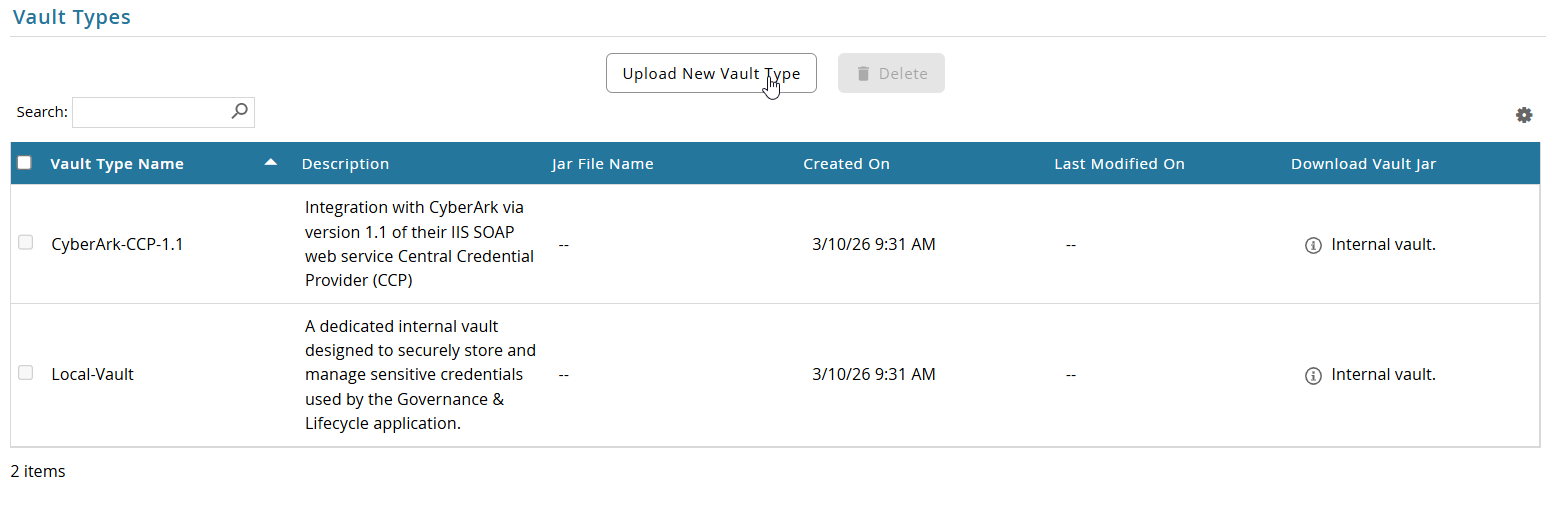
Scroll to the Vault Types section and click Upload New Vault Type.
-
Enter a Vault Type Name (for example,
Keeper-Enterprise) and an optional description. Click Choose File, select the distribution JAR (keeper-enterprise-plugin-dist-1.0-<timestamp>.jar), and click OK.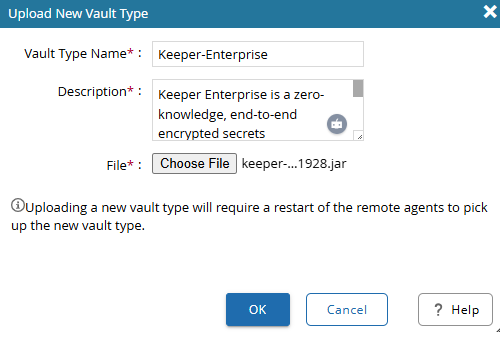 note
noteAfter uploading, restart all remote G&L agents to load the new vault type.
-
After the upload completes, Keeper-Enterprise appears in the Vault Types list.

Step 2: Configure the Password Vault
-
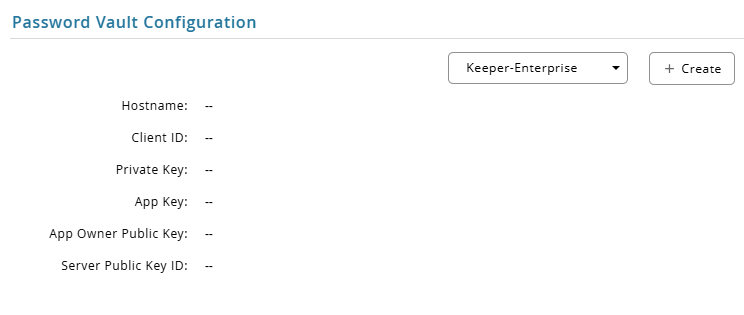
Scroll to the Password Vault Configuration section. Select Keeper-Enterprise from the dropdown and click + Create.
-
Copy the values from
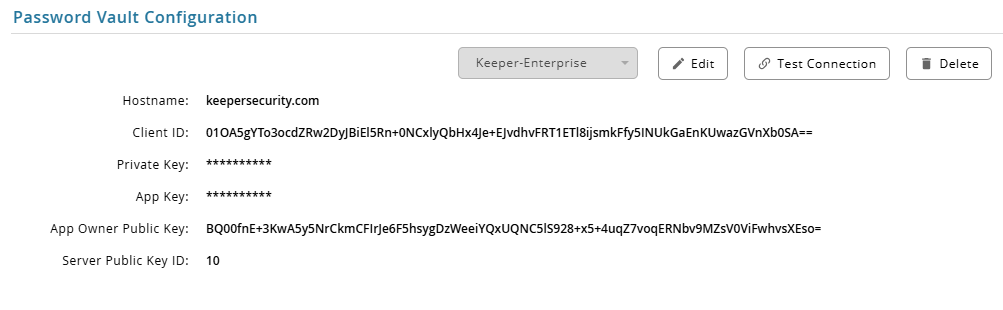
keeper.iniinto the corresponding fields, click Test Connection, and click OK to save.G&L Field keeper.iniKeyDescription Hostname hostnameKeeper server hostname. Varies by region: keepersecurity.com(US),keepersecurity.eu(EU),keepersecurity.com.au(AU),keepersecurity.jp(JP),keepersecurity.ca(CA)Client ID clientidBase64-encoded application identity Private Key privatekeyBase64-encoded ECC private key (masked) App Key appkeyBase64-encoded application encryption key (masked) App Owner Public Key appownerpublickeyOptional but recommended Server Public Key ID serverpublickeyidDefaults to 10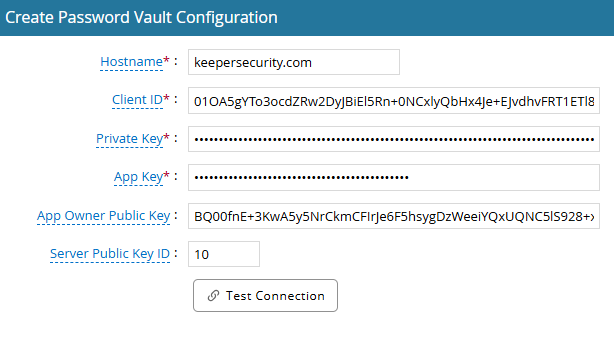
-
The saved configuration shows Edit, Test Connection, and Delete options. Use Test Connection at any time to verify connectivity.
Step 3: Create Vault Profiles
A vault profile maps a G&L managed account to a specific record in Keeper by its UID. Create one profile per account.
-
Navigate to the Password Vault Profiles section and click + Create Profile.

-
Complete the following fields and click Test Profile. A
Credential retrieved successfullyresponse confirms the UID is valid and the password is accessible. Click OK to save.Field Description Example Name Display name for this profile Active DirectoryDescription Optional description AD service accountRecord UID The 22-character Base64 UID copied in Step 3 of the Keeper Side Setup YSq-xxLdgsO2RJbz46EKkA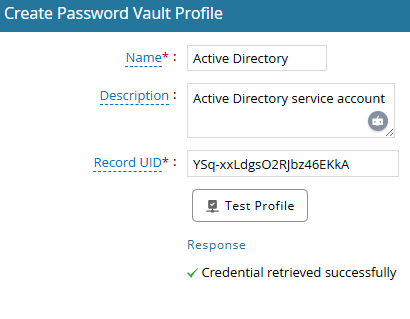
-
The profile appears in the list. The Identifier column shows the Record UID.

-
Repeat for each account that requires Keeper password retrieval.
-
In G&L, open the collector or connector configuration, locate Use Password Vault, select the profile, click Test, and save.
Known Limitations
-
Records are accessed by UID, not by title. Record UIDs are permanent and do not change if a record is renamed or moved. If a record is deleted and recreated, its UID changes and the vault profile must be updated.
-
The KSM application must have access to the record's Shared Folder. If the record is moved out of the shared folder that the KSM application can access, credential retrieval will fail. Verify folder membership in Keeper Vault under Secrets Manager > application > Folders and Records.
Troubleshooting
Connection Errors
- Root Cause: Hostname region mismatch, incorrect vault configuration values from
keeper.ini, or deactivated KSM application. - Resolution:
- Verify that all six vault configuration fields match the values in
keeper.iniexactly. - Confirm the Hostname matches your Keeper region (for example,
keepersecurity.comorkeepersecurity.eu). - Verify that the KSM application is active and has not been deleted in Keeper Vault.
- Verify that all six vault configuration fields match the values in
Record Not Found
- Root Cause: Invalid Record UID in the vault profile, or the record resides outside the KSM application shared folder.
- Resolution:
- Confirm the Record UID in the vault profile matches the 22-character UID in Keeper.
- Verify the record is inside a Shared Folder that the KSM application has permission to access.
- In Keeper Vault, navigate to Secrets Manager → Folders and Records and verify the folder is listed with a record count greater than zero.
Access Denied Errors
- Root Cause: Insufficient permissions on the shared folder or the target record was moved or deleted.
- Resolution:
- Verify the KSM application has Read Only access granted to the shared folder.
- Confirm the shared folder contains the target record and has not been removed.
References
Keeper Security Documentation
- Keeper Secrets Manager Overview: Architecture, zero-knowledge encryption, and access controls.
- Keeper Secrets Manager CLI: Initializing profiles and exchanging one-time access tokens.
- Keeper Secrets Manager Java SDK: Record retrieval methods and caching controls.
- Keeper Security Regions and URLs: Regional API endpoints and hostnames.