Active Directory

 Active Directory (AD) is a Microsoft directory service that manages network
resources efficiently. It centralizes authentication, authorization, and network
management tasks, providing a unified environment for user and computer management.
AD simplifies IT administration, enhances security through access controls,
and facilitates seamless communication across a network, making it a crucial
component for enterprise environments. |
Prerequisites
Before configuring this connector, create a service account in Active Directory and grant it the appropriate permissions for provisioning.
The AFX Active Directory connector creates, updates, and deletes user accounts and manages group membership. The service account used by this connector requires read/write access to Active Directory.
See Scenario 2: Read/Write Service Account in the Active Directory Service Account guide.
Connector Settings
Steps
- Login to RSA Identity G&L console as System Administrator.
- Navigate to AFX > Connectors.
- Click on Create Connector and select the Active Directory connector template.
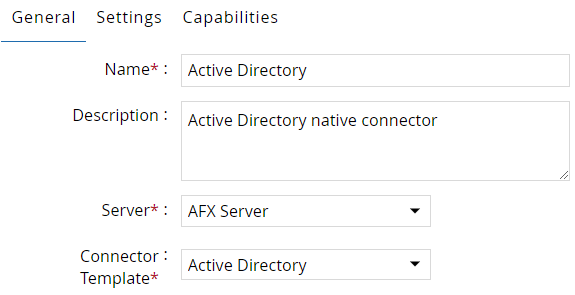
- Enter the details as shown below under General tab.
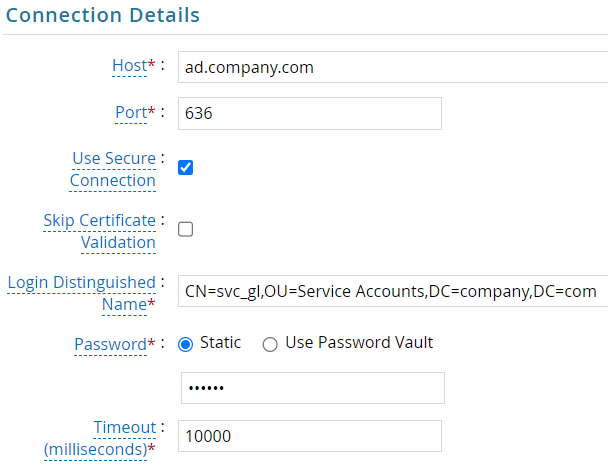
- Click on the Settings tab and enter the required connection details.
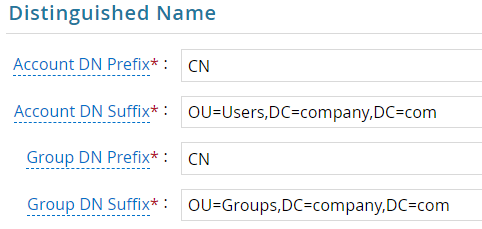
- Provide the DN settings as show below. The Account DN Suffix and Group DN Suffix are the default locations for accounts and groups respectively.
- If Create Account verb with dynamic OU placement is required, DN Suffix Mappings1 can be configured as show below. In the example below,
USis the country code from HR source andOU=US,OU=Users,DC=company,DC=comis the desired OU for account placement.1️⃣.
- Click OK.
- Verify the settings using Test Connector Settings option.
Supported Verbs
Create an Account
Steps
- Edit the connector and navigate to Capabilities tab.
- Click on Create an Account and configure as shown below.
Command Input Parameters
| Parameter | * | Display Name | Mapping | Description |
|---|---|---|---|---|
| Account | ✔️ | Account Name | ${AccountTemplate.Name} | Full distinguished name |
| sAMAccountName | ✔️ | sAMAccountName | ${AccountTemplate.Name} | Logon name used to support clients and servers running earlier versions of the operating system, such as Windows NT 4.0, Windows 95, Windows 98, and LAN Manager |
| CN | ✔️ | Common Name | ${AccountTemplate.CN} | Name that represents an object. It is used to perform searches |
| sn | ✔️ | Last Name | ${AccountTemplate.LastName} | Surname of a person |
| givenName | ✔️ | First Name | ${AccountTemplate.FirstName} | A given name of a person |
| Email Address | ${AccountTemplate.Email} | Simple SMTP address of a person | ||
| Password | ✔️ 🔒 | Initial Account Password | ${AccountTemplate.Password} | Password which is required for login |
| userAccountControl | User Account Control(UAC) | NORMAL_ACCOUNT | User Account Control(UAC) Value | |
| displayName | Display Name | ${AccountTemplate.LastName}, ${AccountTemplate.FirstName} | The display name for the user | |
| userPrincipalName | User Principal Name | ${AccountTemplate.UPN} | User Logon Name |
🔒 = Encrypted ✔️ = Required
Below are some additional input parameters that are required in special situations.
| Parameter | Description |
|---|---|
AFX_DN_Suffix_Key1 | Set this value of the HR attribute(s) or any other key that will identify the OU where the user account will be created. When configured, if no match is found the account will be created in the default OU configured in the connector. Refer to DN Suffix Mappings in the connection settings. If country is the key for picking OU, the mapping will look something like this ${AccountTemplate.Country} 1️⃣ |
Command Output Parameters
| Parameter Name | Display Name | Mapping | Description |
|---|---|---|---|
| distinguishedName | Distinguished Name | Account.External_ID | A distinguished name (DN) is a LDAP entry that uniquely identifies and describes an entry in a directory |
Using output parameters is crucial when certain values are unknown before the
process begins. In this specific scenario, where the Organizational Unit (OU)
is not known in advance, capturing the distinguishedName as an output
parameter is essential. distinguishedName becomes vital for subsequent
operations, such as Add Account to Group.
Additional Use Cases
🟠 Dynamic DN
During the account creation the account can be placed in specific Organizational Units (OU) dynamically based on one or more attributes from the HR sources or key passed through account template.
Examples
- Place users in OUs based on country code from HR system.
- Place users in OUs based on the department and office location attributes collected from HCM.
Solution
- Add DN Suffix Mappings in the Settings tab.
- Add
AFX_DN_Suffix_Key1 to the Create Account verb. - Read the
distinguishedNameoutput parameter in the Create Account verb.
Items marked by 1️⃣ in this guide are related to this use case.
🟠 Change Password on First Logon
When creating a new account, it may be necessary for users to change their password during their initial login. This can be accomplished by configuring specific input parameters within the Create Account verb.
The input parameters required are as follows:
| Parameter | Description |
|---|---|
_AFX_FORCE_REGISTER_USER_CHANGE_PWD | - When it is set to 0, the pwdLastSet attribute of the new account will be set to the date/time when the account is created (i.e. the user does not have to set the password at the next logon). - When it is set to 1, the pwdLastSet attribute of the new account will be set to 0 (i.e. the user must set the password at the next logon). |
pwdLastSet | Setting to 0 along with userAccountControl to NORMAL_ACCOUNT,PASSWORD_EXPIRED will set the User must change password at next logon on the Active Directory account. This attribute stores the value of the date and time when the user's password was last changed in Windows NT. This is an alternative solution to setting _AFX_FORCE_REGISTER_USER_CHANGE_PWD |
Add Account to Group
Steps
- Edit the connector and navigate to Capabilities tab.
- Click on Create an Account and configure as shown below.
Command Input Parameters
| Parameter | * | Display Name | Mapping | Description |
|---|---|---|---|---|
| User2 | ✔️ | Account DN or Account Name | ${Account.External_Id} | Full distinguished name of user or user name |
| Group2 | ✔️ | Group DN or Group Name | ${Group.External_Id} | Full distinguished name of group or group name |
🔒 = Encrypted ✔️ = Required
- Click OK. 4. Run the Test Connector Capabilities to verify the verb.
Remove Account from Group
Steps
- Edit the connector and navigate to Capabilities tab.
- Click on Create an Account and configure as shown below.
Command Input Parameters
| Parameter | * | Display Name | Mapping | Description |
|---|---|---|---|---|
| User2 | ✔️ | Account DN or Account Name | ${Account.External_Id} | Full distinguished name of user or user name |
| Group2 | ✔️ | Group DN or Group Name | ${Group.External_Id} | Full distinguished name of group or group name |
🔒 = Encrypted ✔️ = Required
- Click OK.
- Run the Test Connector Capabilities to verify the verb.
Create a Group
Steps
- Edit the connector and navigate to Capabilities tab.
- Click on Create a Group and configure as shown below.
Command Input Parameters
| Parameter | * | Display Name | Mapping | Description |
|---|---|---|---|---|
| Group2 | ✔️ | Group DN or Group Name | Full distinguished name of group or group name | |
| CN | ✔️ | Common Name | Name that represents an object. It is used to perform searches | |
| sAMAccountName | sAMAccountName | Logon name used to support clients and servers running earlier versions of the operating system, such as Windows NT 4.0, Windows 95, Windows 98, and LAN Manager | ||
| groupType | ✔️ | Group Type | -2147483646 | Set of flags that define the type and scope of a group. (-2147483646 - Security Group type) |
🔒 = Encrypted ✔️ = Required
- Click OK.
- Run the Test Connector Capabilities to verify the verb.
🔴 🟠 ⚫ ⚪ 🟣 🟢 🟡 🔵
CON004