Okta✓ Verified

 Okta is a cloud-based IAM platform that offers secure user authentication,
SSO, and authorization. It simplifies identity management, access control,
and provisioning for organizations. With Okta, businesses can enhance security,
streamline user experiences, and enable seamless access to applications and
data. It supports multifactor authentication and integrations with various
systems, enabling secure digital transformation and centralized identity management. |
Overview
It is recommended that you review the Okta Collector Guide before proceeding with this connector configuration.
Connector Settings
Steps
- Login to RSA Identity G&L console as System Administrator.
- Navigate to AFX > Connectors.
- Click on Create Connector and select the RESTful Web Service connector template.
- Enter the details as shown below under General tab.

- Click on the Settings tab and enter the required connection details.
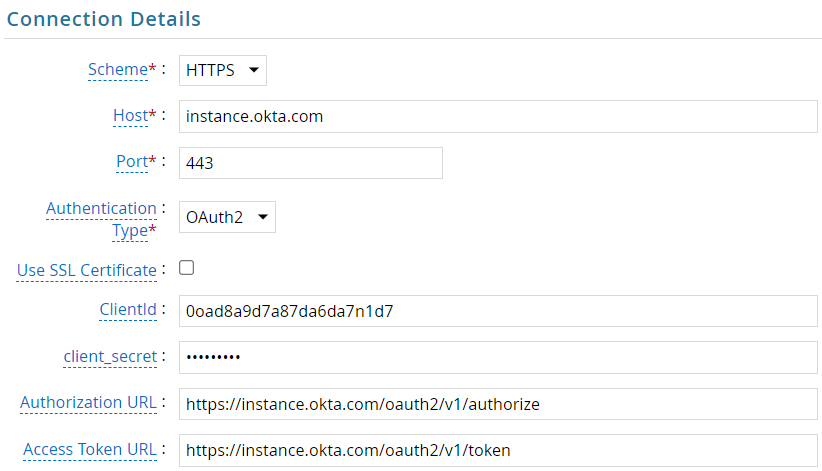
- Click on Add More Parameters.
- Enter the details for
scopeas shown below and click OK.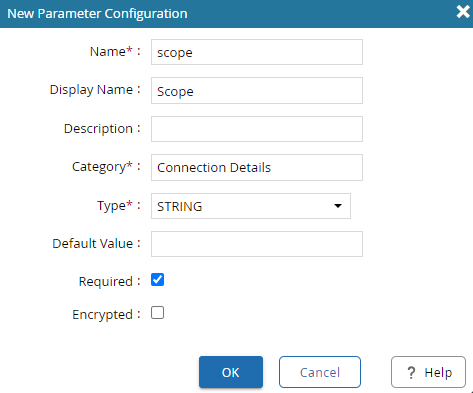
- Provide the
offline_access okta.users.manage okta.groups.managein the Scope field. - Similarly add another parameter
statewith valuersagl. - Click on Get OAuth 2.0 Access Token and authorize.
- Click OK.
Supported Verbs
Create an Account
API Reference: https://developer.okta.com/docs/reference/api/users/#create-user-with-password
Steps
- Edit the connector and navigate to Capabilities tab.
- Click on Create an Account and configure as shown below.
Command Input Parameters
| Parameter Name | Display Name | Mapping | Description | |
|---|---|---|---|---|
| Account | ✔️ | Account Name | ${AccountTemplate.Name} | Unique identifier for the user |
| LastName | ✔️ | Last Name | ${AccountTemplate.LastName} | Family name of the user |
| FirstName | ✔️ | First Name | ${AccountTemplate.FirstName} | Given name of the user |
| Password | ✔️ 🔒 | Initial Account Password | ${AccountTemplate.Password} | Password which is required for login |
| ✔️ | Email Address | ${AccountTemplate.Email} | Primary email address of user | |
| Activate | ✔️ | Activate Account Flag | false | Executes activation lifecycle operation when creating the user |
🔒 = Encrypted ✔️ = Required
| Command Code | |
| Generate SessionToken | |
| Method | POST |
| Path | api/v1/users?activate=${Activate} |
| Request Headers | |
| Content-Type | application/json |
| Accept | application/json |
| Authorization | Bearer ${Settings.access_token} |
| Request Body | |
| |
| Status Code | |
| Expression Type | Status Code |
| Pattern | |
| ^[23]\d2$ | 0 |
| ^([45])\d2$ | $1 |
| Brief Response | |
| Expression Type | Json Path |
| Expression | message |
| Detailed Response | |
| Expression Type | Json Path |
| Expression | |
| Status Code | |
| Expression Type | Json Path |
| Expression | |
| Content | |
| Expression Type | Json Path |
| Expression | |
| Message | |
| Expression Type | Json Path |
| Expression | |
| Detail | |
| Expression Type | Json Path |
| Expression | |
- Click OK.
- Run the Test Connector Capabilities to verify the verb.
Add Account to Group
API Reference: https://developer.okta.com/docs/reference/api/groups/#add-user-to-group
Steps
- Edit the connector and navigate to Capabilities tab.
- Click on Add Account to Group and configure as shown below.
The API call does not require a request body nor does it return a response (HTTP/1.1 204 No Content). To fulfill the connector requirements, the body must contain
{}andAcceptheader must be set to*/*.
Command Input Parameters
| Parameter Name | Display Name | Mapping | Description | |
|---|---|---|---|---|
| AccountId | ✔️ | Account ID | ${Account.External_Id} | Unique identifier for the user |
| GroupId | ✔️ | Group ID | ${Group.External_Id} | Unique identifier for the group |
🔒 = Encrypted ✔️ = Required
| Command Code | |
| Generate SessionToken | |
| Method | PUT |
| Path | api/v1/groups/${Group}/users/${Account} |
| Request Headers | |
| Content-Type | application/json |
| Accept | */* |
| Authorization | Bearer ${Settings.access_token} |
| Request Body | |
| |
| Status Code | |
| Expression Type | Status Code |
| Pattern | |
| ^[23]\d2$ | 0 |
| ^([45])\d2$ | $1 |
| Brief Response | |
| Expression Type | Json Path |
| Expression | message |
| Detailed Response | |
| Expression Type | Json Path |
| Expression | |
- Click OK. 4. Run the Test Connector Capabilities to verify the verb.
Remove Account from Group
API Reference: https://developer.okta.com/docs/reference/api/groups/#remove-user-from-group
Steps
- Edit the connector and navigate to Capabilities tab.
- Click on Remove Account from Group and configure as shown below.
The API call does not require a request body nor does it return a response (HTTP/1.1 204 No Content). To fulfill the connector requirements, the body must contain
{}andAcceptheader must be set to*/*.
Command Input Parameters
| Parameter Name | Display Name | Mapping | Description | |
|---|---|---|---|---|
| AccountId | ✔️ | Account ID | ${Account.External_Id} | Unique identifier for the user |
| GroupId | ✔️ | Group ID | ${Group.External_Id} | Unique identifier for the group |
🔒 = Encrypted ✔️ = Required
| Command Code | |
| Generate SessionToken | |
| Method | DELETE |
| Path | api/v1/groups/${Group}/users/${Account} |
| Request Headers | |
| Content-Type | application/json |
| Accept | */* |
| Authorization | Bearer ${Settings.access_token} |
| Request Body | |
| |
| Status Code | |
| Expression Type | Status Code |
| Pattern | |
| ^[23]\d2$ | 0 |
| ^([45])\d2$ | $1 |
| Brief Response | |
| Expression Type | Json Path |
| Expression | message |
| Detailed Response | |
| Expression Type | Json Path |
| Expression | |
- Click OK. 4. Run the Test Connector Capabilities to verify the verb.
Disable an Account
API Reference: https://developer.okta.com/docs/reference/api/users/#deactivate-user
Steps
- Edit the connector and navigate to Capabilities tab.
- Click on Enable an Account and configure as shown below.
The API call does not require a request body nor does it return a response (HTTP/1.1 204 No Content). To fulfill the connector requirements, the body must contain
{}andAcceptheader must be set to*/*.
Command Input Parameters
| Parameter Name | Display Name | Mapping | Description | |
|---|---|---|---|---|
| AccountId | ✔️ | Account ID | ${Account.External_Id} | Unique identifier for the user |
🔒 = Encrypted ✔️ = Required
| Command Code | |
| Generate SessionToken | |
| Method | POST |
| Path | api/v1/users/${Account}/lifecycle/deactivate |
| Request Headers | |
| Content-Type | application/json |
| Accept | */* |
| Authorization | Bearer ${Settings.access_token} |
| Request Body | |
| |
| Status Code | |
| Expression Type | Status Code |
| Pattern | |
| ^[23]\d2$ | 0 |
| ^([45])\d2$ | $1 |
| Brief Response | |
| Expression Type | Status Code |
| Pattern | |
| SUCCESS | Shouldn't match |
| SUCCESS | Success |
| (.*) | Failed ($1) |
| Detailed Response | |
| Expression Type | Json Path |
| Expression | |
| Pattern | |
| (.*) | Details: $1 |
- Click OK. 4. Run the Test Connector Capabilities to verify the verb.