Okta✓ Verified

 Okta is a cloud-based IAM platform that offers secure user authentication, SSO, and authorization. It simplifies identity management, access control, and provisioning for organizations. With Okta, businesses can enhance security, streamline user experiences, and enable seamless access to applications and data. It supports multifactor authentication and integrations with various systems, enabling secure digital transformation and centralized identity management. Okta is a cloud-based IAM platform that offers secure user authentication, SSO, and authorization. It simplifies identity management, access control, and provisioning for organizations. With Okta, businesses can enhance security, streamline user experiences, and enable seamless access to applications and data. It supports multifactor authentication and integrations with various systems, enabling secure digital transformation and centralized identity management.Identities ❌ | Accounts ✔️ | Groups ✔️ | App Roles ✔️ | Entitlements ❌ |
Users - Okta allows you to create and manage user accounts, including attributes like name, email, and profile information. Users can be assigned to various groups and roles.
Groups - Okta enables the creation of groups to organize users based on common attributes or roles. Groups help streamline user management and permissions assignment.
Group Members - Okta allows you to add users as members of specific groups. This helps control access to resources and streamline user provisioning and management.
Roles - Okta supports the definition and assignment of roles. Roles represent a collection of permissions or access privileges that can be granted to users or groups.
Role Members - Okta enables the assignment of users or groups as members of specific roles. This allows for fine-grained access control and authorization based on role-based permissions.
Application
Steps
- Login to RSA G&L console as System Administrator.
- Navigate to Resources > Application.
- Click on Create Application and select Other Application.
- Enter the details as shown below.
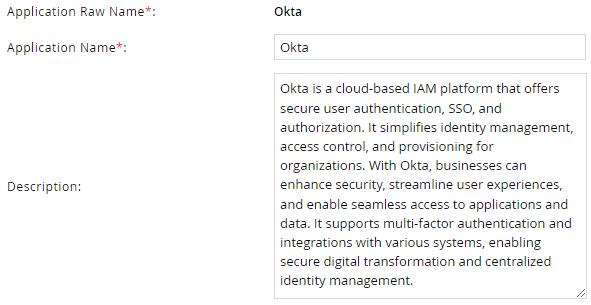
- Click Finish.
Account Collector
This section explains the process for configuring an account collector for the Okta application. We will use the RSA G&L Generic REST collector for this purpose.
Steps
- Login to RSA G&L console as System Administrator.
- Navigate to Resources > Applications.
- Click on Okta.
- Navigate to Collectors tab and click on Create Account Collector. Enter the details as shown below.

- Click Next and enter the connection details.
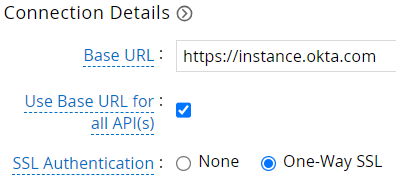
- Click Next. Select the data types that the collector will be collecting from Okta

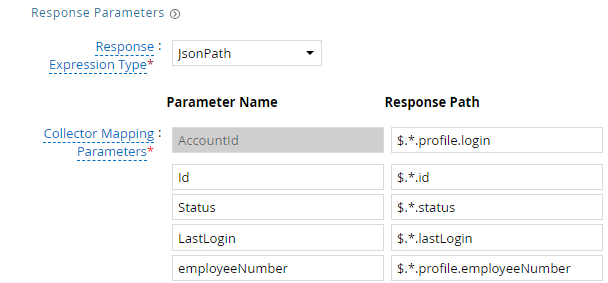
- Click Next. On the Account Data page, enter the following configurations.
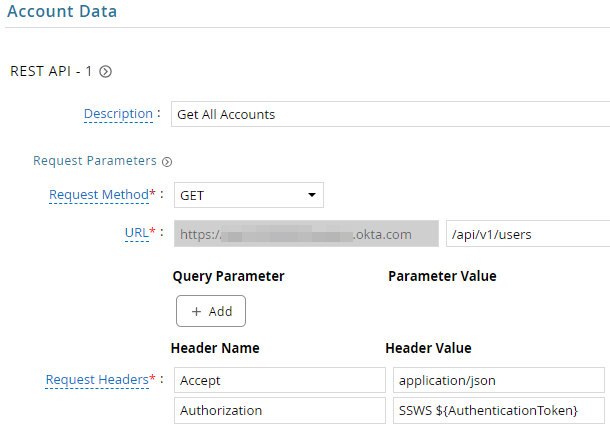
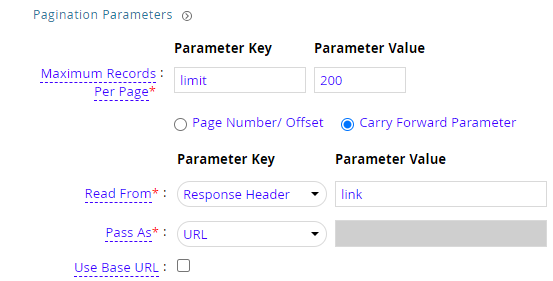
Okta uses RFC-8288 (Web Linking) based Pagination model.
For use with filter query parameter in the API call below.
| Account Status | Description |
|---|---|
| ACTIVE | This status indicates that the user account is currently active and can access resources within the system. |
| PROVISIONED | Users with this status have been provisioned into the system but may not have completed their activation process. They typically need to perform additional steps to fully activate their account. |
| PASSWORD_EXPIRED | Users with this status typically need to reset their password before they can log in again. Their current password has expired, and they must create a new one to regain access. |
| SUSPENDED | Suspended users have had their access temporarily revoked. They cannot log in or access resources until their suspension is lifted. |
| LOCKED_OUT | This status indicates that the user's account has been locked due to multiple failed login attempts. Locked-out users cannot log in until their account is unlocked by an administrator or until a certain amount of time has passed. |
| Request | |
| Method | GET |
| URL | /api/v1/users |
| Query Parameters | |
| filter | status eq "ACTIVE" (Optional) |
| Request Headers | |
| Accept | application/json |
| Authorization | SSWS ${AuthenticationToken} (if using Okta-propriety SSWS API token authentication scheme)Bearer ${AuthenticationToken} (if using OAuth2 authentication scheme) |
| Response Mappings | |
| AccountId | $.*.profile.login |
| Id | $.*.id |
| Status | $.*.status |
| LastLogin | $.*.lastLogin |
| EmployeeNumber | $.*.profile.employeeNumber |
| StatusChanged | $.*.statusChanged |
$.*.profile.email | |
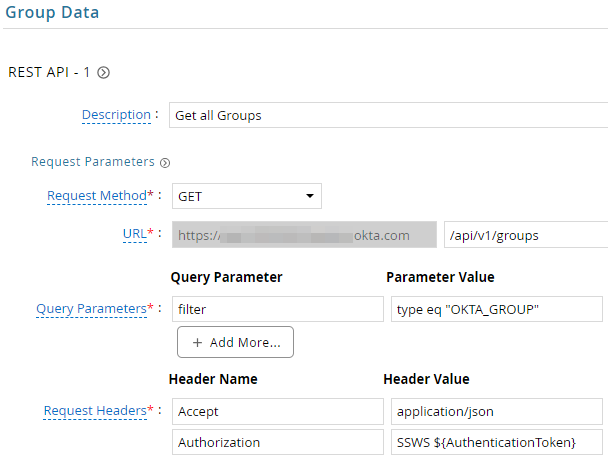
- Click Next. On the Group Data page, enter the following configurations.
For use with filter query parameter in the API call below.
| Group Type | Description |
|---|---|
| OKTA_GROUP | Group Profile and memberships are directly managed in Okta via static assignments or indirectly through Group rules. |
| APP_GROUP | Group Profile and memberships are imported and must be managed within the application that imported the Group. Active Directory and LDAP Groups also have APP_GROUP type. |
| BUILT_IN | Group Profile and memberships are managed by Okta and can't be modified. |
| Request | |
| Method | GET |
| URL | /api/v1/groups |
| Query Parameters | |
| filter | type eq "OKTA_GROUP" (Optional) |
| Request Headers | |
| Accept | application/json |
| Authorization | SSWS ${AuthenticationToken} (if using Okta-propriety SSWS API token authentication scheme)Bearer ${AuthenticationToken} (if using OAuth2 authentication scheme) |
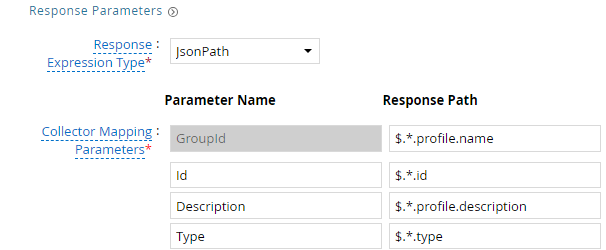
| Response Mappings | |
| GroupId | $.*.profile.name |
| Id | $.*.id |
| Description | $.*.profile.description |
| Type | $.*.type |
- Click Next. On the Account Group Membership page, enter the following configurations.
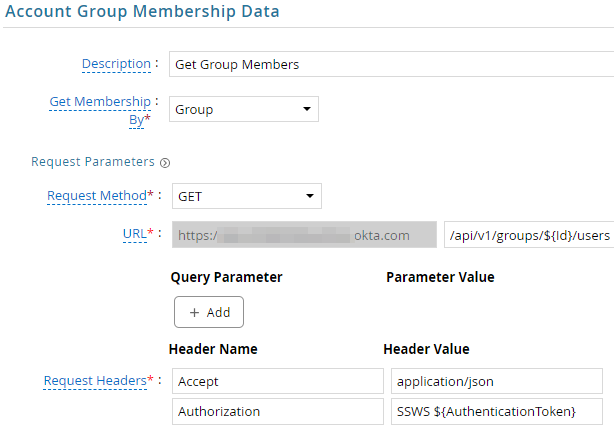

| Request | |
| Method | GET |
| URL | /api/v1/groups/${Id}/users |
| Request Headers | |
| Accept | application/json |
| Authorization | SSWS ${AuthenticationToken} (if using Okta-propriety SSWS API token authentication scheme)Bearer ${AuthenticationToken} (if using OAuth2 authentication scheme) |
| Response Mappings | |
| AccountId | $.*.profile.login |
- Click Next. In the Map Collector Attributes to Account Attributes, map the collected account attributes.
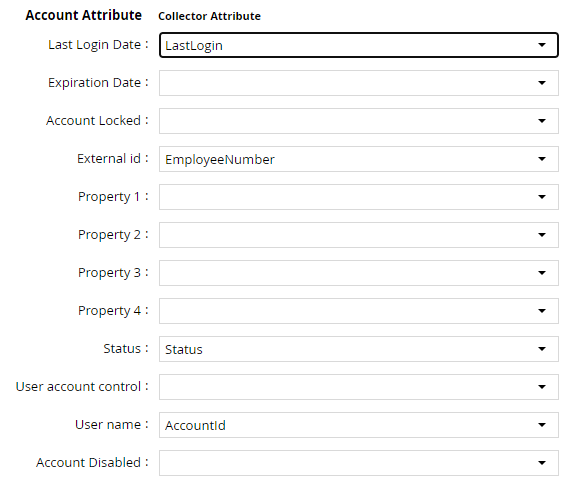
- Click Next. In the Map Collector Attributes to Group Attributes, map the collected group attributes.

- Click Next. In the Map Collector Attributes to Group Attributes, map the collected group attributes.

- Click Next. In the User Resolution Rules, map the user to account.

- Click Next. In the Member Account Resolution Rules, map the account attribute.

- Click Finish. Use the
Testfunction to make sure the configurations are accurate.
Entitlement Collector
This section explains the process for configuring an entitlement collector to collect applications from Okta. We will use the RSA G&L Generic REST collector for this purpose.
Steps
- Login to RSA G&L console as AveksaAdmin.
- Navigate to Resources > Applications.
- Click on Okta.
- Navigate to Collectors tab and click on Create Entitlement Collector. Enter the details as shown below.
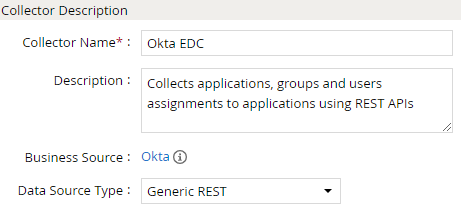
- Click Next and enter the connection details as shown in Step 5 of Account Collector.
- Click Next. Select the data types that the collector will be collecting from Okta.

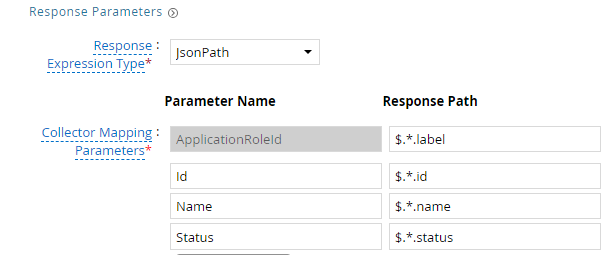
- Click Next. On the App Role Data page, enter the following configurations.
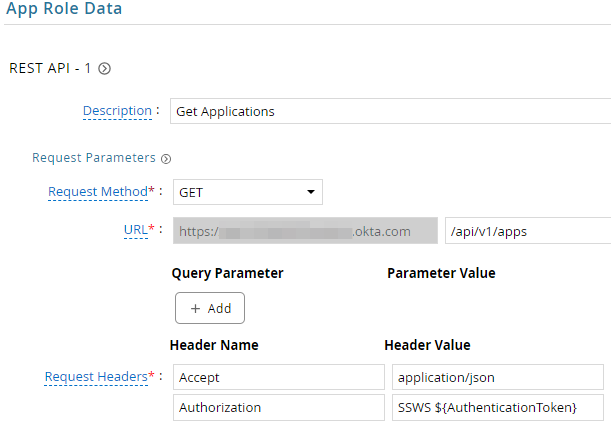
| Request | |
| Method | GET |
| URL | /api/v1/apps |
| Request Headers | |
| Accept | application/json |
| Authorization | SSWS ${AuthenticationToken} (if using Okta-propriety SSWS API token authentication scheme)Bearer ${AuthenticationToken} (if using OAuth2 authentication scheme) |
| Response Mappings | |
| ApplicationRoleId | $.*.label |
| Id | $.*.id |
| Name | $.*.name |
| Status | $.*.status |
- Click Next. On the App-Role Account Membership collection page, enter the following configurations.
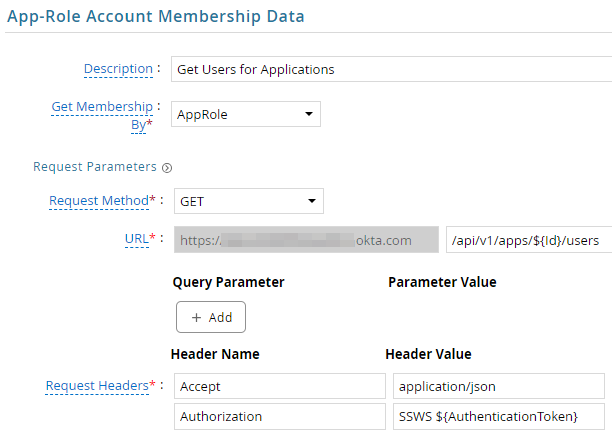

| Request | |
| Method | GET |
| URL | /api/v1/apps/${Id}/users |
| Request Headers | |
| Accept | application/json |
| Authorization | SSWS ${AuthenticationToken} (if using Okta-propriety SSWS API token authentication scheme)Bearer ${AuthenticationToken} (if using OAuth2 authentication scheme) |
| Response Mappings | |
| Account Identifier | $.*.id |
- Click Next. On the App-Role Group Membership collection page, enter the following configurations.
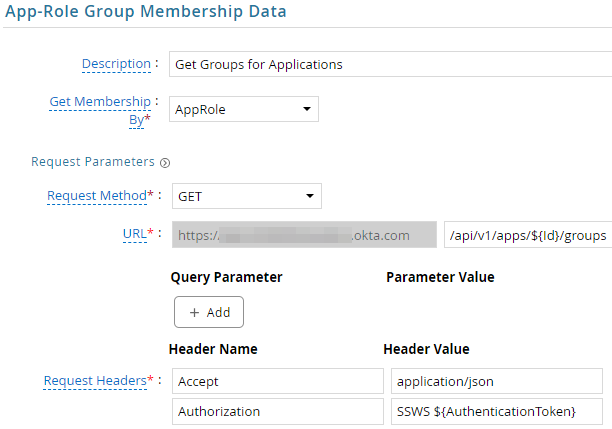

| Request | |
| Method | GET |
| URL | /api/v1/apps/${Id}/groups |
| Request Headers | |
| Accept | application/json |
| Authorization | SSWS ${AuthenticationToken} (if using Okta-propriety SSWS API token authentication scheme)Bearer ${AuthenticationToken} (if using OAuth2 authentication scheme) |
| Response Mappings | |
| Group Identifier | $.value.*.memberName |
- Click Next. In the Map Collector Attributes to App Role Attributes, map the collected account attributes.
- Click Next. In the Account Evaluation, map the account collector to account value.

- Click Next. In the Group Evaluation, map the account collector to group value.

- Click Next and then click Finish. Use the
Testfunction to make sure the configurations are accurate.
Authentication
Token
This section explains the process of setting up RSA G&L ADC with token authentication.
Steps
- Login to RSA G&L console as System Administrator.
- Create or Edit a generic REST ADC/EDC that will be using Token authentication.
- On the Connection Details page, configure the following.
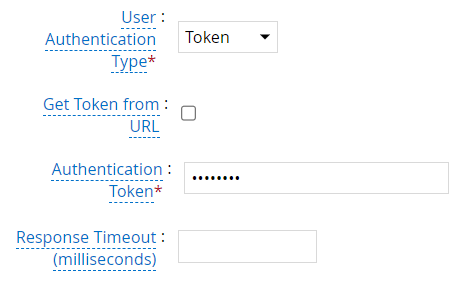
- Save the collector configuration. Use the
Testfunction to make sure the configurations are accurate.
OAuth2
This section explains the process of setting up RSA G&L ADC and EDC to acquire the OAuth2 token dynamically from Okta.
Steps
- Login to RSA G&L console as System Administrator.
- Create or Edit a generic REST ADC/EDC that will be using OAuth2 authentication.
- On the Connection Details page, configure the following.
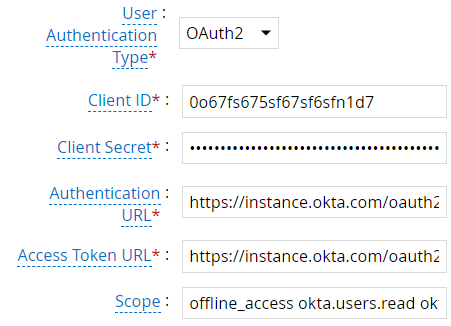
| Request | |
| Client ID | CLIENT_ID |
| Client Secret | CLIENT_SECRET |
| Authentication URL | https://instance.okta.com/oauth2/v1/authorize |
| Access Token URL | https://instance.okta.com/oauth2/v1/token |
| Scope | offline_access - Requests a refresh token used to obtain more access tokens.okta.users.read - Allows the app to read the existing users' profiles and credentials.okta.roles.read - Allows the app to read administrative role assignments for users.okta.groups.read - Allows the app to read information about groups and their members.&state=rsagl must be added at the end of the scope |
- Click on Get OAuth 2.0 Access Token.
- Click on Proceed For Authorization.

- Login to Okta account.
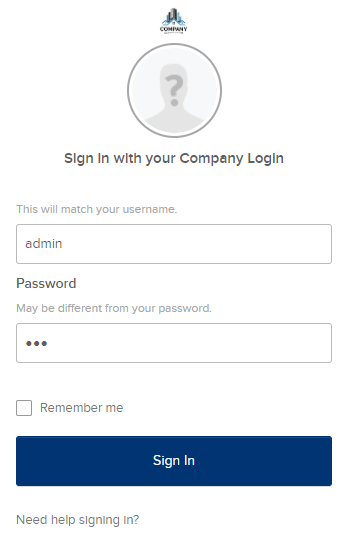
- The below message indicates that RSA G&L has successfully acquired a token.

- Click Close.
- Save the collector configuration. Use the
Testfunction to make sure the configurations are accurate.
Application Setup
This section explains the process of setting up a service account in Okta for use within the collections process.
Steps
- Login to Okta dashboard, https://instance.okta.com/admin/dashboard.
- From the main menu, navigate to Security > API.
- Under Tokens tab, click on Create token button.
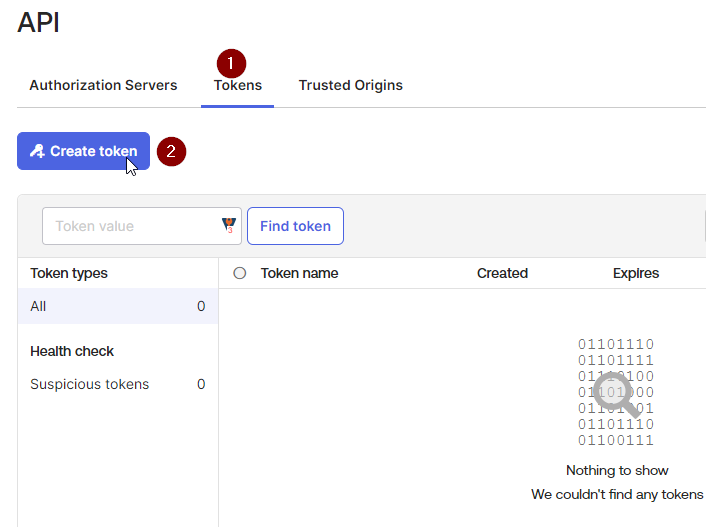
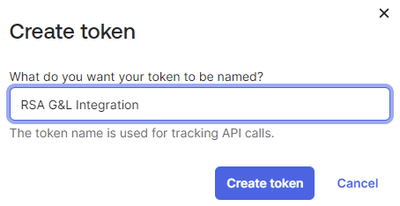
- Provide a suitable name and click Create token.
- Copy the token and retain it for use with G&L.
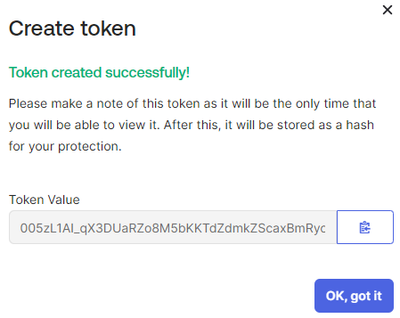
- Click OK.
References
COL011