Zendesk✓ Verified
· 6 min read

 Zendesk is a customer support platform that streamlines interactions between businesses and their customers. It offers ticket management, knowledge base, live chat, and more, empowering organizations to deliver exceptional support experiences. With user-friendly features, Zendesk enhances customer communication and issue resolution, ultimately fostering strong relationships and improving customer satisfaction. Zendesk is a customer support platform that streamlines interactions between businesses and their customers. It offers ticket management, knowledge base, live chat, and more, empowering organizations to deliver exceptional support experiences. With user-friendly features, Zendesk enhances customer communication and issue resolution, ultimately fostering strong relationships and improving customer satisfaction.Identities ❌ | Accounts ✔️ | Groups ✔️ | App Roles ❌ | Entitlements ❌ |
Application
Steps
- Login to RSA G&L console as System Administrator.
- Navigate to Resources > Application.
- Click on Create Application and select Other Application.
- Enter the details as shown below.
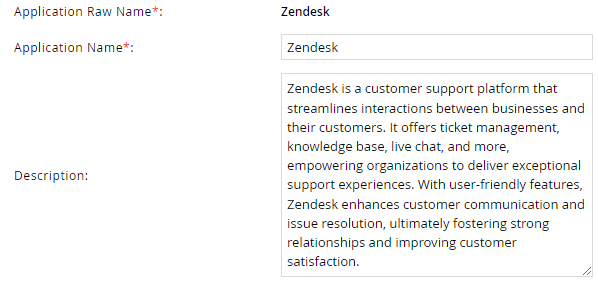
- Click Finish.
Account Collector
This section explains the process for configuring an account collector for the Zendesk application. We will use the RSA G&L Generic REST collector for this purpose.
Steps
- Login to RSA G&L console as System Administrator.
- Navigate to Resources > Applications.
- Click on Zendesk.
- Navigate to Collectors tab and click on Create Account Collector. Enter the details as shown below.
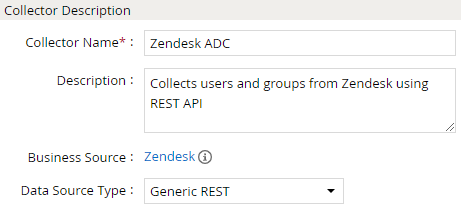
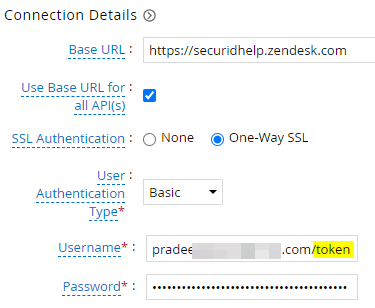
- Click Next and enter the connection details.Since we are using Token Access method for authentication, the collector will use Basic authentication type.
info
The service account email address needs to be prefixed with /token and password will be the API token.
Refer to Security and authentication : API Token for more information
- Click Next. Select the data types that the collector will be collecting from Zendesk

- Click Next. On the Account Data page, enter the following configurations.
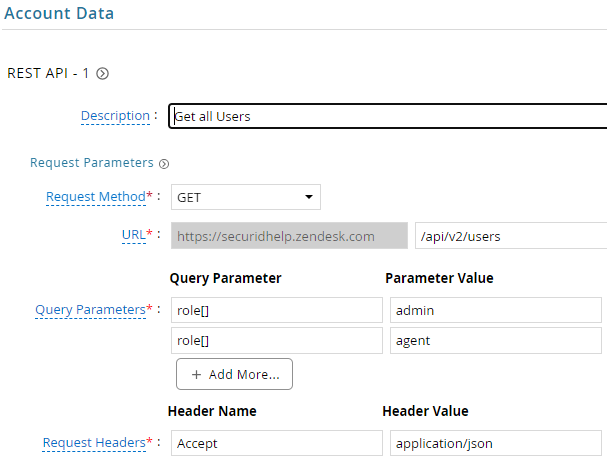
Pagination - Offset Method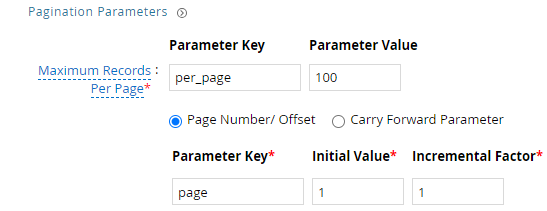
Pagination - Cursor Method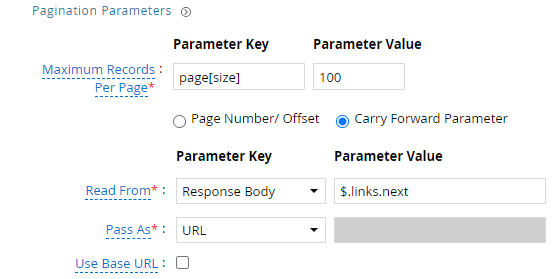
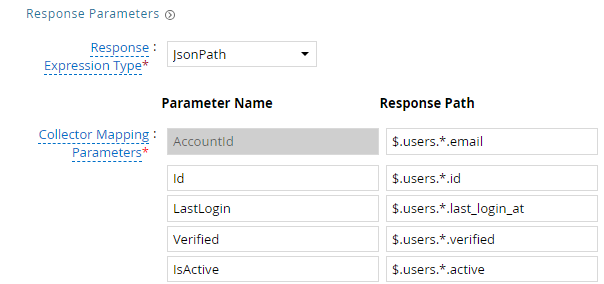
| Request | |
| Method | GET |
| URL | /api/v2/users |
| Query Parameters | |
| role[] | admin |
| role[] | agent |
| Request Headers | |
| Accept | application/json |
| Response Mappings | |
| AccountId | $.users.*.email |
| Id | $.users.*.id |
| LastLogin | $.users.*.last_login_at |
| Verified | $.users.*.verified |
| IsActive | $.users.*.active |
- Click Next. On the Group Data page, enter the following configurations.
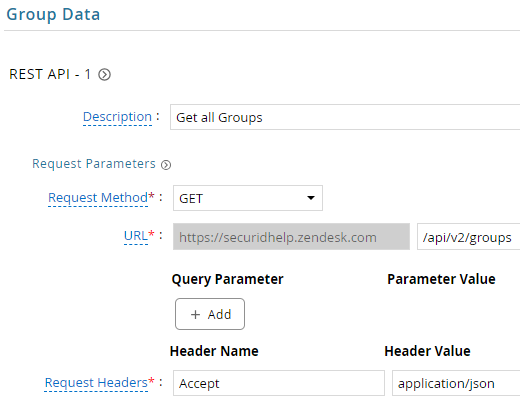
Pagination - Offset Method
Pagination - Cursor Method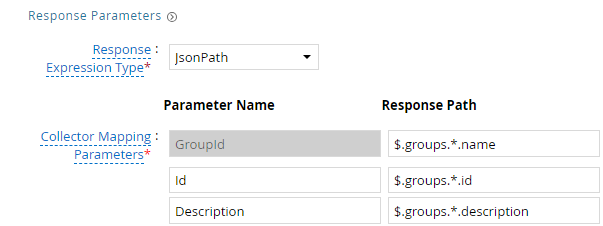
| Request | |
| Method | GET |
| URL | /api/v2/groups |
| Request Headers | |
| Accept | application/json |
| Response Mappings | |
| GroupId | $.groups.*.name |
| Id | $.groups.*.id |
| Description | $.groups.*.description |
- Click Next. On the Account Group Membership page, enter the following configurations.
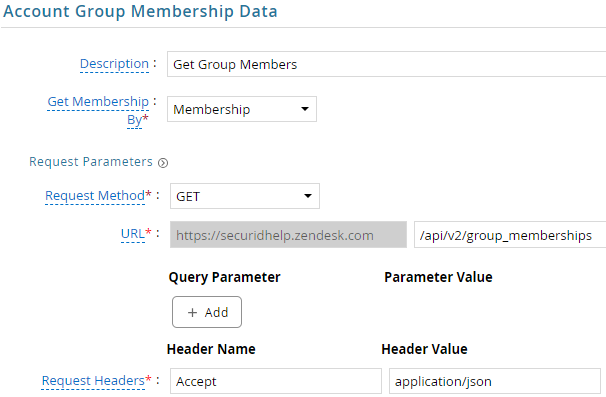

| Request | |
| Method | GET |
| URL | /api/v2/group_memberships |
| Request Headers | |
| Accept | application/json |
| Response Mappings | |
| AccountId | $.*.profile.login |
- Click Next. In the Map Collector Attributes to Account Attributes, map the collected account attributes.
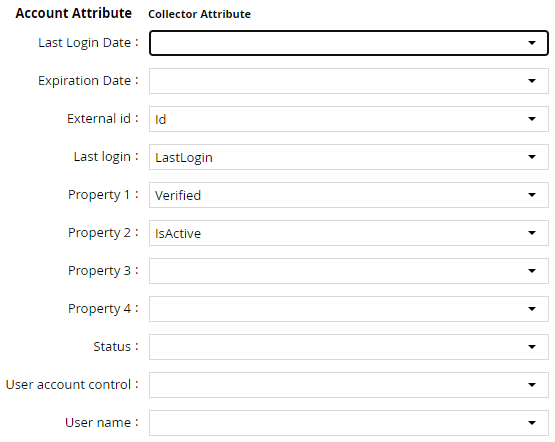
- Click Next. In the Map Collector Attributes to Group Attributes, map the collected group attributes.

- Click Next. In the Map Collector Attributes to Group Attributes, map the collected group attributes.

- Click Next. In the User Resolution Rules, map the user to account.

- Click Next. In the Member Account Resolution Rules, map the account attribute.

- Click Finish. Use the
Testfunction to make sure the configurations are accurate.
Application Setup
This section explains the process of setting up a service account in Zendesk for use within the collections process.
Steps
- Login to Zendesk admin dashboard Apps and integrations > APIs > Zendesk API.
- If you are accessing for the first time, agree to terms and conditions.
- Enable the Token Access.
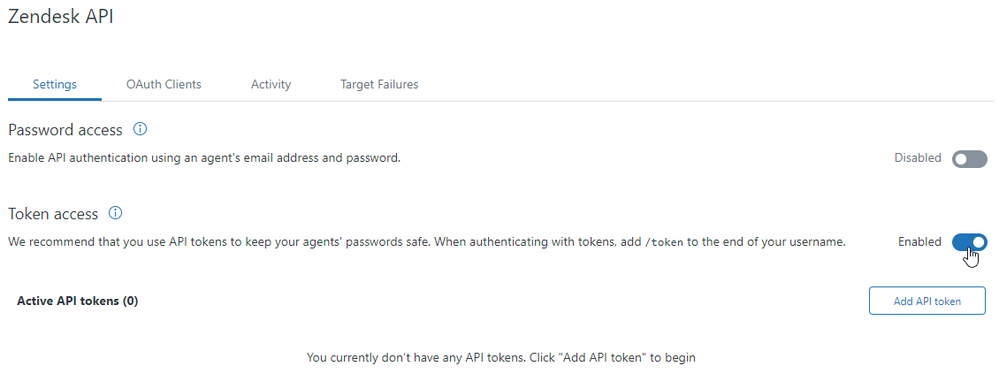
- Click on Add API token.
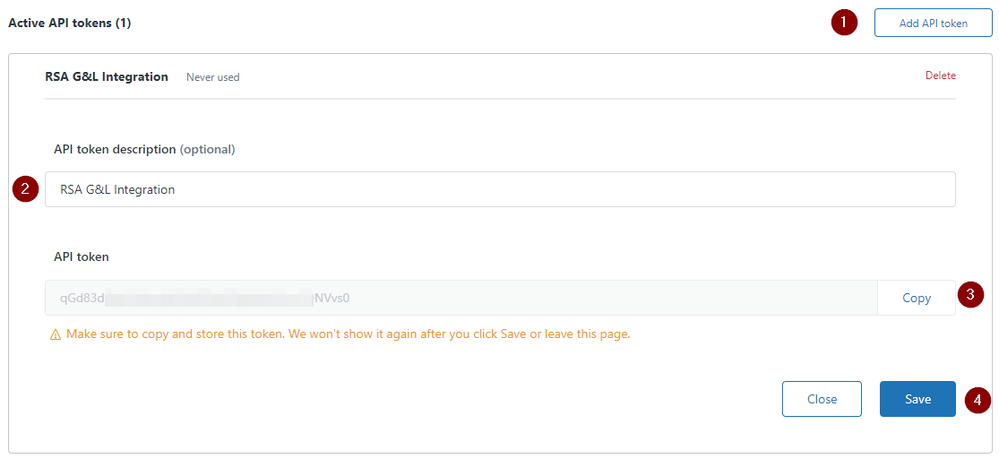
- Provide a suitable name and copy the token for use with G&L.
- Click Save.
COL012