Tableau✓ Verified

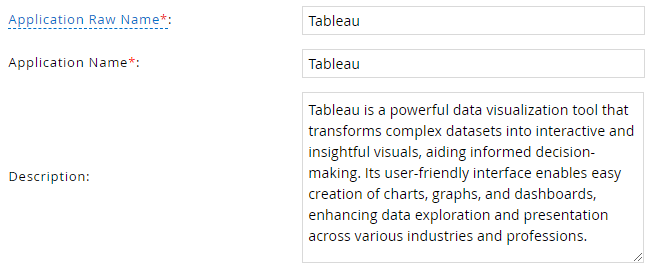
 Tableau is a powerful data visualization tool that transforms complex datasets into interactive and insightful visuals, aiding informed decision-making. Its user-friendly interface enables easy creation of charts, graphs, and dashboards, enhancing data exploration and presentation across various industries and professions. Tableau is a powerful data visualization tool that transforms complex datasets into interactive and insightful visuals, aiding informed decision-making. Its user-friendly interface enables easy creation of charts, graphs, and dashboards, enhancing data exploration and presentation across various industries and professions.Identities ❌ | Accounts ✔️ | Groups ✔️ | App Roles ✔️ | Entitlements ❌ |
In Tableau Cloud, users, groups, and site roles are used to control access to content and features.
Users are individual people who have access to a Tableau Cloud site. Users can be assigned different site roles, which determine what they can do on the site.
Groups are collections of users. Groups can be used to simplify the process of assigning site roles to multiple users.
Site roles define the level of access a user has to a Tableau Cloud site. Site roles include:
- Viewer: Viewers can view published content, but they cannot create or modify content.
- Explorer: Explorers can create and modify content, but they cannot publish content to the site.
- Creator: Creators can create, modify, and publish content to the site.
- Site Administrator Creator: Site Administrator Creators have all the capabilities of Creators, plus the ability to manage the site's users and settings.
- Site Administrator Explorer: Site Administrator Explorers have all the capabilities of Explorers, plus the ability to manage the site's users and settings.
Application
Steps
- Login to RSA G&L console as System Administrator.
- Navigate to Resources > Application.
- Click on Create Application and select Other Application.
- Enter the details as shown below.
- Click Finish.
Account Collector
This section explains the process for configuring an account collector for the Tableau application. We will use the RSA G&L Generic REST collector 1 for this purpose.
Steps
- Login to RSA G&L console as System Administrator.
- Navigate to Resources > Applications.
- Click on Tableau.
- Navigate to Collectors tab and click on Create Account Collector. Enter the details as shown below.

- Click Next and enter the connection details.
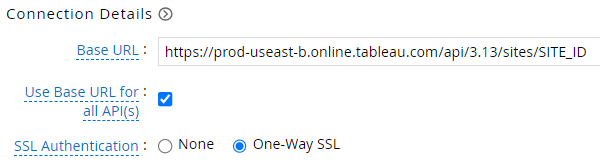
The URL contains the Site ID which can be retrieved from the response to the token authentication request. refer to Site Information - Click Next. Select the data types that the collector will be collecting from Tableau

- Click Next. On the Account Data page, enter the following configurations.
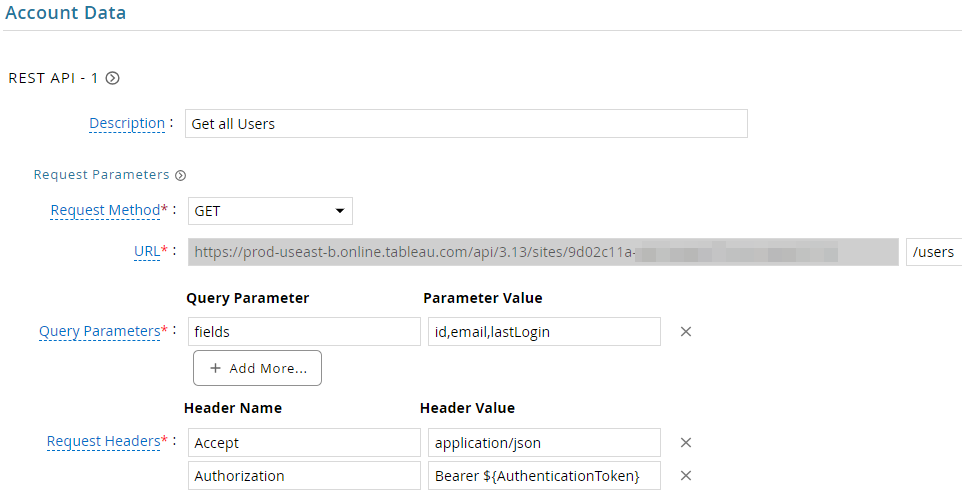
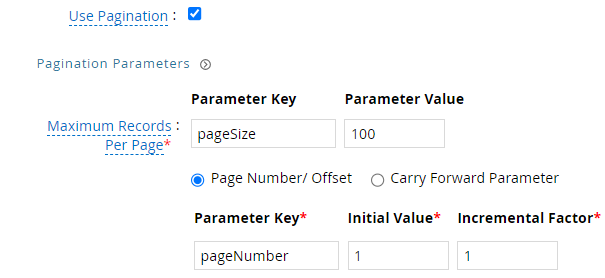
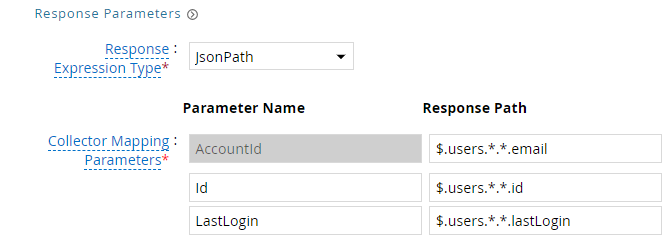
| Request | |
| Method | GET |
| URL | /users |
| Query Parameters | |
| fields | id,email,lastLogin |
| Request Headers | |
| Accept | application/json |
| Authorization | Bearer ${AuthenticationToken} |
| Response Mappings | |
| AccountId | $.users.*.*.email |
| Id | $.users.*.*.id |
| LastLogin | $.users.*.*.lastLogin |
- Click Next. On the Group Data page, enter the following configurations.
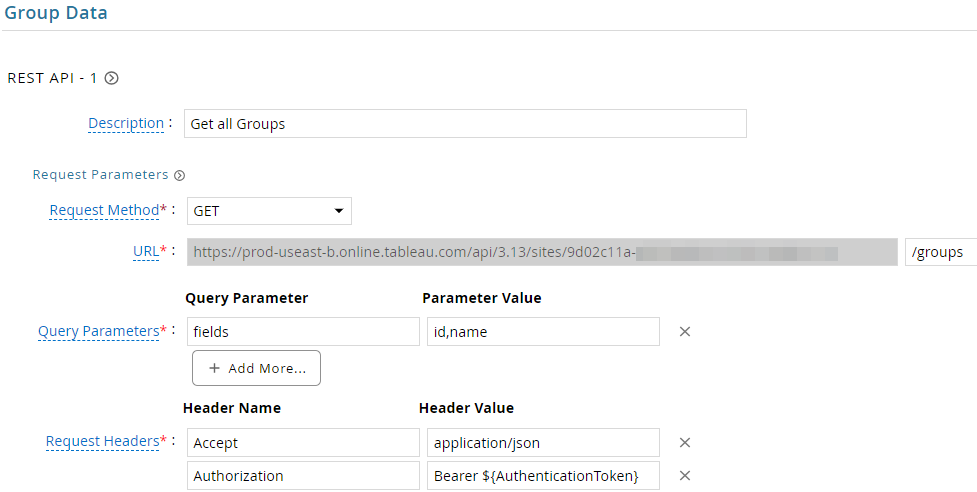
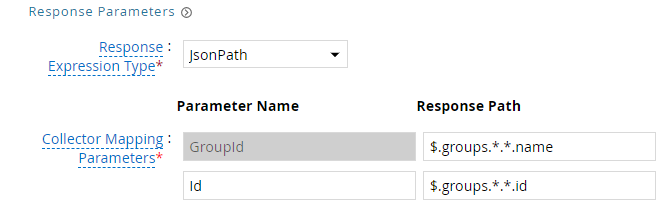
| Request | |
| Method | GET |
| URL | /groups |
| Query Parameters | |
| fields | id,name |
| Request Headers | |
| Accept | application/json |
| Authorization | Bearer ${AuthenticationToken} |
| Response Mappings | |
| GroupId | $.groups.*.*.name |
| Id | $.groups.*.*.id |
- Click Next. On the Account Group Membership page, enter the following configurations.
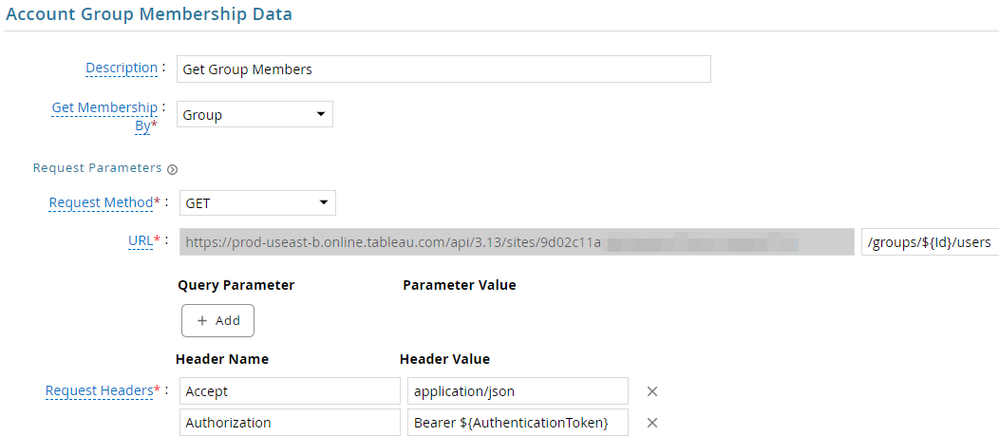

| Request | |
| Method | GET |
| URL | /groups/${Id}/users |
| Request Headers | |
| Accept | application/json |
| Authorization | Bearer ${AuthenticationToken} |
| Response Mappings | |
| Account Identifier | $.users.user.*.id |
- Click Next. In the Map Collector Attributes to Account Attributes, map the collected account attributes.
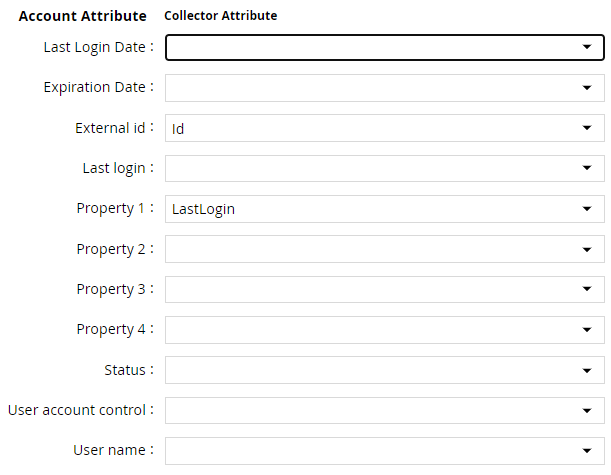
- Click Next. In the Map Collector Attributes to Account Mapping Attributes, map the user reference attribute.

- Click Next. In the Map Collector Attributes to Group Attributes, map the collected group attributes.

- Click Next. In the User Resolution Rules, map the user to account.

- Click Next. In the Member Account Resolution Rules, map the account.

💡 Info: This value MUST always be mapped to the Account Name for any generic REST collector.
- Click Finish. Use the
Testfunction to make sure the configurations are accurate.
Entitlement Collector
Role Members
This section explains the process for configuring an entitlement collector to collect site roles and assignments from the Tableau application. We will use the RSA G&L Generic REST collector for this purpose.
Since Tableau does not provide an API for listing site roles, we will use a custom web service for the EDC. Refer to Custom Web Service : Site Roles for more information.
Steps
- Login to RSA G&L console as AveksaAdmin.
- Navigate to Resources > Applications.
- Click on Tableau.
- Navigate to Collectors tab and click on Create Entitlement Collector. Enter the details as shown below.

- Click Next and enter the connection details as shown in Step 5 of Account Collector. 💡 Note that the Use Base URL for all API(s) will be unchecked.
- Click Next. Select the data types that the collector will be collecting from Tableau.

- Click Next. On the App Role Data page, enter the following configurations.
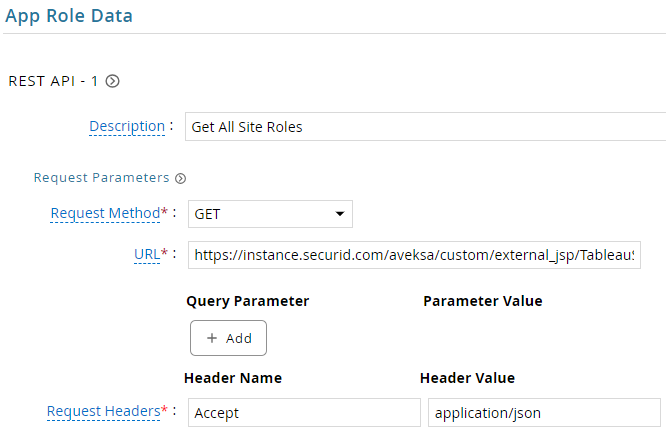
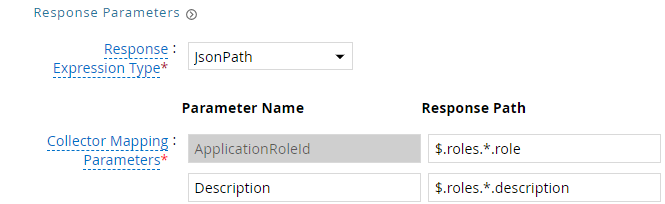
| Request | |
| Method | GET |
| URL | https://instance.securid.com/aveksa/custom/external_jsp/TableauSiteRolesv2.jsp |
| Request Headers | |
| Accept | application/json |
| Response Mappings | |
| ApplicationRoleId | $.roles.*.role |
| Description | $.roles.*.description |
- Click Next. On the App-Role Account Membership collection page, enter the following configurations.
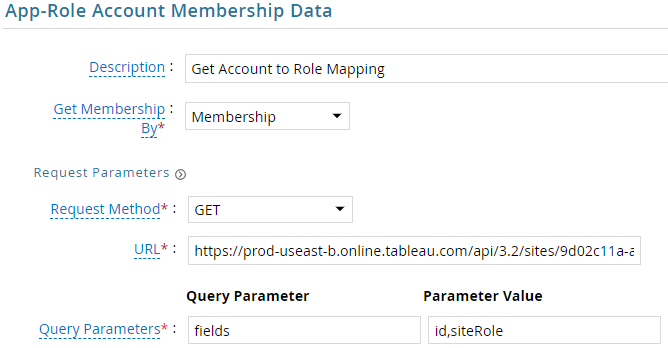
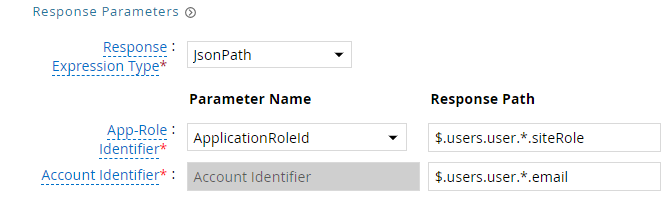
| Request | |
| Method | GET |
| URL | https://instance.online.tableau.com/api/3.2/sites/SITE_ID/users |
| Query Parameters | |
| fields | id,siteRole |
| Request Headers | |
| Accept | application/json |
| Authorization | Bearer ${AuthenticationToken} |
| Response Mappings | |
| Application Role Id | $.users.user.*.siteRole |
| Account Identifier | $.users.user.*.id |
- Click Next. In the Map Collector Attributes to App Role Attributes, map the collected account attributes.

- Click Next. In the Account Evaluation, map the account collector to account value.

- Click Next and then click Finish. Use the
Testfunction to make sure the configurations are accurate.
Application Setup
Personal Access Token
This section explains the process of setting up Personal Access Token (PAT) in Tableau for use within the collections process.
Steps
- Login to Tableau site https://instance.online.tableau.com/#/site/SITE/home.
- By default, Personal Access Token (PAT) is disabled.
- Navigate to Settings in the navigation panel and click on General tab.
- Go to Personal Access Tokens section and enable PAT.
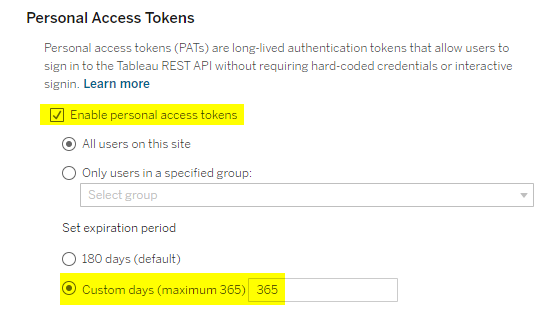
- Navigate to Users in the navigation panel and click on the user whose PAT needs to be generated.

- Click on Settings tab.
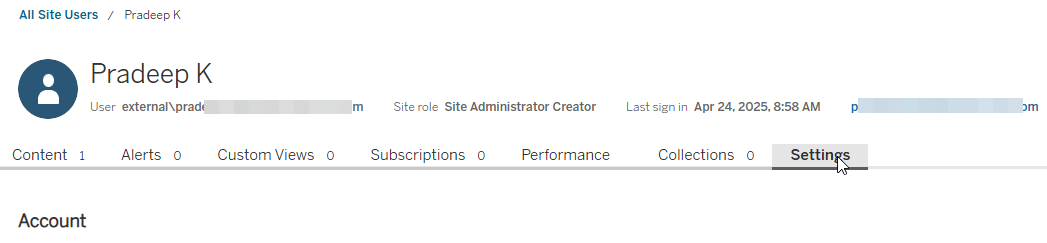
- Go to Personal Access Tokens section. Provide a suitable token name and click Create Token.

- Copy the Secret and click Done.
Site Information
This section explains the process of getting the site information.
Steps
- Install and open Postman.
- Create a new request as shown below and send.
| Request | |
| Method | POST |
| Token URL | https://YOUR_INSTANCE/api/3.25/auth/signin |
| Request Headers | |
| Accept | application/json |
| Request Body | |
| |
| Response | |
| |
- Note the value of the
idundersite
Authentication
Token
This section explains the process of setting up RSA G&L ADC with token authentication.
Steps
- Login to RSA G&L console as System Administrator.
- Create or Edit a generic REST ADC that will be using Token authentication.
- On the Connection Details page, configure the following.
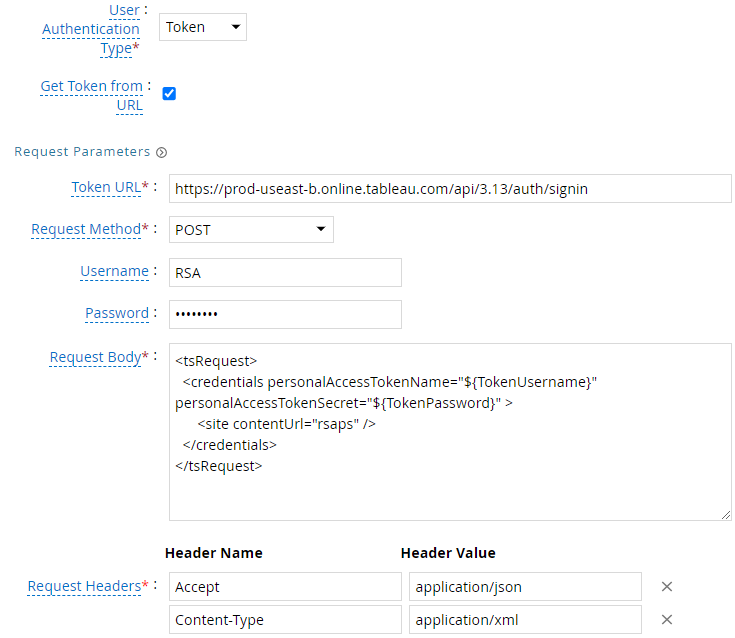

| Request | |
| Method | POST |
| Token URL | https://YOUR_INSTANCE/api/3.25/auth/signin |
| Username | YOUR_PAT_NAME |
| Password | YOUR_PAT |
| Request Headers | |
| Accept | application/json |
| Content-Type | application/json |
| Request Body | |
| |
| Response Mappings | |
| Response Path | $.credentials.token |
- Save the collector configuration & test.
Custom Web Service
Site Roles
Since Tableau does not provide an API for listing site roles, we will use a custom JSP that will publish the site roles.
Steps
- Open a text editor and save the contents below as
TableauSiteRolesv2.jsp.
<%@ page language="java" contentType="application/json" %>
<%
    String jsonData = "{"
        + "\"roles\": ["
        + "{\"role\":\"Creator\",\"description\":\"Users with this role can create and publish content such as workbooks and data sources on the Tableau site.\"},"
        + "{\"role\":\"Explorer\",\"description\":\"Users assigned as Explorers can interact with and explore content on the Tableau site. They can view and interact with dashboards and reports but do not have the ability to create or publish new content.\"},"
        + "{\"role\":\"ExplorerCanPublish\",\"description\":\"Similar to the \\\"Explorer\\\" role, users with this role can explore content on the site. Additionally, they have the ability to create and publish their own content.\"},"
        + "{\"role\":\"ServerAdministrator\",\"description\":\"Users with this role have full administrative control over the entire Tableau Server. They can manage users, groups, projects, data sources, and server-wide settings.\"},"
        + "{\"role\":\"SiteAdministratorExplorer\",\"description\":\"Site Administrators have full control over a specific site. For the Explorer role, this means they can manage users, content, and site-specific settings.\"},"
        + "{\"role\":\"SiteAdministratorCreator\",\"description\":\"Similar to SiteAdministratorExplorer, Site Administrators with the Creator role can manage users, content, and site settings. They also have the ability to create new content.\"},"
        + "{\"role\":\"Unlicensed\",\"description\":\"Users assigned this role do not have access to content on the Tableau site. It is typically used for users who do not need access to Tableau resources.\"},"
        + "{\"role\":\"ReadOnly\",\"description\":\"Users with this role can view content on the Tableau site but do not have the ability to interact with or modify it. They can consume dashboards and reports without making changes.\"},"
        + "{\"role\":\"Viewer\",\"description\":\"Similar to the ReadOnly role, Viewers can view and interact with content on the Tableau site, but they also have the ability to make changes to views and save personal copies of them.\"}"
        + "]"
        + "}";
%>

<%
    response.setContentType("application/json");
    out.print(jsonData);
%>
- Login to RSA G&L console as AveksaAdmin.
- Navigate to Admin > User Interface.
- Click on Files.
- Select External JSP Pages and click on Upload.
- Select the
TableauSiteRolesv2.jspand click OK. - Verify by accessing this URL in the browser https://instance.securid.com/aveksa/custom/external_jsp/TableauSiteRolesv2.jsp
References
COL003