Datadog✓ Verified

 Datadog is a monitoring and analytics platform that helps organizations gain insights into their applications and infrastructure. It offers real-time visibility, alerting, and visualization tools to monitor performance, troubleshoot issues, and optimize resources across cloud, on-premises, and hybrid environments. With its user-friendly interface, Datadog empowers teams to ensure system reliability and improve overall operational efficiency. Datadog is a monitoring and analytics platform that helps organizations gain insights into their applications and infrastructure. It offers real-time visibility, alerting, and visualization tools to monitor performance, troubleshoot issues, and optimize resources across cloud, on-premises, and hybrid environments. With its user-friendly interface, Datadog empowers teams to ensure system reliability and improve overall operational efficiency.Identities ❌ | Accounts ✔️ | Groups ✔️ | App Roles ✔️ | Entitlements ❌ |
Users are individuals who interact with Datadog to monitor and manage applications and infrastructure. Each user has a unique login and can access various features based on their assigned roles and permissions. Users can create and customize dashboards, set up alerts, analyze data, and contribute to overall monitoring efforts.
Teams are groups of users that work together on specific projects, departments, or functions. Teams provide a way to organize and streamline access to resources within Datadog. By grouping users into teams, administrators can efficiently manage permissions, access control, and data visibility. Teams enhance collaboration by allowing members to collectively contribute to monitoring tasks and share insights.
Roles define the level of access and permissions that users and teams have within Datadog. Different roles grant varying degrees of control over the platform's features and data. For example, roles can include "Admin" with full access and management privileges, "Read-Only" with view-only capabilities, or custom roles tailored to specific needs. Roles ensure that users and teams have appropriate levels of control and responsibility while maintaining security and data integrity.
Application
Steps
- Login to RSA G&L console as System Administrator.
- Navigate to Resources > Application.
- Click on Create Application and select Other Application.
- Enter the details as shown below.
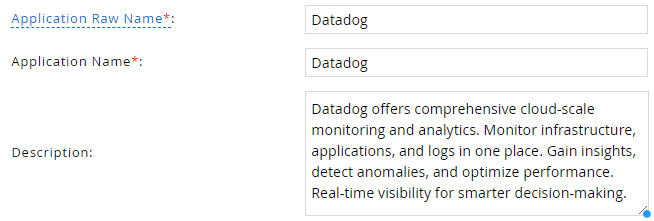
- Click Finish.
Account Collector
This section explains the process for configuring an account collector for the Datadog application. We will use the RSA G&L Generic REST collector 1 for this purpose.
Steps
- Login to RSA G&L console as System Administrator.
- Navigate to Resources > Applications.
- Click on Datadog.
- Navigate to Collectors tab and click on Create Account Collector. Enter the details as shown below.

- Click Next and enter the connection details.
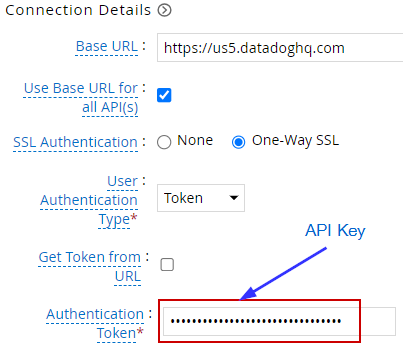
- Click Next. Select the data types that the collector will be collecting from Datadog

- Click Next. On the Account Data page, enter the following configurations.
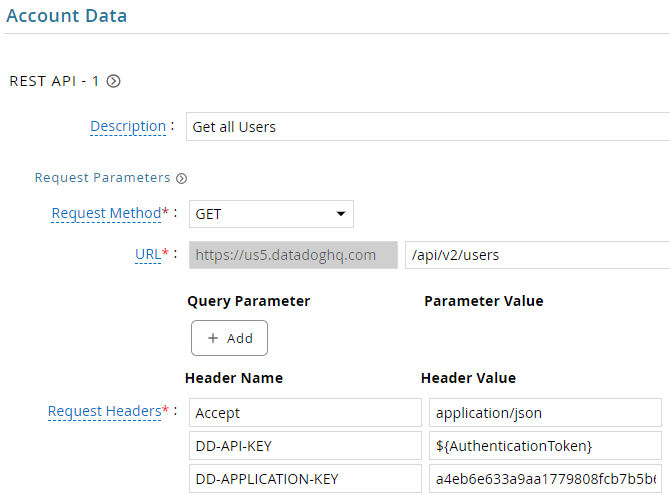
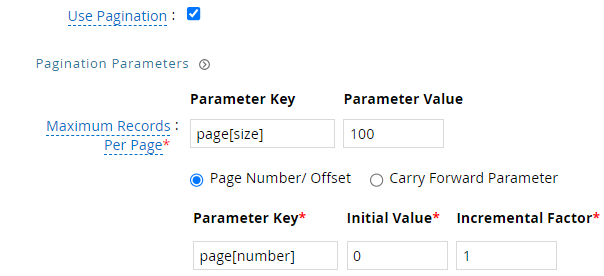
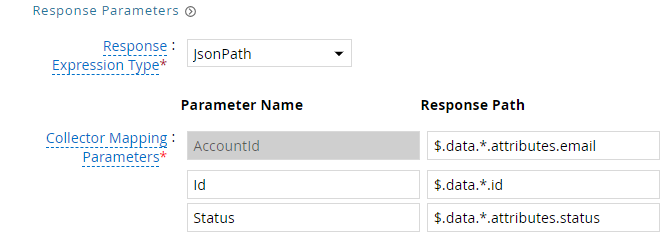
| Request | |
| Method | GET |
| URL | /api/v2/users |
| Request Headers | |
| Accept | application/json |
| DD-API-KEY | ${AuthenticationToken} |
| DD-APPLICATION-KEY | APPLICATION_KEY |
| Response Mappings | |
| AccountId | $.data.*.attributes.email |
| Id | $.data.*.id |
| Status | $.data.*.attributes.status |
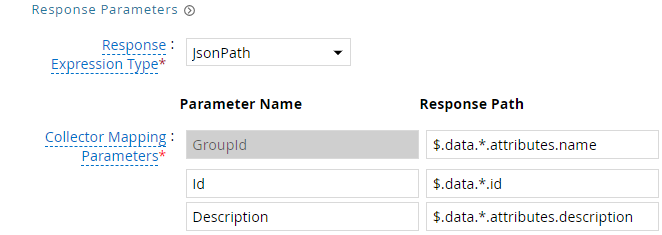
- Click Next. On the Group Data page, enter the following configurations.
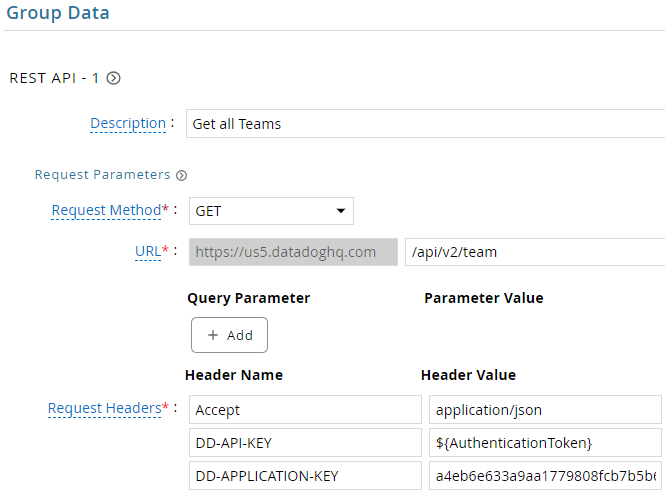
| Request | |
| Method | GET |
| URL | /api/v2/team |
| Request Headers | |
| Accept | application/json |
| DD-API-KEY | ${AuthenticationToken} |
| DD-APPLICATION-KEY | APPLICATION_KEY |
| Response Mappings | |
| GroupId | $.data.*.attributes.name |
| Id | $.data.*.id |
| Description | $.data.*.attributes.description |
- Click Next. On the Account Group Membership page, enter the following configurations.
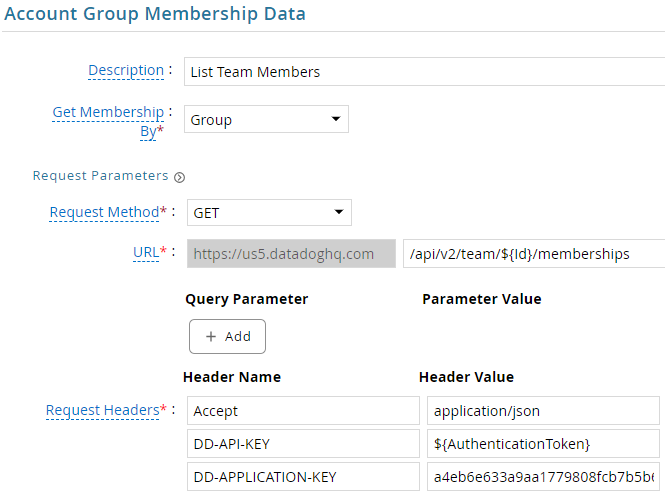
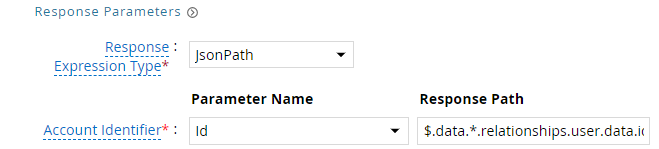
| Request | |
| Method | GET |
| URL | /api/v2/team/${Id}/memberships |
| Request Headers | |
| Accept | application/json |
| DD-API-KEY | ${AuthenticationToken} |
| DD-APPLICATION-KEY | APPLICATION_KEY |
| Response Mappings | |
| Account Identifier | $.data.*.relationships.user.data.id |
- Click Next. In the Map Collector Attributes to Account Attributes, map the collected account attributes.
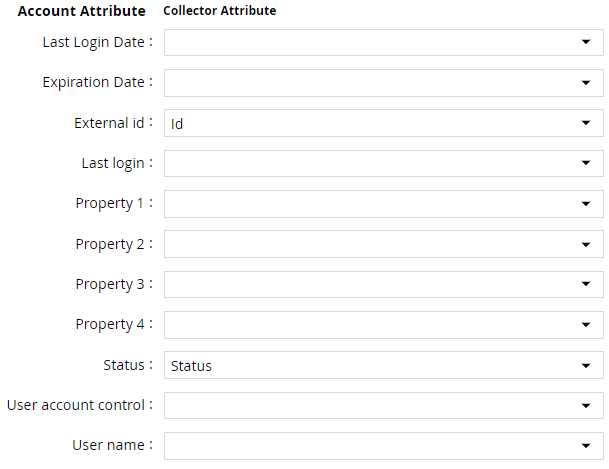
- Click Next. In the Map Collector Attributes to Account Mapping Attributes, map the user reference attribute.

- Click Next. In the Map Collector Attributes to Group Attributes, map the collected group attributes.

- Click Next. In the User Resolution Rules, map the user to account.

- Click Next. In the Member Account Resolution Rules, map the account.

💡 Info: This value MUST always be mapped to the Account Name for any generic REST collector.
- Click Finish. Use the
Testfunction to make sure the configurations are accurate.
Entitlement Collector
This section explains the process for configuring an entitlement collector to collect user roles and assignments from the Datadog application. We will use the RSA G&L Generic REST collector for this purpose.
Steps
- Login to RSA G&L console as AveksaAdmin.
- Navigate to Resources > Applications.
- Click on Datadog.
- Navigate to Collectors tab and click on Create Entitlement Collector. Enter the details as shown below.

- Click Next and enter the connection details as shown in Step 5 of Account Collector.
- Click Next. Select the data types that the collector will be collecting from Datadog.

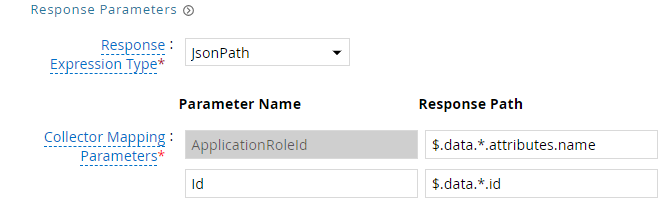
- Click Next. On the App Role Data page, enter the following configurations.
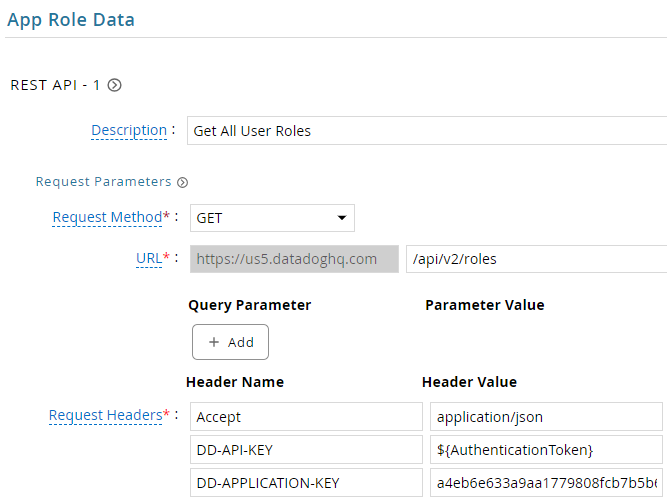
| Request | |
| Method | GET |
| URL | /api/v2/roles |
| Request Headers | |
| Accept | application/json |
| DD-API-KEY | ${AuthenticationToken} |
| DD-APPLICATION-KEY | APPLICATION_KEY |
| Response Mappings | |
| ApplicationRoleId | $.data.*.attributes.name |
| Id | $.data.*.id |
- Click Next. On the App-Role Account Membership collection page, enter the following configurations.
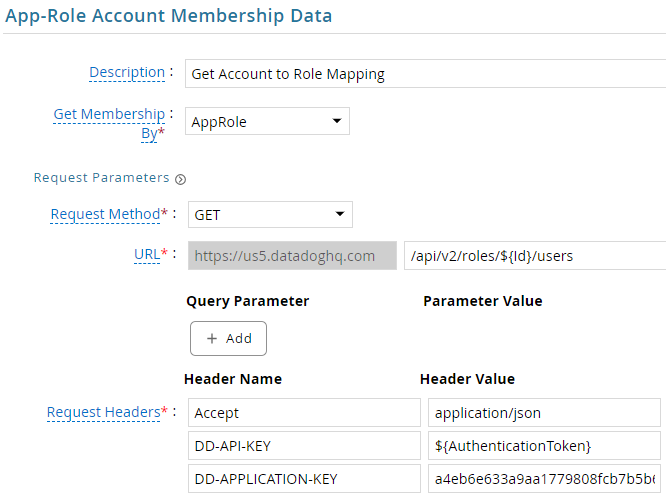
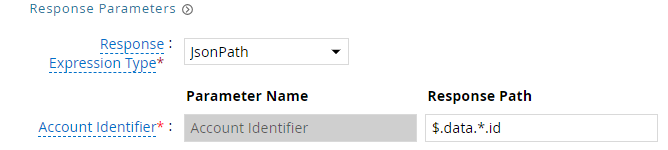
| Request | |
| Method | GET |
| URL | /api/v2/roles/${Id}/users |
| Request Headers | |
| Accept | application/json |
| DD-API-KEY | ${AuthenticationToken} |
| DD-APPLICATION-KEY | APPLICATION_KEY |
| Response Mappings | |
| Account Identifier | $.data.*.id |
- Click Next. In the Map Collector Attributes to App Role Attributes, map the collected account attributes.

- Click Next. In the Account Evaluation, map the account collector to account value.

- Click Next and then click Finish. Use the
Testfunction to make sure the configurations are accurate.
Application Setup
This section explains the process of setting up Datadog for integration with G&L. Datadog API calls require application key and API key for most invocations.
Steps
- Login to Datadog console and navigate to Organization Settings (
https://YOUR_DATADOG_SITE/organization-settings, for exampleapp.datadoghq.comorus5.datadoghq.com). - Under Access, click on Application Keys.
- Click on New Key.
- Provide a suitable name and click Create Key.

- Copy the key value. We will refer to this as
APPLICATION_KEY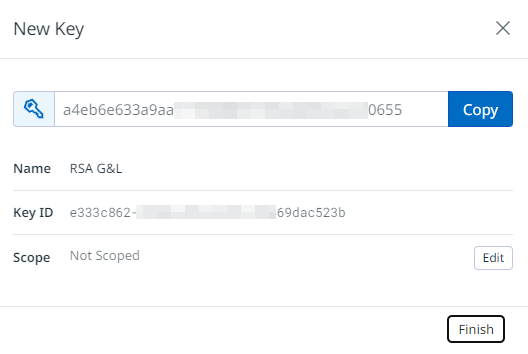
- Click on Edit next to Scope. Select the scopes as shown below.
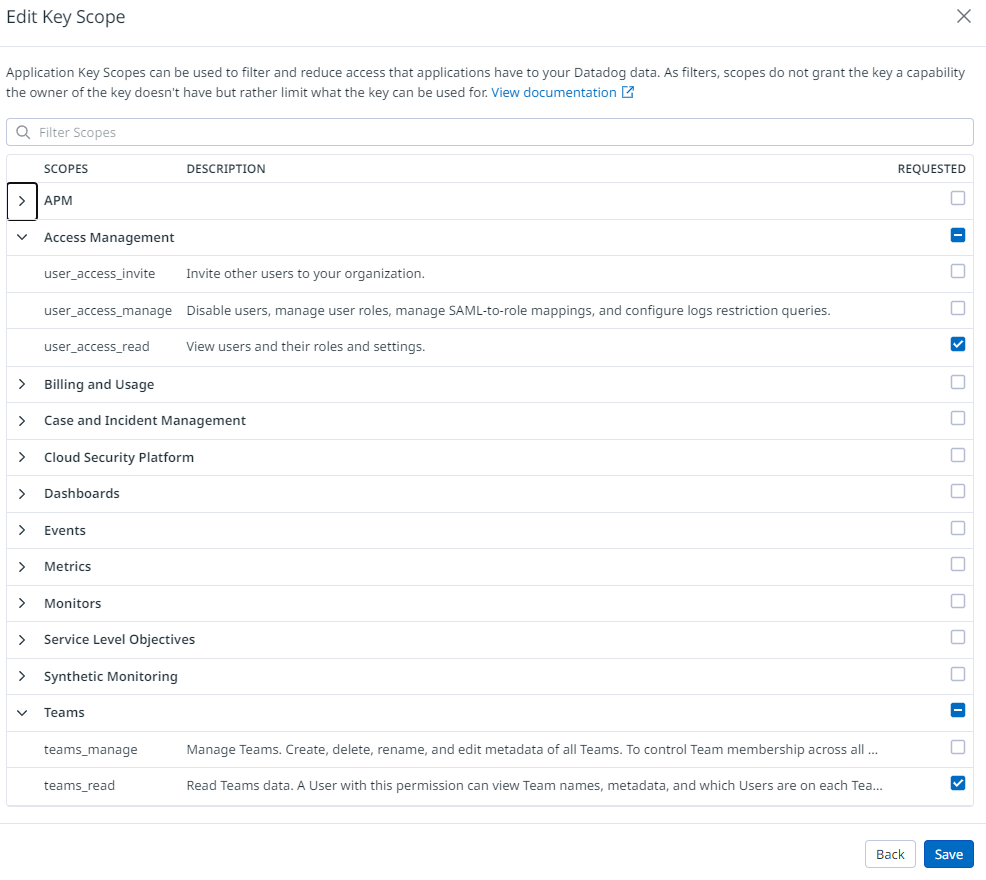
- Click Save and then click Finish.
- Under Access, click on API Keys.
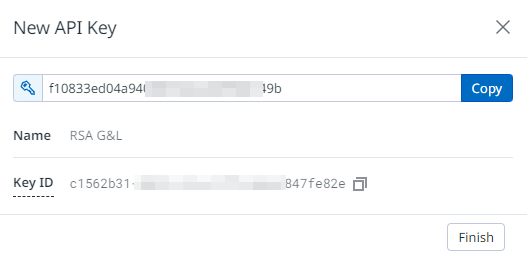
- Click on New Key.

- Copy the key value and click Finish.
References
COL009