Zoho CRM✓ Verified

 Zoho CRM empowers businesses with a comprehensive customer relationship management solution. It streamlines sales, marketing, and support processes, fostering efficient customer engagement. Through a user-friendly interface, it offers tools for lead management, analytics, and automation, enabling businesses to build lasting relationships, drive growth, and make informed decisions. Zoho CRM empowers businesses with a comprehensive customer relationship management solution. It streamlines sales, marketing, and support processes, fostering efficient customer engagement. Through a user-friendly interface, it offers tools for lead management, analytics, and automation, enabling businesses to build lasting relationships, drive growth, and make informed decisions.Identities ❌ | Accounts ✔️ | Groups ✔️ | App Roles ✔️ | Entitlements ❌ |
Users are individuals who have access to your Zoho CRM account. Each user is associated with a profile and can be assigned specific roles and user group memberships. The combination of profile, roles, and user group memberships defines a user's overall access and permissions.
Profiles serve as the foundation of the hierarchy. Each user is assigned a profile that determines their basic access settings, available features, and modules they can access. Profiles are templates that define a user's general CRM experience.
Roles build upon profiles by adding specific permissions and access rights. Roles allow you to control what records and modules a user can access or manipulate. Users with the same profile but different roles can have different levels of access within the CRM.
User Groups are collections of users who share similar roles, responsibilities, or access requirements. User groups allow for efficient management of permissions. Roles and profiles can be assigned to user groups, making it easier to apply consistent access settings to multiple users.
Application
Steps
- Login to RSA G&L console as System Administrator.
- Navigate to Resources > Application.
- Click on Create Application and select Other Application.
- Enter the details as shown below.
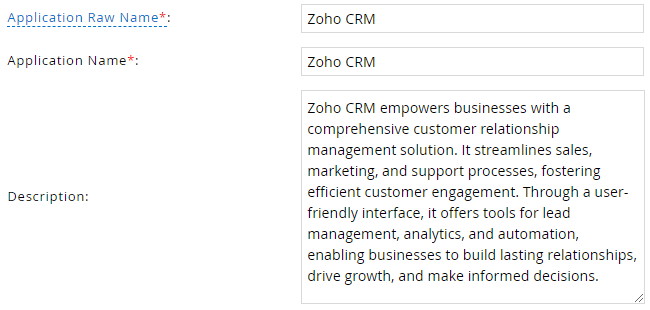
- Click Finish.
Account Collector
This section explains the process for configuring an account collector for the Zoho CRM application. We will use the RSA G&L Generic REST collector 1 for this purpose.
Steps
- Login to RSA G&L console as System Administrator.
- Navigate to Resources > Applications.
- Click on Zoho CRM.
- Navigate to Collectors tab and click on Create Account Collector. Enter the details as shown below.
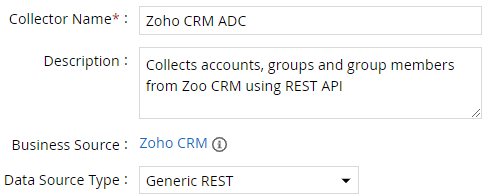
- Click Next and enter the connection details.

- Click Next. Select the data types that the collector will be collecting from Zoho CRM

- Click Next. On the Account Data page, enter the following configurations.
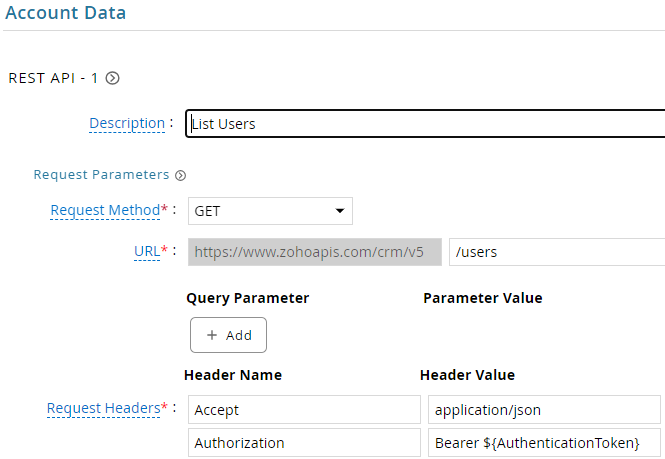
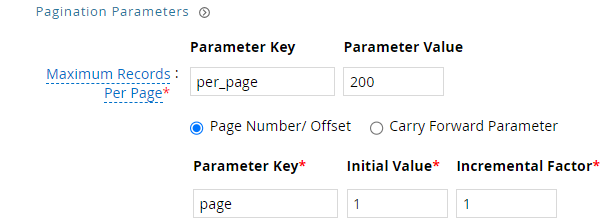
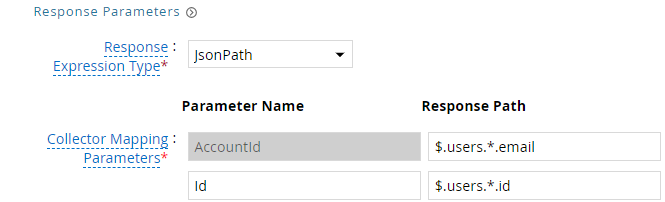
| Request | |
| Method | GET |
| URL | /users |
| Request Headers | |
| Accept | application/json |
| Authorization | Bearer ${AuthenticationToken} |
| Response Mappings | |
| AccountId | $.users.*.email |
| Id | $.users.*.id |
| Type | $.users.*.status |
- Click Next. On the Group Data page, enter the following configurations.
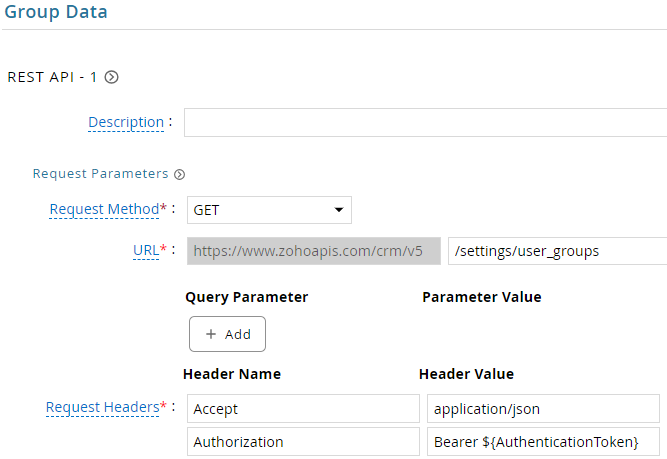
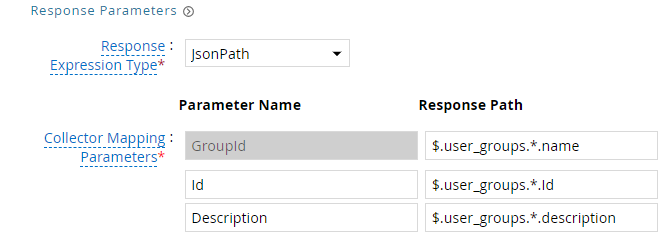
| Request | |
| Method | GET |
| URL | /settings/user_groups |
| Request Headers | |
| Accept | application/json |
| Authorization | Bearer ${AuthenticationToken} |
| Response Mappings | |
| GroupId | $.user_groups.*.name |
| Id | $.user_groups.*.id |
| Description | $.user_groups.*.description |
- Click Next. On the Account Group Membership page, enter the following configurations.
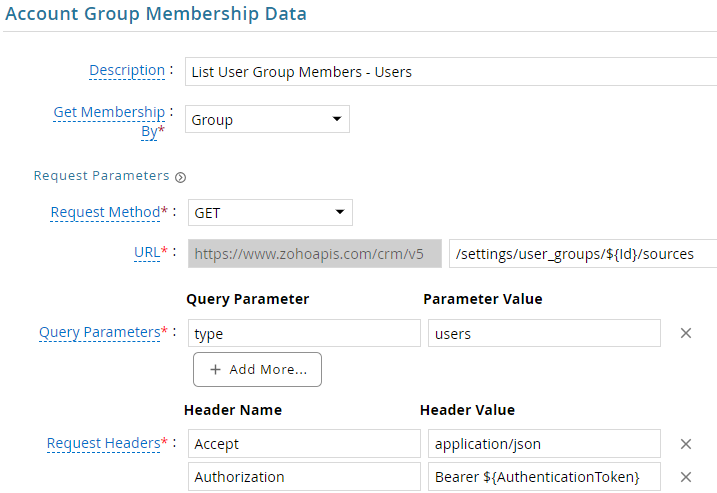

| Request | |
| Method | GET |
| URL | /settings/user_groups/${Id}/sources |
| Request Headers | |
| Accept | application/json |
| Authorization | Bearer ${AuthenticationToken} |
| Response Mappings | |
| Account Identifier | $.sources.*.source.id |
- Click Next. In the Map Collector Attributes to Account Attributes, map the collected account attributes.
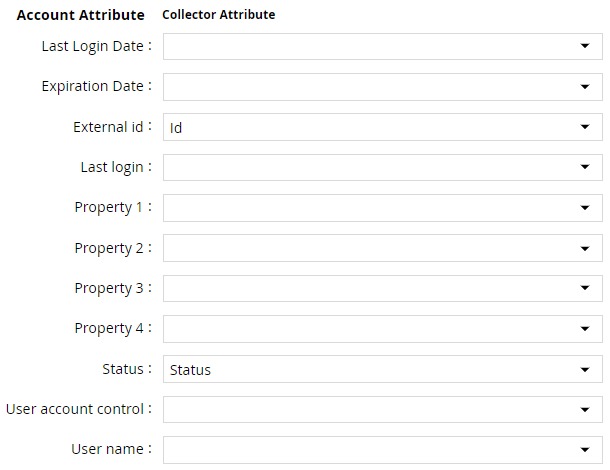
- Click Next. In the Map Collector Attributes to Account Mapping Attributes, map the user reference attribute.

- Click Next. In the Map Collector Attributes to Group Attributes, map the collected group attributes.

- Click Next. In the User Resolution Rules, map the user to account.

- Click Next. In the Member Account Resolution Rules, map the account.

💡 Info: This value MUST always be mapped to the Account Name for any generic REST collector.
- Click Finish. Use the
Testfunction to make sure the configurations are accurate.
Entitlement Collector
This section explains the process for configuring an entitlement collector to collect user roles and assignments from the Zoho CRM application. We will use the RSA G&L Generic REST collector for this purpose.
Steps
- Login to RSA G&L console as AveksaAdmin.
- Navigate to Resources > Applications.
- Click on Zoho CRM.
- Navigate to Collectors tab and click on Create Entitlement Collector. Enter the details as shown below.

- Click Next and enter the connection details as shown in Step 5 of Account Collector.
- Click Next. Select the data types that the collector will be collecting from Zoho CRM.

- Click Next. On the App Role Data page, enter the following configurations.
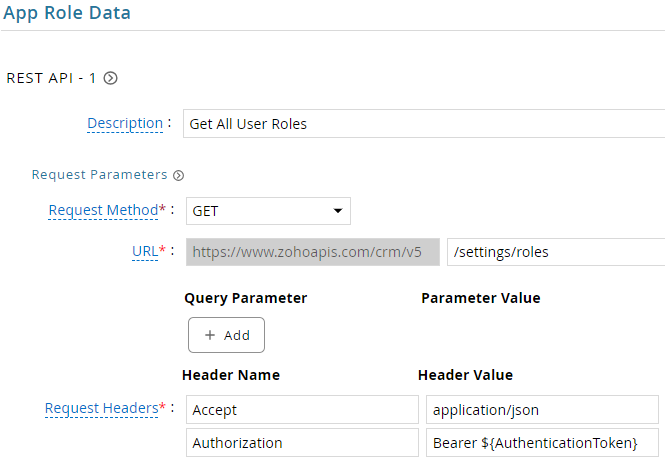
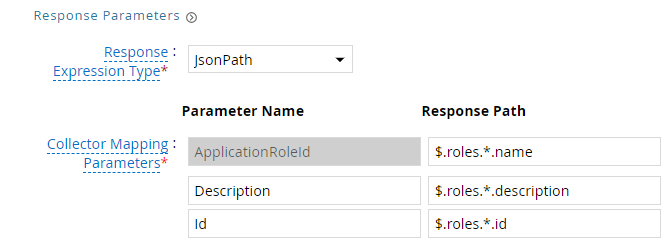
| Request | |
| Method | GET |
| URL | /settings/roles |
| Request Headers | |
| Accept | application/json |
| Authorization | Bearer ${AuthenticationToken} |
| Response Mappings | |
| ApplicationRoleId | $.roles.*.name |
| Id | $.roles.*.id |
| Description | $.roles.*.description |
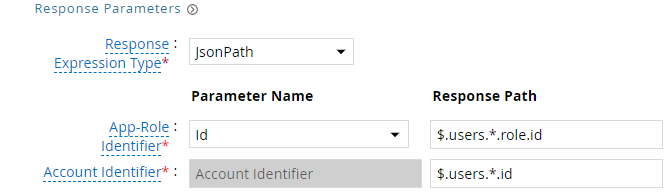
- Click Next. On the App-Role Account Membership collection page, enter the following configurations.
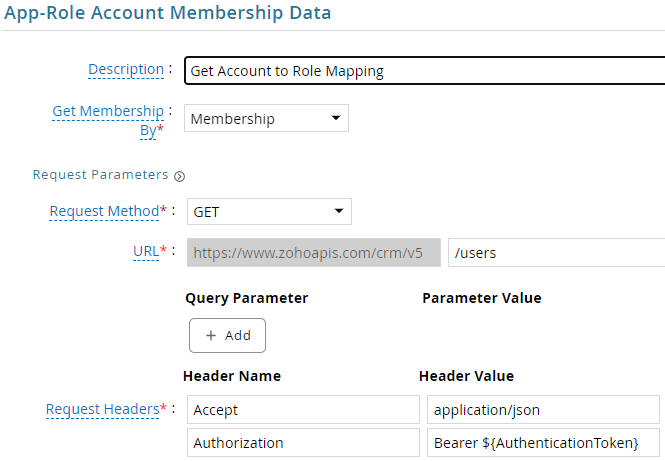
| Request | |
| Method | GET |
| URL | /users |
| Request Headers | |
| Accept | application/json |
| Authorization | Bearer ${AuthenticationToken} |
| Response Mappings | |
| Application Role Id | $.users.*.role.id |
| Account Identifier | $.users.*.id |
- Click Next. In the Map Collector Attributes to App Role Attributes, map the collected account attributes.

- Click Next. In the Account Evaluation, map the account collector to account value.

- Click Next and then click Finish. Use the
Testfunction to make sure the configurations are accurate.
Application Setup
This section explains the process of setting up an API access key in Zoho CRM for use within the collections process.
Steps
- Login to Zoho API console, https://api-console.zoho.com/.
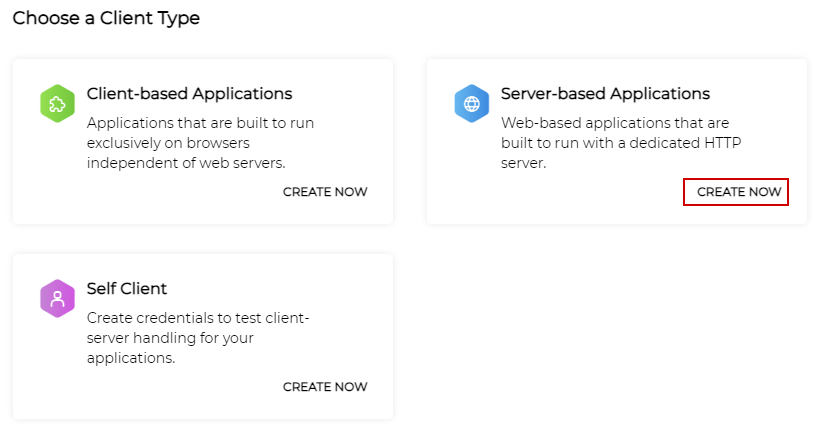
- Click on Add Client.
- Select the Server-based Applications client type.
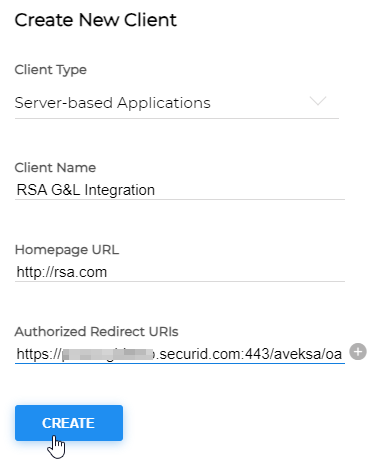
- Provide a suitable name, and the redirect URI
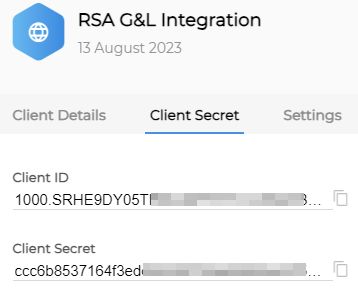
- Copy the Client ID and Secret.
Authentication
OAuth2
This section explains the process of setting up RSA G&L ADC with OAuth2 authentication.
Steps
- Login to RSA G&L console as System Administrator.
- Create or Edit a generic REST ADC that will be using OAuth2 authentication.
- On the Connection Details page, configure the following. Refer to Authorization Request for information regarding access_type and prompt parameters in the request.
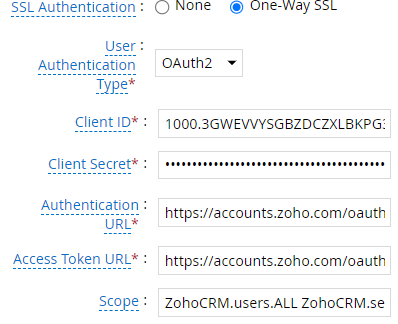
| Request | |
| Client ID | - |
| Client Secret | - |
| Authentication URL | https://accounts.zoho.com/oauth/v2/auth |
| Access Token URL | https://accounts.zoho.com/oauth/v2/token |
| Scope | ZohoCRM.settings.user_groups.READ ZohoCRM.settings.roles.READ ZohoCRM.users.READ&access_type=offline&prompt=consent |
- Click on Get OAuth 2.0 Access Token.
- Click on Proceed For Authorization.
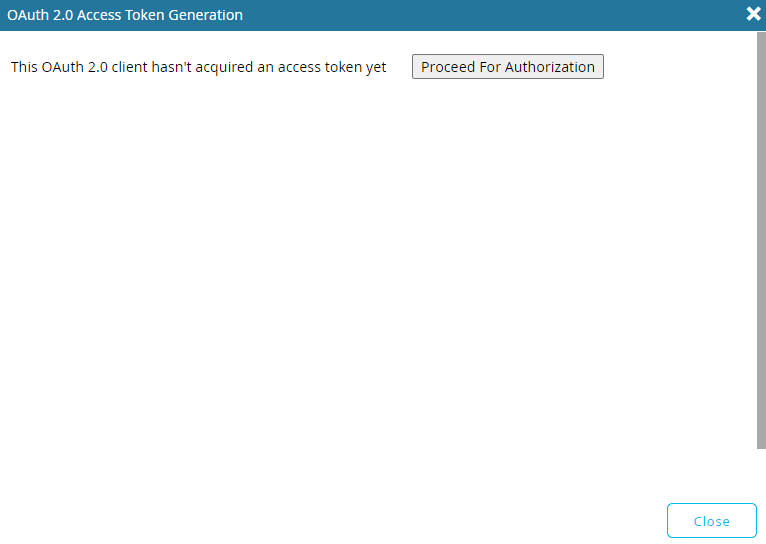
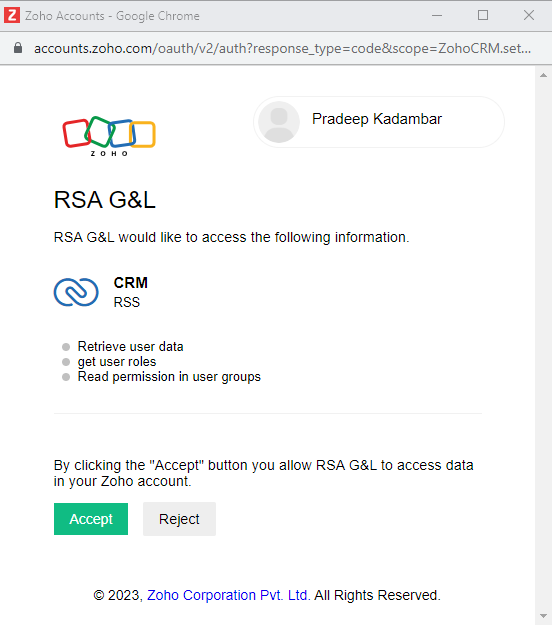
- Login to Zoho CRM account.
- The below message indicates that RSA G&L has successfully acquired a token.
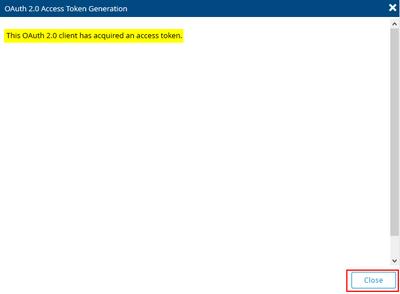
- Click Close.
- Save the collector configuration. Use the
Testfunction to make sure the configurations are accurate.
References
- Zoho CRM API v5
- Get Users
- User Groups
- Get Roles
- OAuth 2.0 Overview
- Zoho Accounts Authorization Request
- OAuth 2.0 Authorization Code Grant (RFC 6749)
COL005