DocuSign✓ Verified

 DocuSign is an electronic signature and agreement cloud platform. RSA G&L collects user accounts, groups, group membership, and permission profiles via the eSignature REST API using OAuth2 authentication. DocuSign is an electronic signature and agreement cloud platform. RSA G&L collects user accounts, groups, group membership, and permission profiles via the eSignature REST API using OAuth2 authentication.Versions: 8.0.0 P10_HF01Identities ❌ | Accounts ✔️ | Groups ✔️ | App Roles ✔️ | Entitlements ❌ |
Permission Model
DocuSign controls what users can do through Permission Profiles, which are assigned directly to each individual user. Groups serve a separate organizational purpose: they are containers for users used for template sharing and envelope distribution, and do not carry permission profiles themselves.
| Object | Description | RSA G&L Relevance |
|---|---|---|
| Users | Individual accounts on the DocuSign platform. Each user is assigned exactly one permission profile. | Account collection and lifecycle |
| Groups | Named containers for organizing users and controlling access to shared templates and envelopes. Independent of permission profiles. | Group collection and membership |
| Permission Profiles | Named sets of feature access rules (send envelopes, manage templates, admin tasks, etc.) assigned at the user level. | App Role collection |
Key relationships:
- A user belongs to one or more Groups (membership)
- A user is assigned exactly one Permission Profile (access control)
- Groups and Permission Profiles are independent — adding a user to a group does not change their permission profile
- Because of this, App-Role Account Membership is derived from the
/usersendpoint (which embedspermissionProfileIdper user), not from the/groupsendpoint
DocuSign REST API calls require the account ID in the path: /restapi/v2.1/accounts/{accountId}/. The Base URL in the RSA G&L collector connection details should be set to https://demo.docusign.net (development) or https://na3.docusign.net (production). The account ID must be included in each endpoint URL configured in the collector.
Verify the correct Base URL for your environment by calling the User Info API.
API Requirements
The DocuSign service account used by RSA G&L for collection must be assigned the Account Administrator permission profile. All user, group, and permission profile data is retrieved via admin-scoped endpoints.
| Operation | OAuth Scope | Caller Permission |
|---|---|---|
| List Users | signature extended offline_access | Account Administrator |
| List Groups | signature extended offline_access | Account Administrator |
| List Permission Profiles | signature extended offline_access | Account Administrator |
| List Group Members | signature extended offline_access | Account Administrator |
Create a dedicated DocuSign service account for RSA G&L and assign it the Account Administrator permission profile. Use that account to authorize the OAuth2 flow in the collector connection settings.
Application
Steps
- Login to RSA G&L console as System Administrator.
- Navigate to Resources > Application.
- Click Create Application and select Other Application.
- Enter the details as shown below and click Finish.
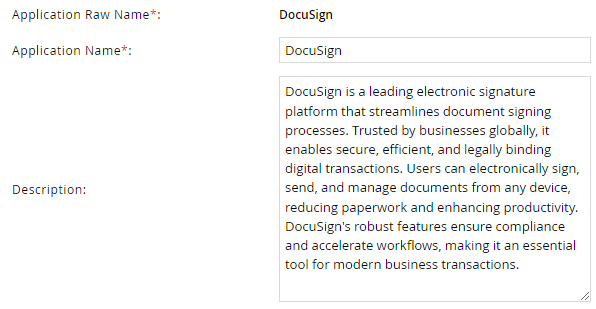
Account Collector
Steps
- Login to RSA G&L console as System Administrator.
- Navigate to Resources > Applications.
- Click DocuSign.
- Navigate to the Collectors tab and click Create Account Collector. Enter the details as shown below.
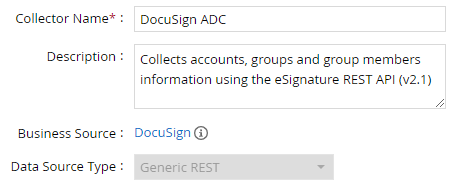
- Click Next and enter the connection details.


- If using OAuth2 authentication, refer to the OAuth2 Configuration section.
- Click Next. Select the data types to collect.

- Click Next. On the Account Data page, configure the following request.
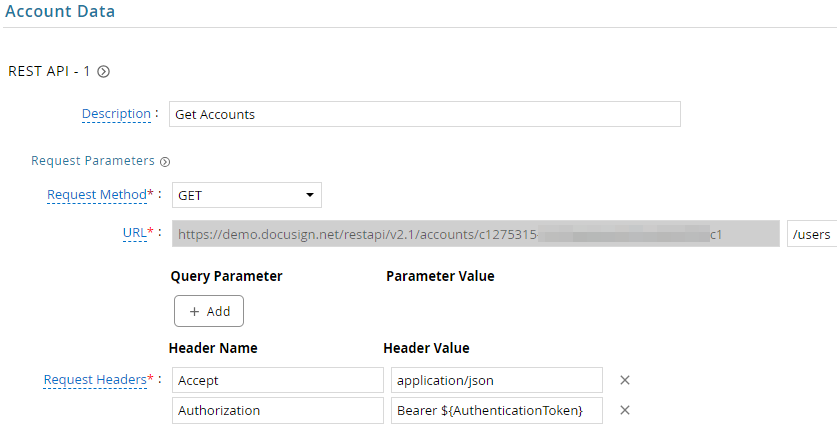
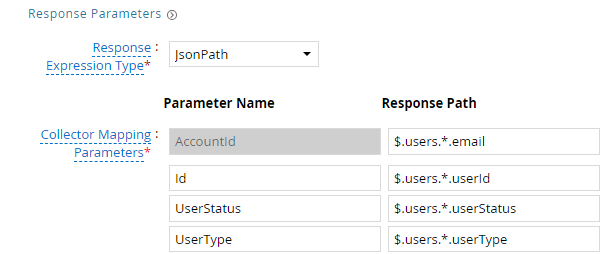
| Request | |
| Method | GET |
| URL | /restapi/v2.1/accounts/{accountId}/users (Sample Response) |
| Request Headers | |
| Accept | application/json |
| Authorization | Bearer ${AuthenticationToken} |
| Pagination | Link |
| Response Mappings | |
| AccountId | $.users[*].email |
| Id | $.users[*].userId |
| UserType | $.users[*].userType |
| UserStatus | $.users[*].userStatus |
DocuSign can return multiple user records with the same email address within the same account — typically when a user has been closed and re-invited. If duplicates are detected during collection, switch AccountId from $.users[*].email to $.users[*].userId. This change requires updating the User Resolution Rules accordingly, as the resolution attribute must then match the DocuSign userId rather than the email address.
- Click Next. On the Group Data page, configure the following request.
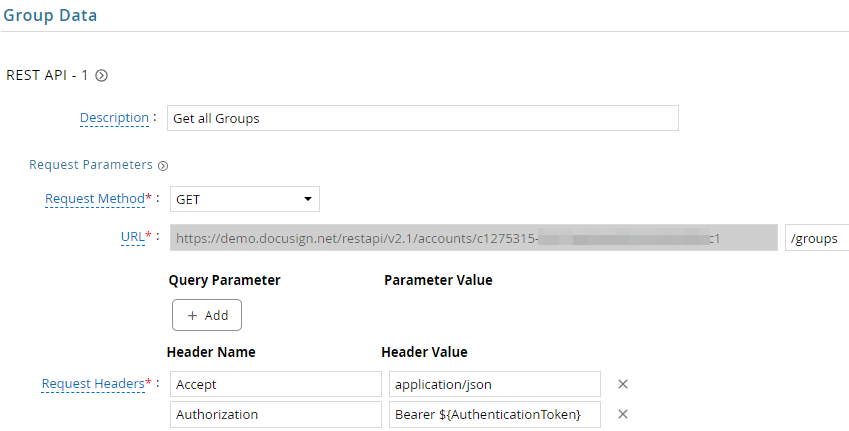
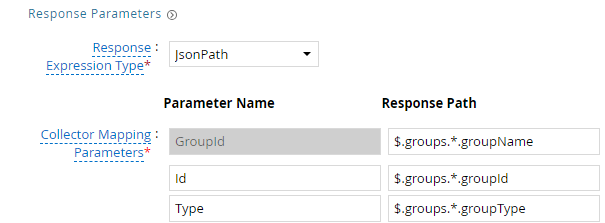
| Request | |
| Method | GET |
| URL | /restapi/v2.1/accounts/{accountId}/groups (Sample Response) |
| Request Headers | |
| Accept | application/json |
| Authorization | Bearer ${AuthenticationToken} |
| Pagination | Link |
| Response Mappings | |
| GroupId | $.groups[*].groupName |
| Id | $.groups[*].groupId |
| Type | $.groups[*].groupType |
- Click Next. On the Account Group Membership page, configure the following request.
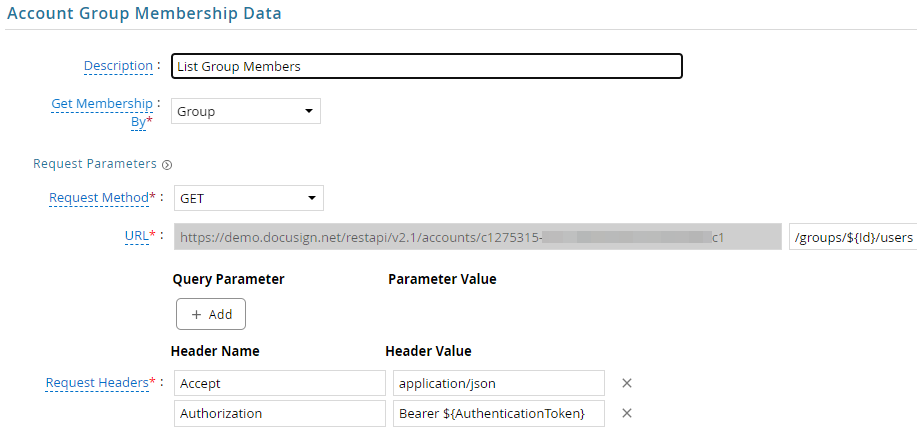

| Request | |
| Method | GET |
| URL | /restapi/v2.1/accounts/{accountId}/groups/${Id}/users (Sample Response) |
| Request Headers | |
| Accept | application/json |
| Authorization | Bearer ${AuthenticationToken} |
| Pagination | Link |
| Response Mappings | |
| Account Identifier | $.users[*].userId |
- Click Next. In Map Collector Attributes to Account Attributes, configure as shown below.
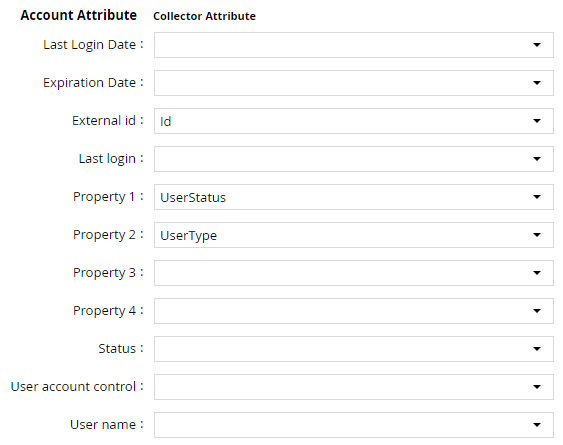
- Click Next. In Map Collector Attributes to Account Mapping Attributes, configure as shown below.

- Click Next. In Map Collector Attributes to Group Attributes, configure as shown below.

- Click Next. In User Resolution Rules, configure as shown below.

- Click Next. In Member Account Resolution Rules, configure as shown below.

The Account Attribute mapped to Member Account Resolution Rules must always resolve to the Account Name for any Generic REST collector.
- Click Next. In the Pre-Processing Custom Script Details, add the following script to set
IS_DISABLEDbased onuserStatus.CAS20is the collector-mapped column for the Status attribute. Any status other thanActive(e.g.Closed,Pending) is treated as disabled:
DECLARE
    v_run_id NUMBER := :1;
    v_dc_id  NUMBER := :2;
BEGIN
    UPDATE T_DC_SOURCEDATA_ACCOUNT
    SET IS_DISABLED = CASE WHEN CAS20 = 'Active' THEN '0' ELSE '1' END
    WHERE RUN_ID = (SELECT MAX(v_run_id) FROM T_DC_SOURCEDATA_USER);
END;
- Click Finish. Use the Test function to validate.
Entitlement Collector
Steps
- Login to RSA G&L console as System Administrator.
- Navigate to Resources > Applications.
- Click DocuSign.
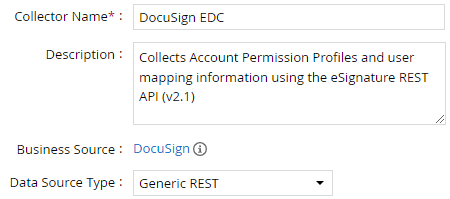
- Navigate to the Collectors tab and click Create Entitlement Collector. Enter the details as shown below.
- Click Next and enter the same connection details as Account Collector step 5.
- Click Next. Select the data types to collect.

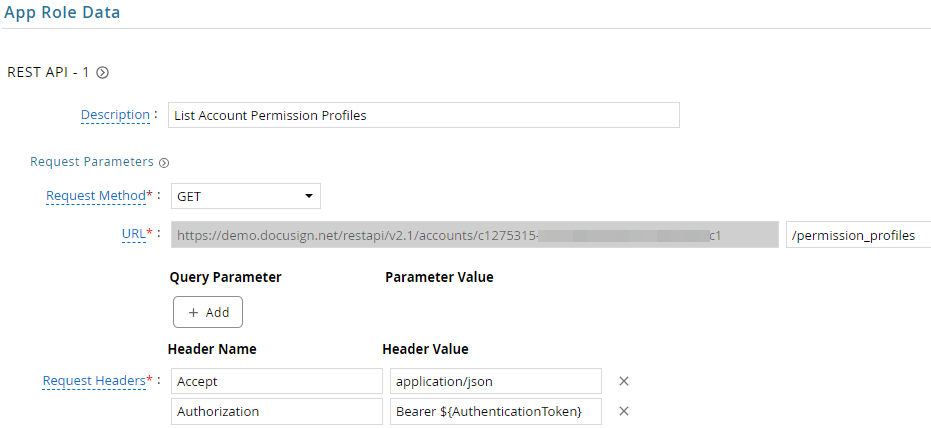
- Click Next. On the App Role Data page, configure the following request.
| Request | |
| Method | GET |
| URL | /restapi/v2.1/accounts/{accountId}/permission_profiles (Sample Response) |
| Request Headers | |
| Accept | application/json |
| Authorization | Bearer ${AuthenticationToken} |
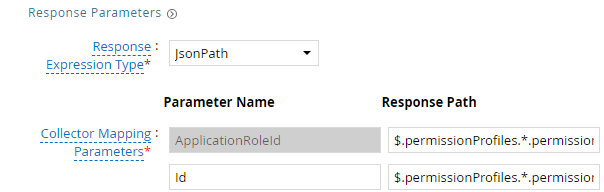
| Response Mappings | |
| ApplicationRoleId | $.permissionProfiles[*].permissionProfileName |
| Id | $.permissionProfiles[*].permissionProfileId |
The /permission_profiles endpoint returns all profiles in a single response — no pagination is required. Permission profiles are a small, account-scoped set and are not subject to the count / nextUri pagination model used by other DocuSign endpoints.
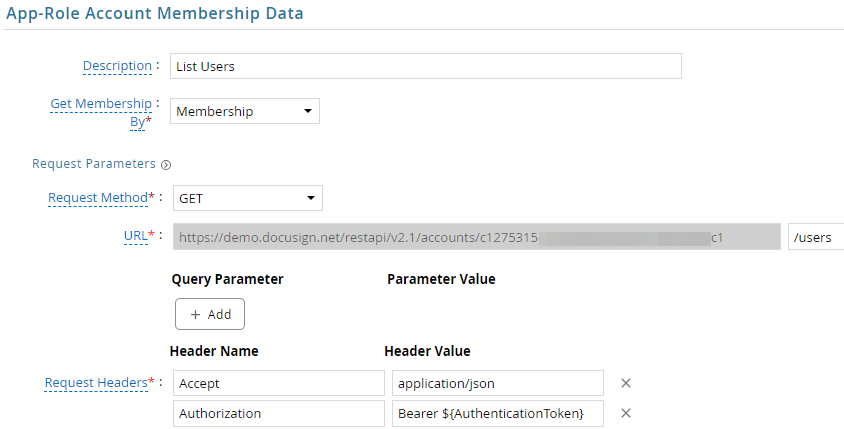
- Click Next. On the App-Role Account Membership page, configure the following request.
DocuSign does not have a separate permission profile membership endpoint. Each user record includes the permissionProfileId field, so the /users endpoint is used here to derive the user-to-profile assignment.
:::
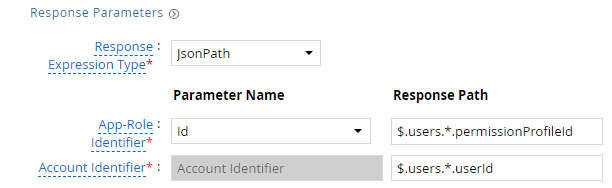
| Request | |
| Method | GET |
| URL | /restapi/v2.1/accounts/{accountId}/users (Sample Response) |
| Request Headers | |
| Accept | application/json |
| Authorization | Bearer ${AuthenticationToken} |
| Pagination | Link |
| Response Mappings | |
| Application Role Id | $.users[*].permissionProfileId |
| Account Identifier | $.users[*].userId |
- Click Next. In Map Collector Attributes to App Role Attributes, configure as shown below.
- Click Next. In Account Evaluation, configure as shown below.

- Click Finish. Use the Test function to validate.
Pagination
DocuSign REST API endpoints return a nextUri field in the response body when additional pages exist. The RSA G&L collector uses the Carry Forward Parameter model to follow this link across pages.
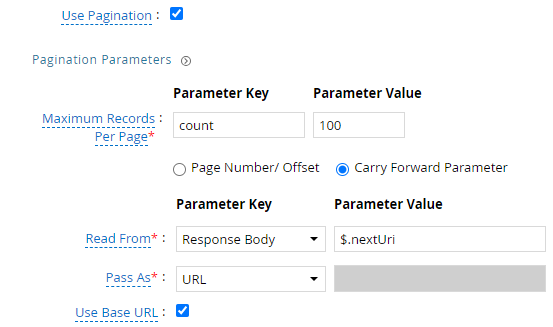
| Pagination Parameters | |
| Maximum Records Per Page | Parameter Key = count | Parameter Value = 100 |
| Pagination Model | Carry Forward Parameter |
| Read From | Response Body → $.nextUri |
| Pass As | URL |
Authentication
OAuth2
Steps
- Login to RSA G&L console as System Administrator.
- Create or edit a Generic REST collector using OAuth2 authentication.
- On the Connection Details page, configure the following.
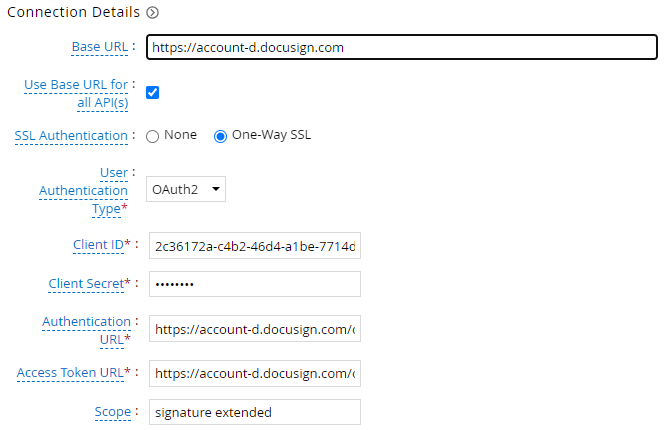
| OAuth2 Parameters | |
| Client ID | Integration Key from Application Setup |
| Client Secret | Secret Key from Application Setup |
| Authentication URL | https://account-d.docusign.com/oauth/auth (Development)https://account.docusign.com/oauth/auth (Production) |
| Access Token URL | https://account-d.docusign.com/oauth/token (Development)https://account.docusign.com/oauth/token (Production) |
| Scope | signature extended offline_access |
- Click Get OAuth 2.0 Access Token.
- Click Proceed For Authorization.
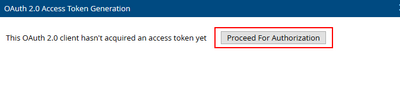
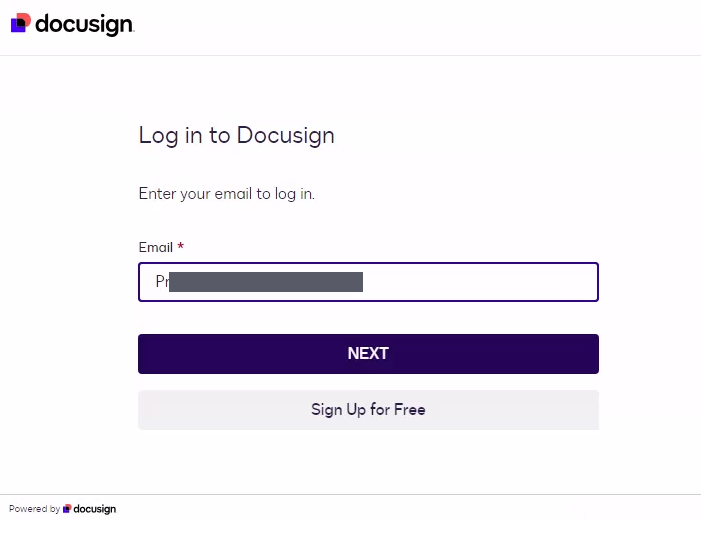
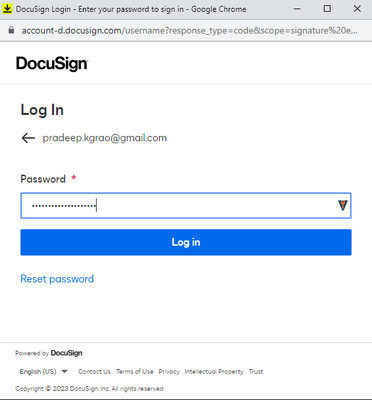
- Log in to DocuSign.
- A success message confirms RSA G&L has acquired a token.
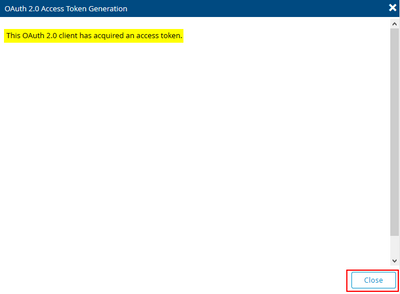
- Click Close.
- Save the collector and use the Test function to validate.
Application Setup
Steps
- Login to DocuSign eSignature portal.
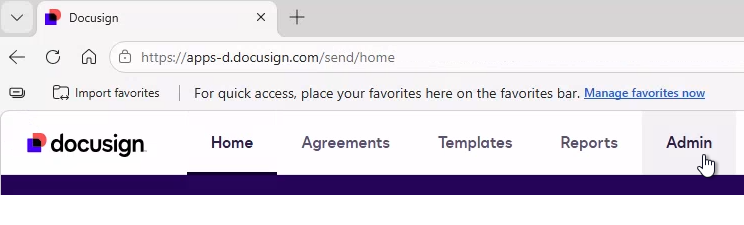
- Click Admin to navigate to the Admin console.
- From the left menu, click Integrations > Apps and Keys.
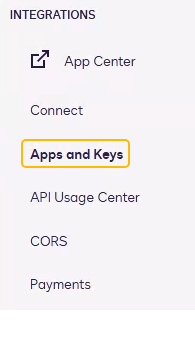
- Click Add App and Integration Key.
- Provide an App Name and click Create App.

- Copy the Integration Key. This is the Client ID used in OAuth authentication.

- Under Authentication, click Add Secret Key. Copy the generated key. This is the Client Secret.
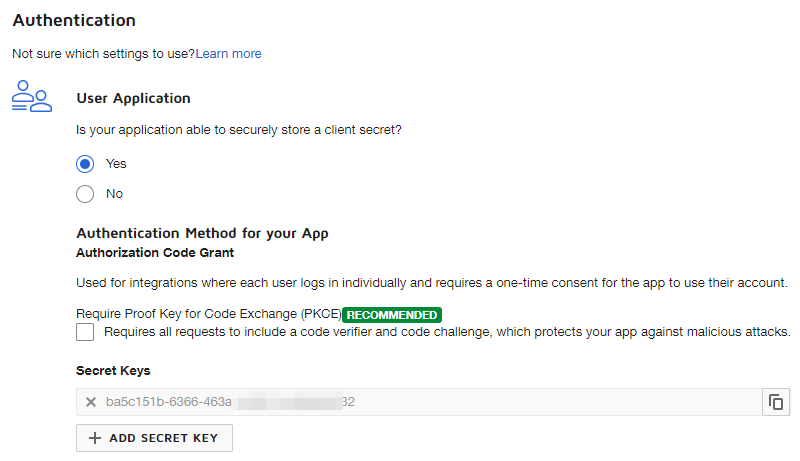
- Under Redirect URIs, add the following callback URLs.

| Purpose | Redirect URI |
|---|---|
| RSA G&L | https://<RSA_GL_HOST>:8443/aveksa/oauth/callback |
| Postman (testing) | https://oauth.pstmn.io/v1/callback |
- Under Allowed HTTP Methods, check GET.

- Click Save.
API Examples
List Users
GET /restapi/v2.1/accounts/{accountId}/users
This endpoint is used for both Account Data collection and App-Role Account Membership. The permissionProfileId embedded in each user record drives the user-to-profile assignment in the Entitlement Collector.
{
  "users": [
    {
      "userName": "Jane Smith",
      "userId": "8b7c84ff-5dcf-4bed-bb9c-23059bfce2d5",
      "userType": "CompanyUser",
      "isAdmin": "False",
      "isAlternateAdmin": "False",
      "userStatus": "Active",
      "uri": "/users/8b7c84ff-5dcf-4bed-bb9c-23059bfce2d5",
      "email": "jane.smith@company.com",
      "title": "",
      "createdDateTime": "2024-08-05T16:34:27.4500000Z",
      "userAddedToAccountDateTime": "2024-08-05T16:34:27.4670000Z",
      "firstName": "Jane",
      "middleName": "",
      "lastName": "Smith",
      "suffixName": "",
      "jobTitle": "",
      "company": "",
      "permissionProfileId": "9094562",
      "permissionProfileName": "DocuSign Viewer",
      "isManagedByScim": "False",
      "isMembershipManagedByScim": "False"
    },
    {
      "userName": "John Doe",
      "userId": "610a2573-714e-4e4d-9e15-5d833923afa6",
      "userType": "CompanyUser",
      "isAdmin": "False",
      "isAlternateAdmin": "False",
      "userStatus": "Active",
      "uri": "/users/610a2573-714e-4e4d-9e15-5d833923afa6",
      "email": "john.doe@company.com",
      "title": "",
      "createdDateTime": "2024-08-09T14:56:52.6670000Z",
      "userAddedToAccountDateTime": "2024-08-09T14:56:52.6670000Z",
      "firstName": "John",
      "middleName": "",
      "lastName": "Doe",
      "suffixName": "",
      "jobTitle": "",
      "company": "",
      "permissionProfileId": "9094560",
      "permissionProfileName": "Account Administrator",
      "isManagedByScim": "False",
      "isMembershipManagedByScim": "False"
    }
  ],
  "resultSetSize": "2",
  "totalSetSize": "252",
  "startPosition": "0",
  "endPosition": "1",
  "nextUri": "/users?start_position=2&count=2"
}
List Groups
GET /restapi/v2.1/accounts/{accountId}/groups
{
  "groups": [
    {
      "groupId": "123456",
      "groupName": "Administrators",
      "groupType": "adminGroup",
      "usersCount": "5"
    },
    {
      "groupId": "234567",
      "groupName": "Senders",
      "groupType": "customGroup",
      "usersCount": "45"
    }
  ],
  "resultSetSize": "2",
  "totalSetSize": "2",
  "startPosition": "0",
  "endPosition": "1",
  "nextUri": null
}
List Permission Profiles
GET /restapi/v2.1/accounts/{accountId}/permission_profiles
{
  "permissionProfiles": [
    {
      "permissionProfileId": "9094560",
      "permissionProfileName": "Account Administrator",
      "modifiedDateTime": "2024-11-14T02:15:01.5400000Z",
      "modifiedByUsername": ""
    },
    {
      "permissionProfileId": "9094561",
      "permissionProfileName": "DocuSign Sender",
      "modifiedDateTime": "2019-03-18T15:13:29.7500000Z",
      "modifiedByUsername": ""
    },
    {
      "permissionProfileId": "9094562",
      "permissionProfileName": "DocuSign Viewer",
      "modifiedDateTime": "2019-03-18T15:13:29.7500000Z",
      "modifiedByUsername": ""
    },
    {
      "permissionProfileId": "12288586",
      "permissionProfileName": "Template Creation and Sharing",
      "modifiedDateTime": "2023-05-16T06:03:03.8270000Z",
      "modifiedByUsername": ""
    },
    {
      "permissionProfileId": "23175179",
      "permissionProfileName": "Super User",
      "modifiedDateTime": "2024-05-14T11:51:21.2870000Z",
      "modifiedByUsername": "John Smith"
    }
  ]
}
List Group Members
GET /restapi/v2.1/accounts/{accountId}/groups/{groupId}/users
{
  "users": [
    {
      "userId": "12345678-1234-1234-1234-123456789abc",
      "userName": "jsmith",
      "email": "jsmith@company.com",
      "userType": "CompanyUser",
      "userStatus": "Active"
    },
    {
      "userId": "87654321-4321-4321-4321-cba987654321",
      "userName": "adoe",
      "email": "adoe@company.com",
      "userType": "CompanyUser",
      "userStatus": "Active"
    }
  ],
  "resultSetSize": "2",
  "totalSetSize": "5",
  "startPosition": "0",
  "endPosition": "1",
  "nextUri": null
}
References
COL013