PingOne✓ Verified
· 8 min read

 PingOne is an identity and access management (IAM) solution by Ping Identity. It offers secure user authentication, authorization, and single sign-on across applications. With advanced features like multifactor authentication and adaptive security, PingOne ensures streamlined access control while enhancing user experience and safeguarding sensitive data. PingOne is an identity and access management (IAM) solution by Ping Identity. It offers secure user authentication, authorization, and single sign-on across applications. With advanced features like multifactor authentication and adaptive security, PingOne ensures streamlined access control while enhancing user experience and safeguarding sensitive data.Identities ❌ | Accounts ✔️ | Groups ✔️ | App Roles ❌ | Entitlements ❌ |
Application
Steps
- Login to RSA G&L console as System Administrator.
- Navigate to Resources > Application.
- Click on Create Application and select Other Application.
- Enter the details as shown below.
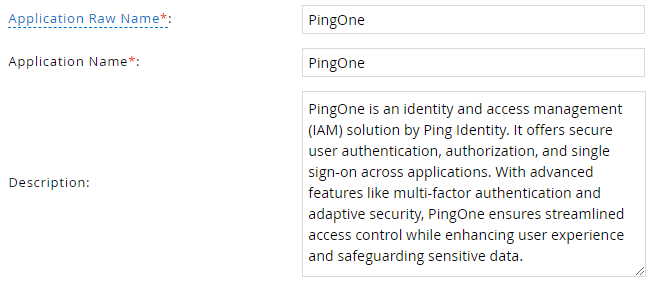
- Click Finish.
Account Collector
This section explains the process for configuring an account collector for the PingOne application. We will use the RSA G&L Generic REST collector 1 for this purpose.
Steps
- Login to RSA G&L console as System Administrator.
- Navigate to Resources > Applications.
- Click on PingOne.
- Navigate to Collectors tab and click on Create Account Collector. Enter the details as shown below.

- Click Next and enter the connection details. PingOne supports both OAuth and API key based authentication. This article uses token authentication. Refer to Token Authentication section.
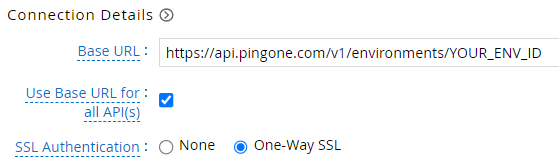
- Click Next. Select the data types that the collector will be collecting from PingOne

- Click Next. On the Account Data page, enter the following configurations.
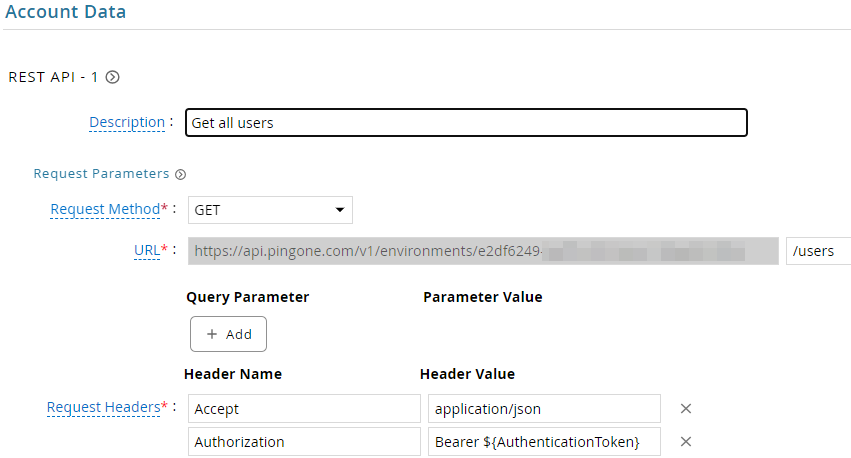
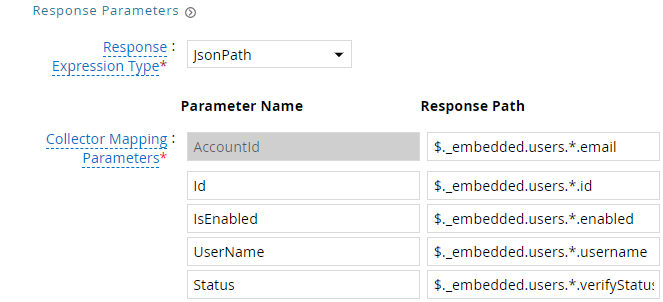
| Request | |
| Method | GET |
| URL | /users |
| Request Headers | |
| Accept | application/json |
| Authorization | Bearer ${AuthenticationToken} |
| Response Mappings | |
| AccountId | $._embedded.users.*.email |
| Id | $._embedded.users.*.id |
| Status | $._embedded.users.*.verifyStatus |
| IsEnabled | $._embedded.users.*.enabled |
| UserName | $._embedded.users.*.username |
- Click Next. On the Group Data page, enter the following configurations.
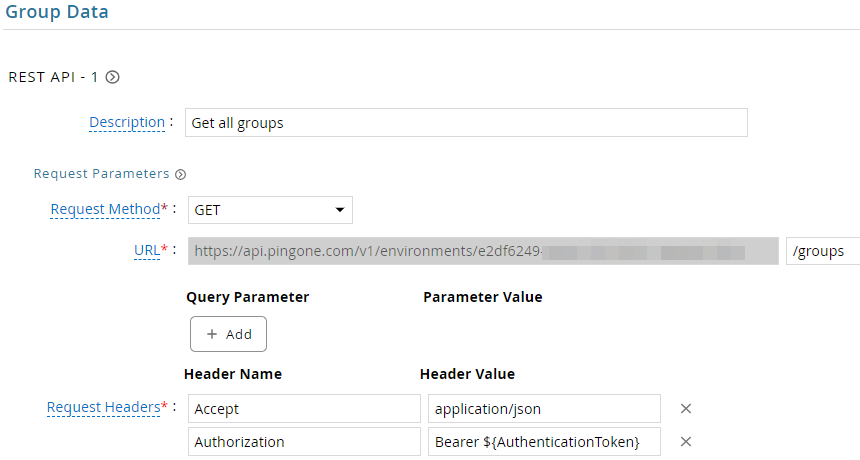
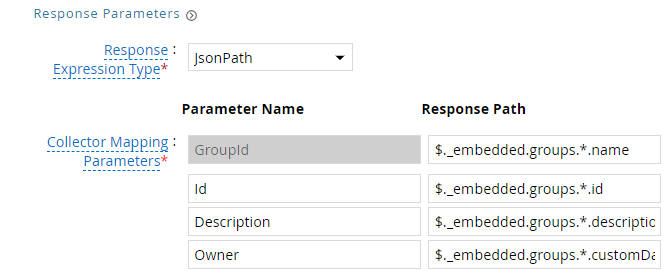
| Request | |
| Method | GET |
| URL | /groups |
| Request Headers | |
| Accept | application/json |
| Authorization | Bearer ${AuthenticationToken} |
| Response Mappings | |
| GroupId | $._embedded.groups.*.name |
| Id | $._embedded.groups.*.id |
| Description | $._embedded.groups.*.description |
| Owner | $._embedded.groups.*.customData.groupOwner |
- Click Next. On the Account Group Membership page, enter the following configurations.
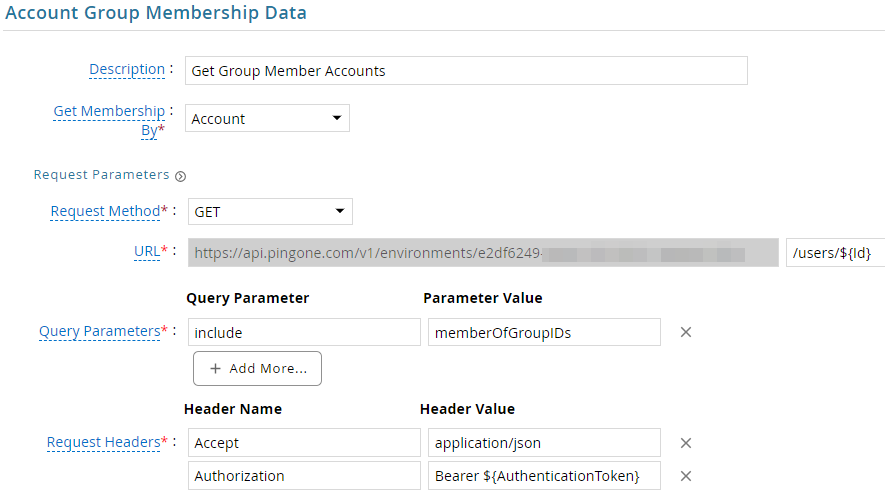
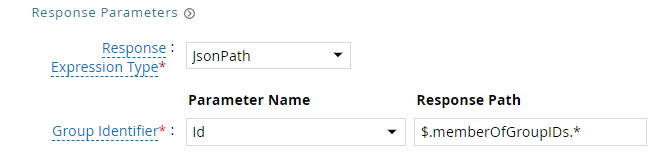
| Request | |
| Method | GET |
| URL | /users/${Id} |
| Query Parameters | |
| include | memberOfGroupIDs |
| Request Headers | |
| Accept | application/json |
| Authorization | Bearer ${AuthenticationToken} |
| Response Mappings | |
| Group Identifier | $.memberOfGroupIDs.* |
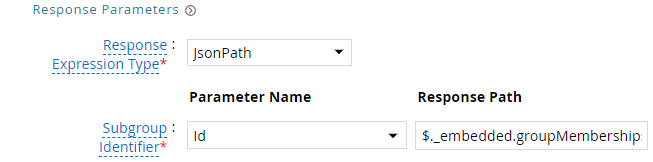
- Click Next. On the Subgroup Membership page, enter the following configurations.
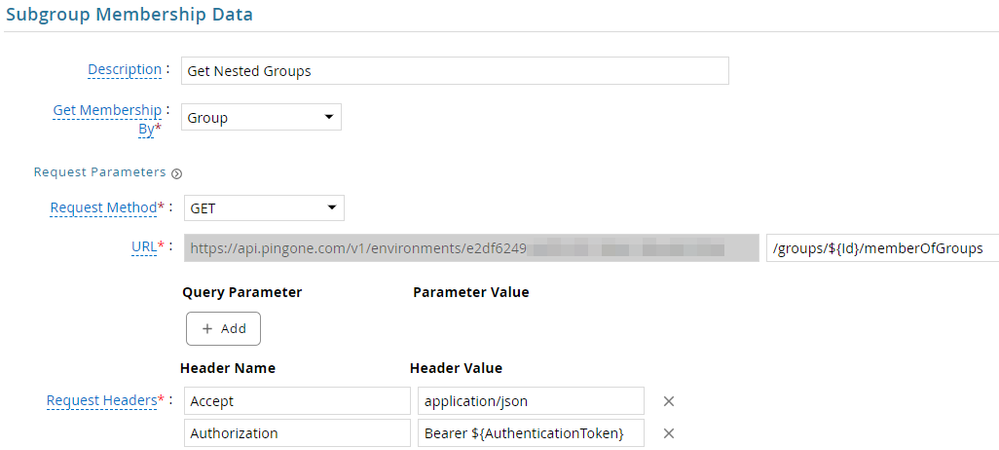
| Request | |
| Method | GET |
| URL | /groups/${Id}/memberOfGroups |
| Request Headers | |
| Accept | application/json |
| Authorization | Bearer ${AuthenticationToken} |
| Response Mappings | |
| Subgroup Identifier | $._embedded.groupMemberships.*.id |
- Click Next. In the Map Collector Attributes to Account Attributes, map the collected account attributes.
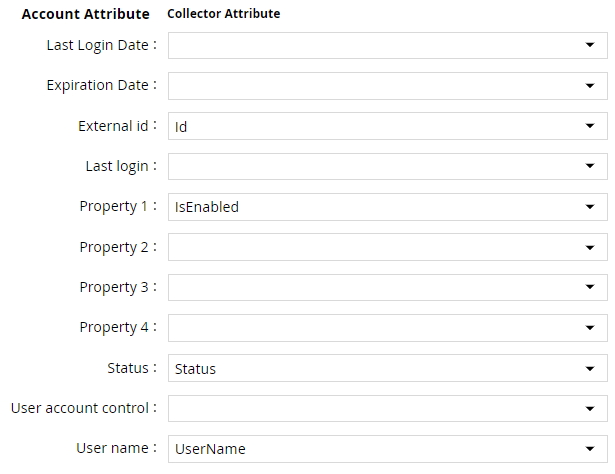
- Click Next. In the Map Collector Attributes to Account Mapping Attributes, map the user reference attribute.

- Click Next. In the Map Collector Attributes to Group Attributes, map the collected group attributes.

- Click Next. In the User Resolution Rules, map the user to account.

- Click Next. In the Member Account Resolution Rules, map the account attribute.

- Click Next. In the Sub-group Resolution Rules, map the group attribute.

- Click Next. In the Group Owner Resolution Rules, map the group attribute.

- Click Finish. Use the
Testfunction to make sure the configurations are accurate.
Application Setup
This section explains the process of setting up a service account in PingOne for use within the collections process.
Steps
- Login to PingOne console https://console.pingone.com/index.html
- Navigate to Connections > Applications.
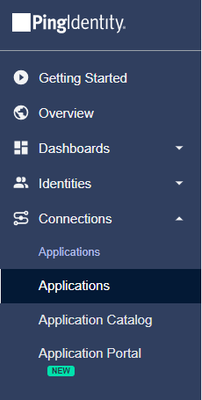
- Click on Add Applications.

- Enter a suitable name and description and select application type as Worker.
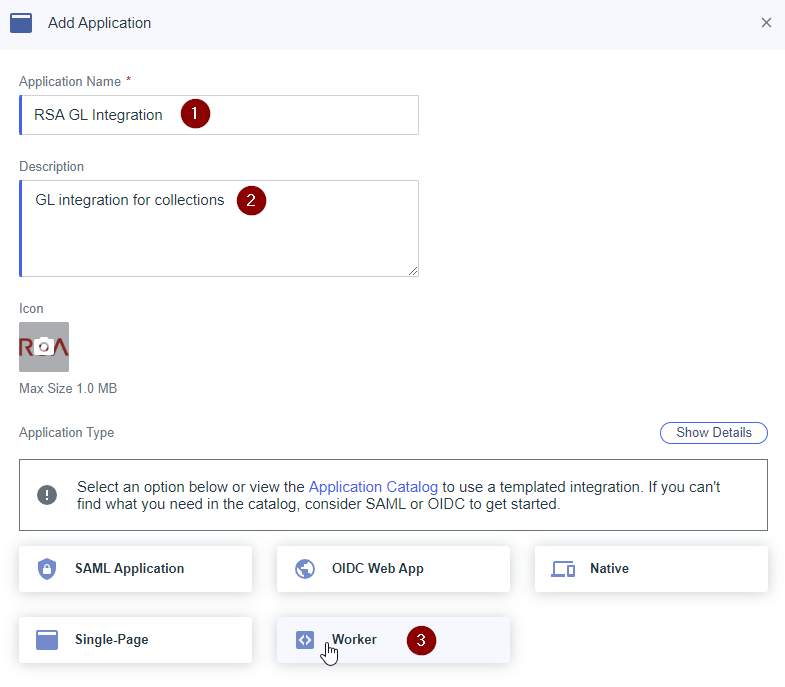
- Click on Save.
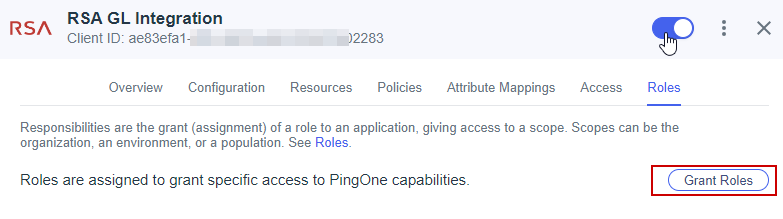
- Click on the toggle to enable the application. Click on Grant Roles to add the necessary roles for the integration account.
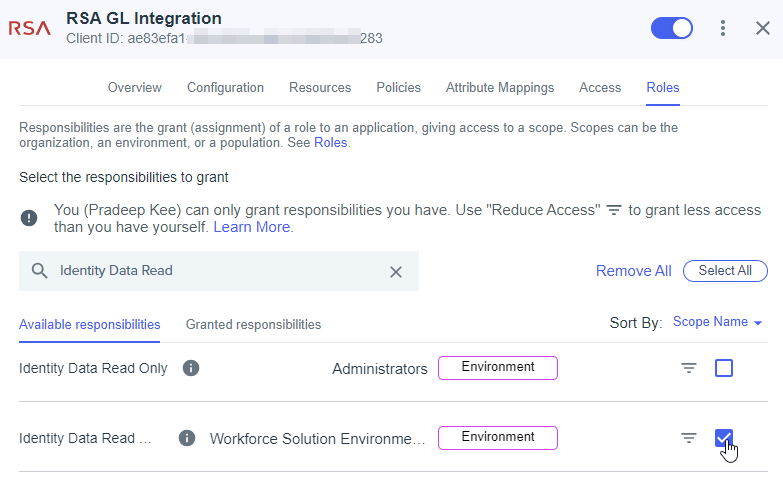
- Add Identity Data Read Only Permissions roles and click Save.
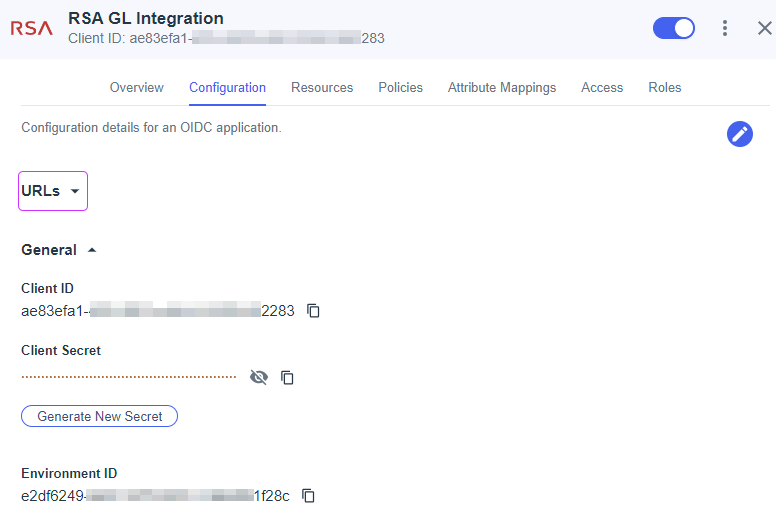
- Click on Configuration tab and copy the Client ID and Client Secret.
Authentication
Token
This section explains the process of setting up RSA G&L ADC with token authentication.
Steps
- Login to RSA G&L console as System Administrator.
- Create or Edit a generic REST ADC that will be using Token authentication.
- On the Connection Details page, configure the following.
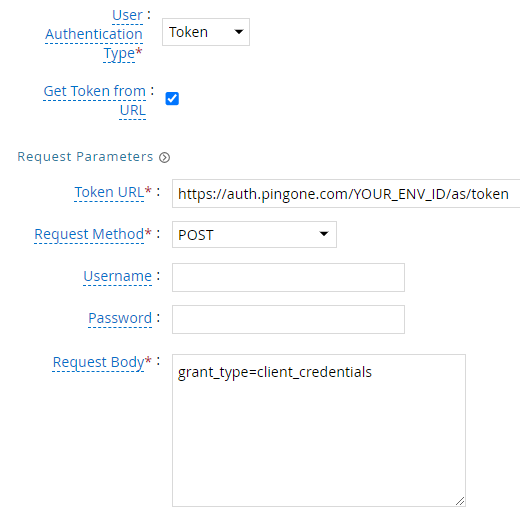
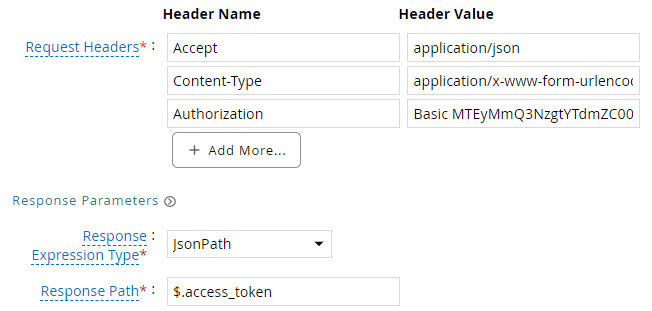
| Request | |
| Method | POST |
| Token URL | https://auth.pingone.com/YOUR_ENV_ID/as/token |
| Username | NA |
| Password | NA |
| Request Headers | |
| Accept | application/json |
| Content-Type | application/x-www-form-urlencoded |
| Authorization | Basic AUTH_STRINGAUTH_STRING - The Base64 encoded string of Client_ID:Client_Secret. The REST API to get the token requires basic authentication to be setup, instead of standard practice of sending the credentials in the POST body. |
| Request Body | |
| grant_type=client_credentials | |
| Response Mappings | |
| Response Path | $.access_token |
- Save the collector configuration & test.
References
- PingOne Platform API
- PingOne API: Getting Started
- Users
- Groups
- PingOne Authentication API (token endpoint)
- OAuth 2.0 Client Credentials Grant (RFC 6749)
COL004