Asana✓ Verified

 Asana is a powerful project management tool that enhances team collaboration and task organization. It simplifies complex workflows, fosters clear communication, and ensures efficient task tracking. With its user-friendly interface and customizable features, Asana streamlines project management, enabling teams to achieve goals and deliver results effectively. Asana is a powerful project management tool that enhances team collaboration and task organization. It simplifies complex workflows, fosters clear communication, and ensures efficient task tracking. With its user-friendly interface and customizable features, Asana streamlines project management, enabling teams to achieve goals and deliver results effectively.Identities ❌ | Accounts ✔️ | Groups ✔️ | App Roles ✔️ | Entitlements ❌ |
A workspace in Asana is the top-level container for organizing and managing work. It serves as a central hub where teams, projects, tasks, and other resources are grouped together. Workspaces can be thought of as separate environments, and users can create multiple workspaces to keep different projects or teams distinct from each other. Each workspace has its own set of users, projects, and tasks.
Users are individuals who have access to an Asana workspace. They can create and manage tasks, projects, and collaborate with other team members. Users can be assigned tasks, comment on tasks, contribute to projects, and work together to achieve shared goals within the workspace.
Teams are groups of users who work together on specific projects or share common goals within a workspace. Teams allow users to collaborate more efficiently by providing a dedicated space to manage and organize tasks related to a particular function, project, or department. Teams can have their own projects, tasks, and members. Users can belong to multiple teams within a workspace, which allows for flexible collaboration across different groups.
Projects in Asana are used to organize and track tasks and work items related to a specific goal, initiative, or task list. Projects provide a structured way to manage work by breaking it down into smaller tasks and assigning responsibilities to team members. Within a project, users can create tasks, set due dates, assign owners, add descriptions, and attach files. Projects can be organized into sections or categories to further group and prioritize tasks.
Application
Steps
- Login to RSA G&L console as System Administrator.
- Navigate to Resources > Application.
- Click on Create Application and select Other Application.
- Enter the details as shown below.
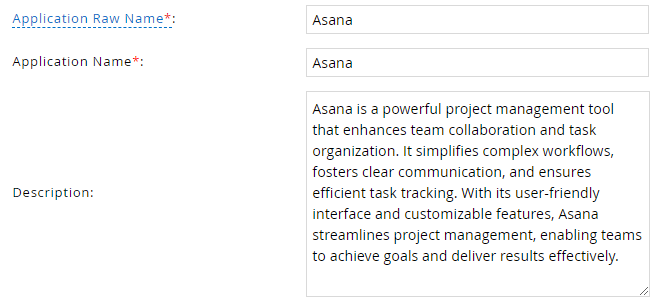
- Click Finish.
Account Collector
This section explains the process for configuring an account collector for the Asana application. We will use the RSA G&L Generic REST collector 1 for this purpose.
Steps
- Login to RSA G&L console as System Administrator.
- Navigate to Resources > Applications.
- Click on Asana.
- Navigate to Collectors tab and click on Create Account Collector. Enter the details as shown below.

- Click Next and enter the connection details.
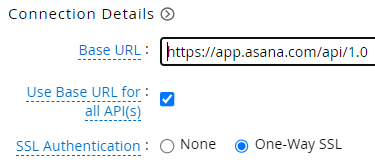
- Click Next. Select the data types that the collector will be collecting from Asana

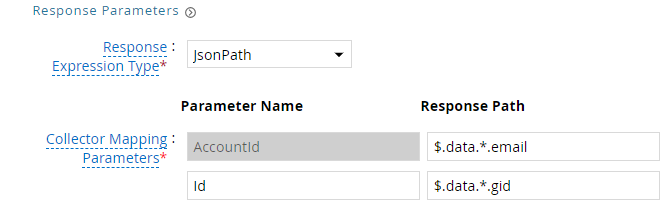
- Click Next. On the Account Data page, enter the following configurations.
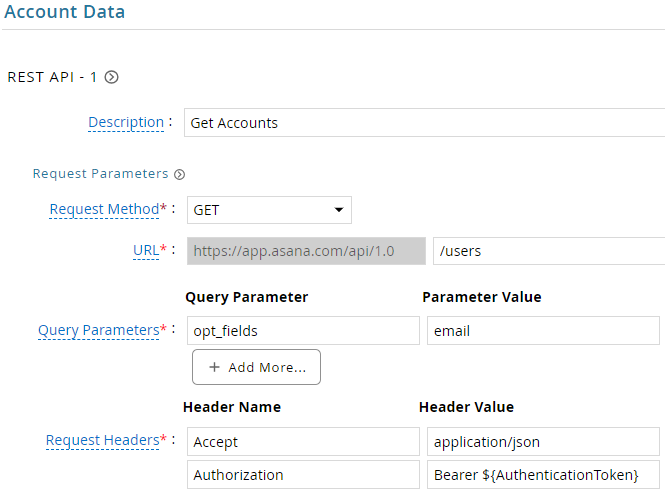
| Request | |
| Method | GET |
| URL | /users |
| Query Parameters | |
| opt_fields | email |
| Request Headers | |
| Accept | application/json |
| Authorization | Bearer ${AuthenticationToken} |
| Response Mappings | |
| AccountId | $.data.*.email |
| Id | $.data.*.gid |
- Click Next. On the Group Data page, enter the following configurations.
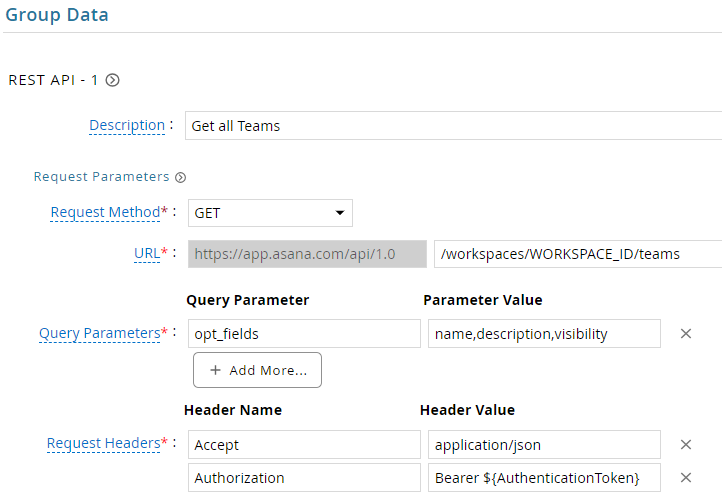
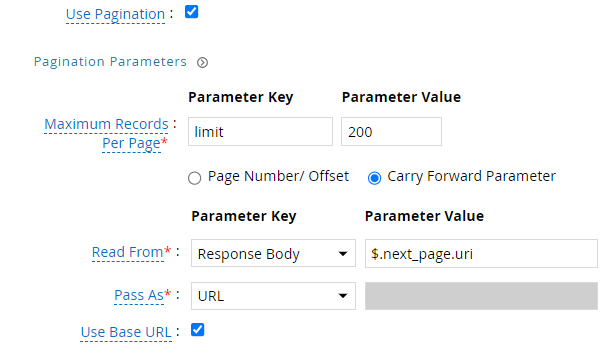
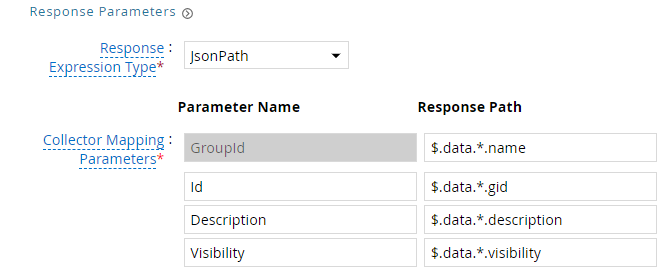
| Request | |
| Method | GET |
| URL | /workspaces/WORKSPACE_ID/teams (Replace with your workspace ID) |
| Query Parameters | |
| opt_fields | name,description,visibility |
| Request Headers | |
| Accept | application/json |
| Authorization | Bearer ${AuthenticationToken} |
| Response Mappings | |
| GroupId | $.data.*.name |
| Id | $.data.*.gid |
| Description | $.data.*.description |
| Visibility | $.data.*.visibility |
- Click Next. On the Account Group Membership page, enter the following configurations.
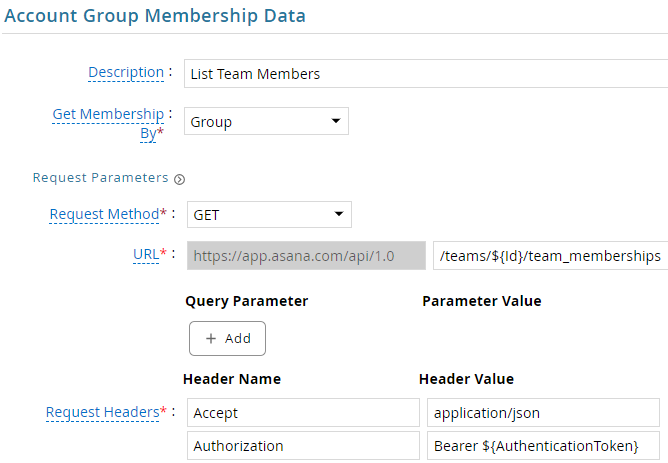

| Request | |
| Method | GET |
| URL | /teams/${Id}/team_memberships |
| Query Parameters | |
| opt_fields | user |
| Request Headers | |
| Accept | application/json |
| Authorization | Bearer ${AuthenticationToken} |
| Response Mappings | |
| Account Identifier | $.data.*.user.gid |
- Click Next. In the Map Collector Attributes to Account Attributes, map the collected account attributes.
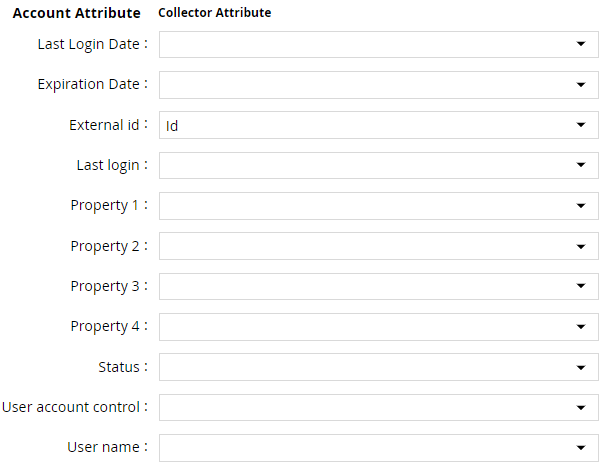
- Click Next. In the Map Collector Attributes to Account Mapping Attributes, map the user reference attribute.

- Click Next. In the Map Collector Attributes to Group Attributes, map the collected group attributes.

- Click Next. In the User Resolution Rules, map the user to account.

- Click Next. In the Member Account Resolution Rules, map the account.

💡 Info: This value MUST always be mapped to the Account Name for any generic REST collector.
- Click Finish. Use the
Testfunction to make sure the configurations are accurate.
Entitlement Collector
This section explains the process for configuring an entitlement collector to collect projects and assignments from the Asana application. We will use the RSA G&L Generic REST collector for this purpose.
Steps
- Login to RSA G&L console as AveksaAdmin.
- Navigate to Resources > Applications.
- Click on Asana.
- Navigate to Collectors tab and click on Create Entitlement Collector. Enter the details as shown below.

- Click Next and enter the connection details as shown in Step 5 of Account Collector.
- Click Next. Select the data types that the collector will be collecting from Asana.

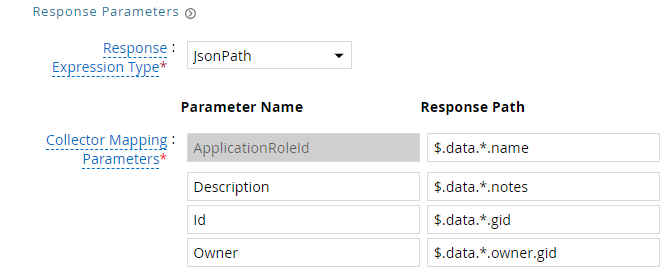
- Click Next. On the App Role Data page, enter the following configurations.
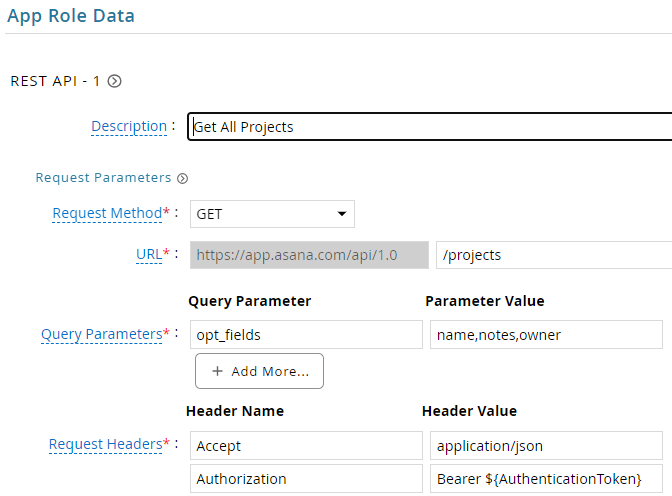
| Request | |
| Method | GET |
| URL | /projects |
| Query Parameters | |
| opt_fields | name,notes,owner |
| Request Headers | |
| Accept | application/json |
| Authorization | Bearer ${AuthenticationToken} |
| Response Mappings | |
| ApplicationRoleId | $.data.*.name |
| Id | $.data.*.gid |
| Description | $.data.*.notes |
| Owner | $.data.*.owner.gid |
- Click Next. On the App-Role Account Membership collection page, enter the following configurations.
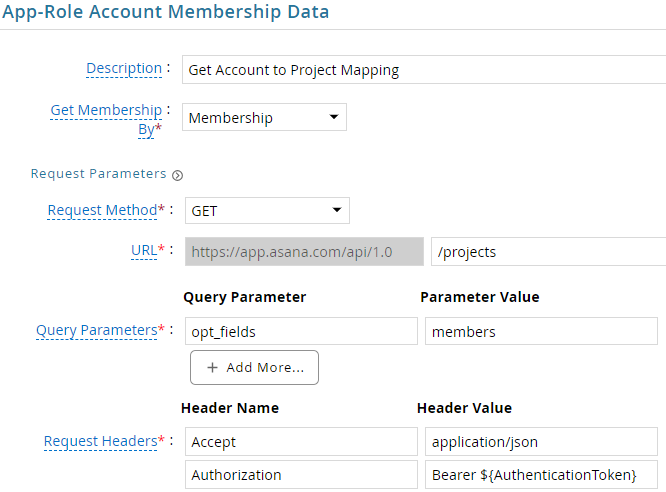
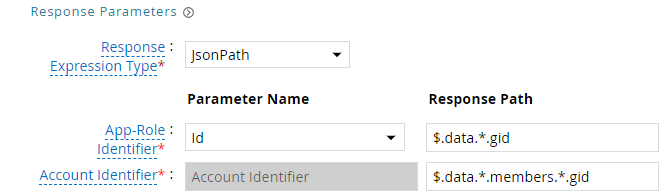
| Request | |
| Method | GET |
| URL | /projects |
| Query Parameters | |
| opt_fields | members |
| Request Headers | |
| Accept | application/json |
| Authorization | Bearer ${AuthenticationToken} |
| Response Mappings | |
| Application Role Id | $.data.*.gid |
| Account Identifier | $.data.*.members.*.gid |
- Click Next. In the Map Collector Attributes to App Role Attributes, map the collected account attributes.

- Click Next. In the Account Evaluation, map the account collector to account value.

- Click Next and then click Finish. Use the
Testfunction to make sure the configurations are accurate.
Application Setup
This section explains the process of setting up a service account in Asana for use within the collections process.
Steps
- Login to Asana Developer console, https://app.asana.com/0/my-apps.
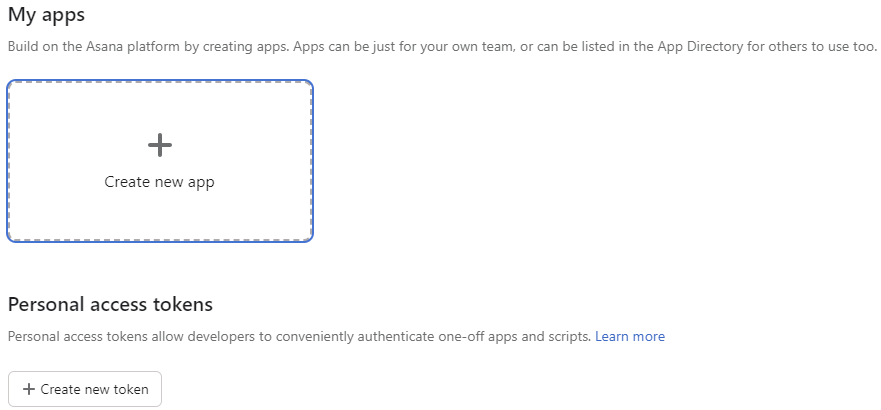
- Click on Create new app.
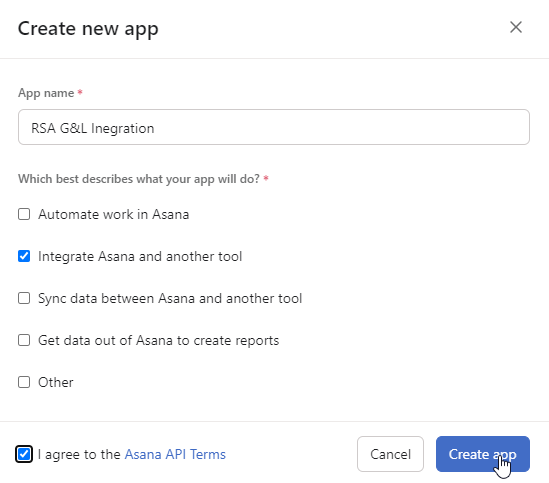
- Provide a suitable name, and click Create app
- Copy the Client ID and Secret.
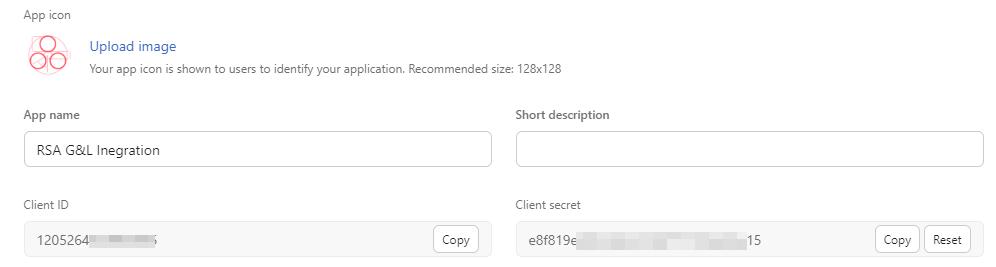
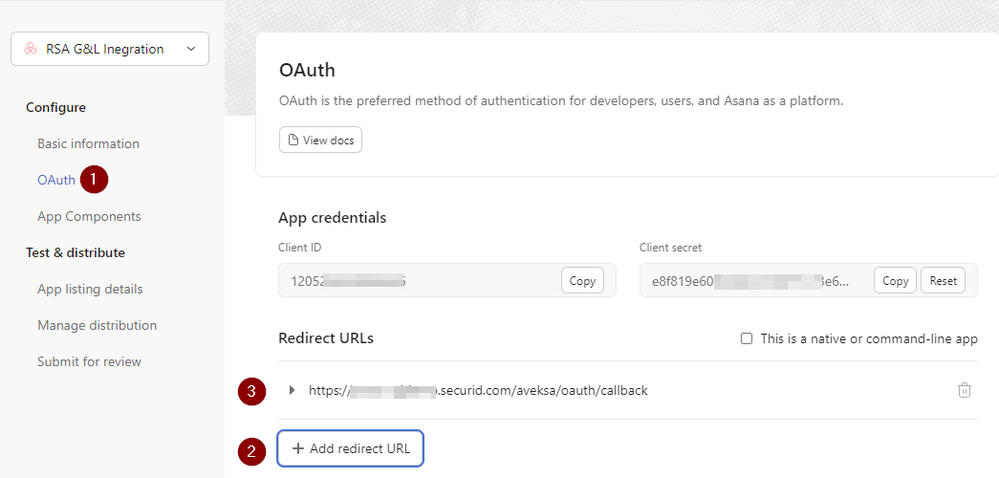
- Click on Configure > OAuth
- Add the redirect URL for the G&L instance https://instance.securid.com:443/aveksa/oauth/callback
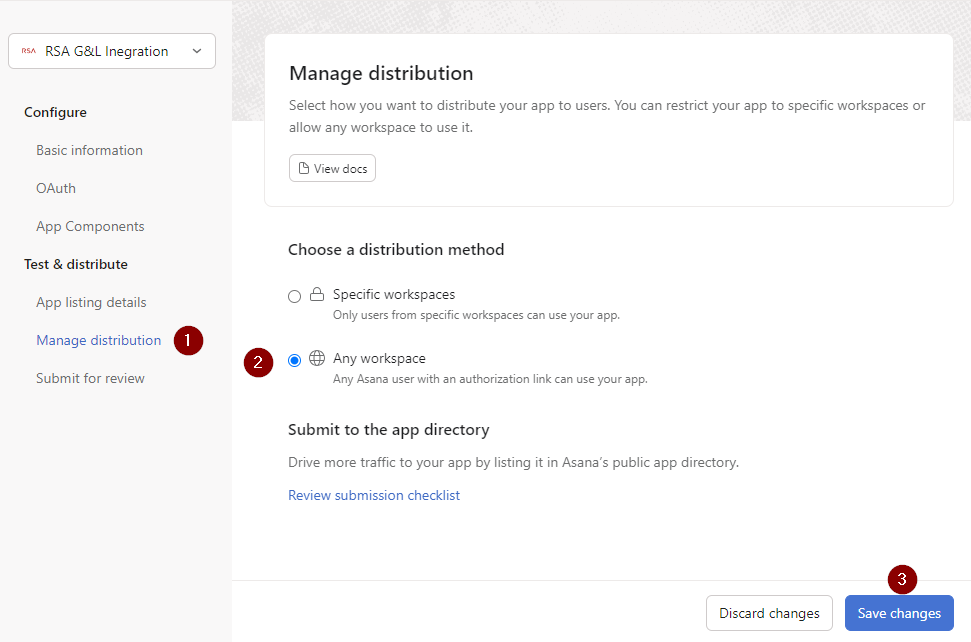
- Navigate to Manage Distribution under Test & Distribute section. Select Any Workspace and click Save Changes.
Authentication
OAuth2
This section explains the process of setting up RSA G&L ADC with OAuth2 authentication.
Steps
- Login to RSA G&L console as System Administrator.
- Create or Edit a generic REST ADC that will be using OAuth2 authentication.
- On the Connection Details page, configure the following.
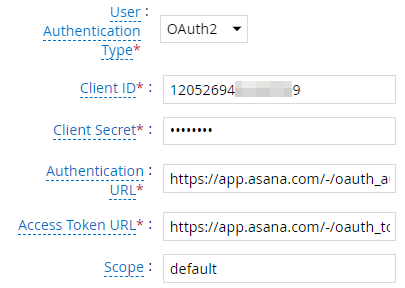
| Request | |
| Client ID | - |
| Client Secret | - |
| Authentication URL | https://app.asana.com/-/oauth_authorize |
| Access Token URL | https://app.asana.com/-/oauth_token |
| Scope | default |
- Click on Get OAuth 2.0 Access Token.
- Click on Proceed For Authorization.
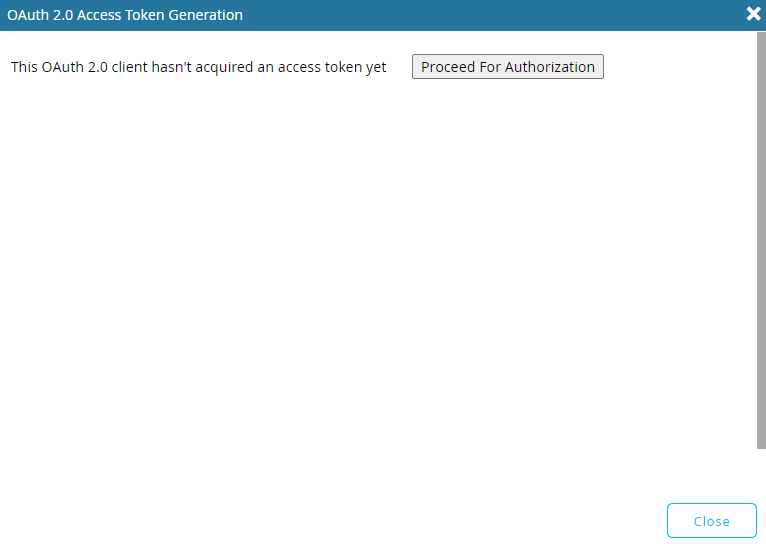
- Login to Asana account.
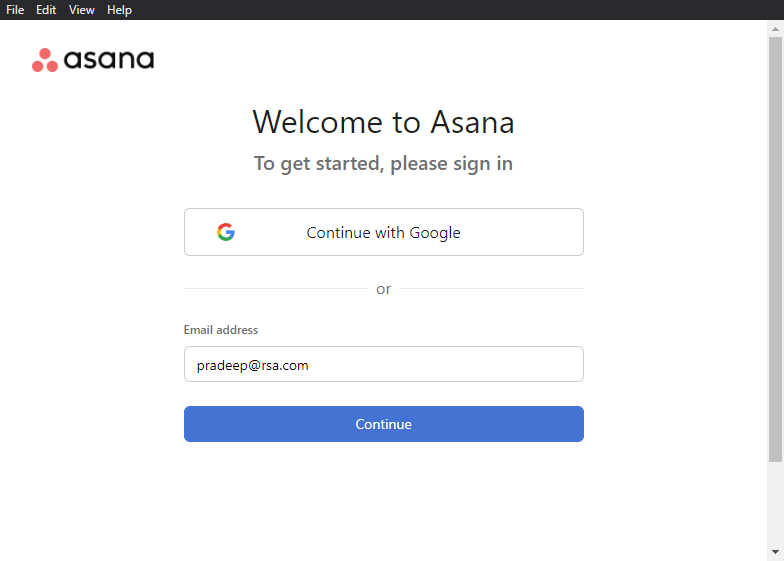
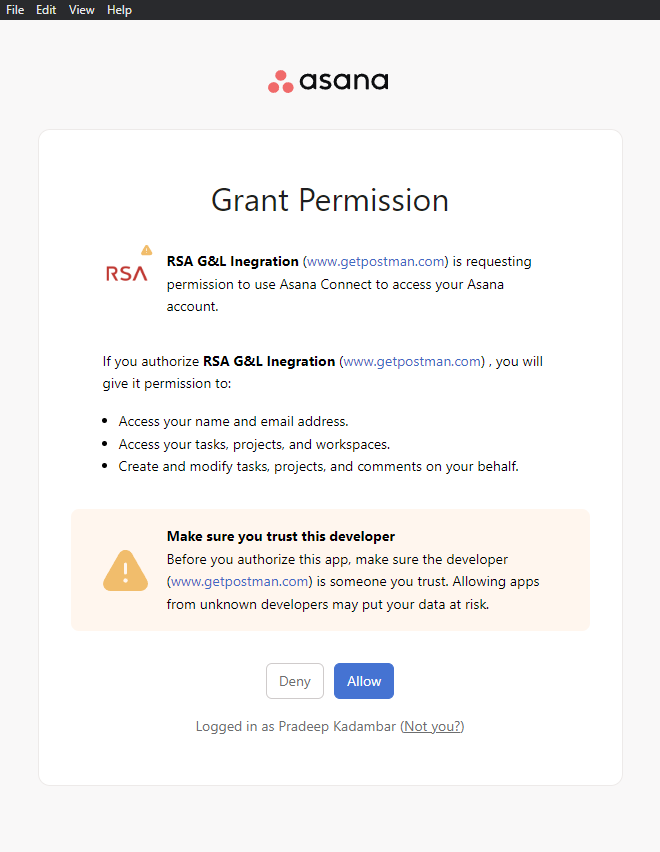
- The below message indicates that RSA G&L has successfully acquired a token.
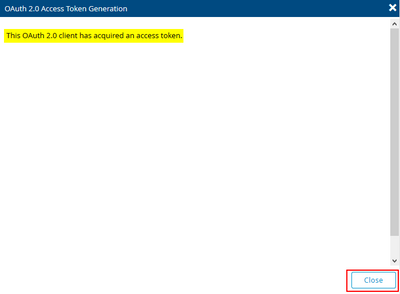
- Click Close.
- Save the collector configuration & test.
References
- Asana REST API Reference
- Get multiple users
- Get teams in a workspace
- Get team memberships
- Get multiple projects
- Asana OAuth
- OAuth 2.0 Authorization Code Grant (RFC 6749)
COL007