Qlik✓ Verified

 A Qlik application is a powerful data analytics tool that enables users to visualize and explore data for insightful decision-making. It facilitates interactive data discovery, real-time analysis, and dynamic dashboards. Qlik applications offer a user-friendly interface to create, manipulate, and share data-driven insights, fostering better understanding of trends and patterns within data. A Qlik application is a powerful data analytics tool that enables users to visualize and explore data for insightful decision-making. It facilitates interactive data discovery, real-time analysis, and dynamic dashboards. Qlik applications offer a user-friendly interface to create, manipulate, and share data-driven insights, fostering better understanding of trends and patterns within data.Identities ❌ | Accounts ✔️ | Groups ✔️ | App Roles ✔️ | Entitlements ❌ |
Users are individuals who interact with Qlik applications to analyze, visualize, and gain insights from data. Each user has a unique account and login credentials to access the application. Users can have different roles and permissions based on their responsibilities within the organization.
Groups are collections of users who share similar roles or responsibilities. They enable efficient management of permissions and access control. Users within the same group often require the same level of access to data and functionalities. Grouping users simplifies administration and ensures consistency in permissions.
Roles define specific sets of permissions that determine what actions users can perform within the application. Roles can include privileges like creating, editing, or deleting data, as well as administrative capabilities. By assigning roles to users or groups, organizations ensure that users have the appropriate level of access and functionality based on their roles or responsibilities.
In Qlik applications, users are typically organized into groups. Roles are then assigned to these groups to define the permissions and actions that users within the group can undertake. This hierarchical approach streamlines access management: by modifying roles assigned to a group, permissions are automatically adjusted for all users within that group. This ensures data security, simplifies access control, and maintains consistency in permissions across the organization.
Application
Steps
- Login to RSA G&L console as System Administrator.
- Navigate to Resources > Application.
- Click on Create Application and select Other Application.
- Enter the details as shown below.
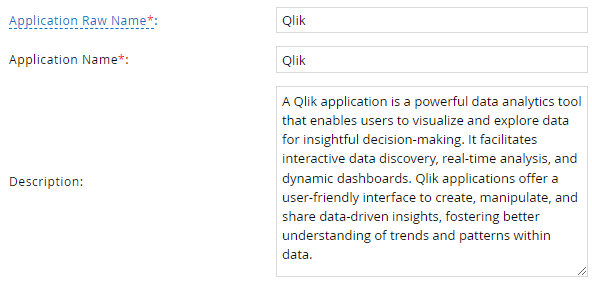
- Click Finish.
Account Collector
This section explains the process for configuring an account collector for the Qlik application. We will use the RSA G&L Generic REST collector 1 for this purpose.
Steps
- Login to RSA G&L console as System Administrator.
- Navigate to Resources > Applications.
- Click on Qlik.
- Navigate to Collectors tab and click on Create Account Collector. Enter the details as shown below.

- Click Next and enter the connection details.
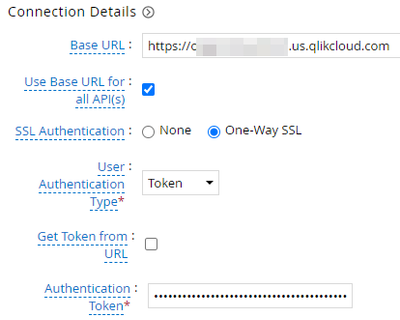
- Click Next. Select the data types that the collector will be collecting from Qlik

- Click Next. On the Account Data page, enter the following configurations.
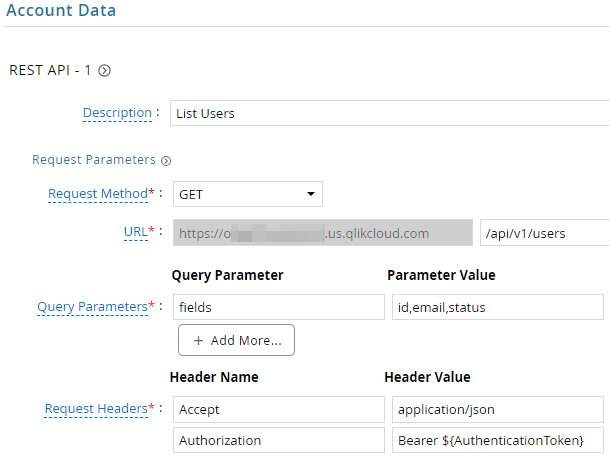
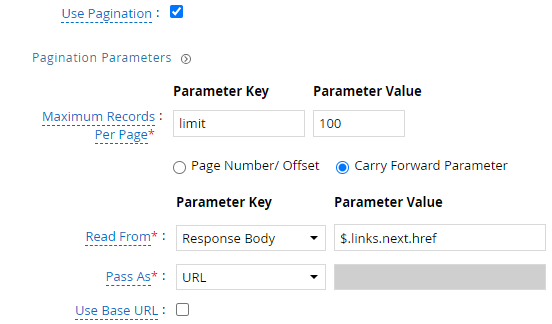
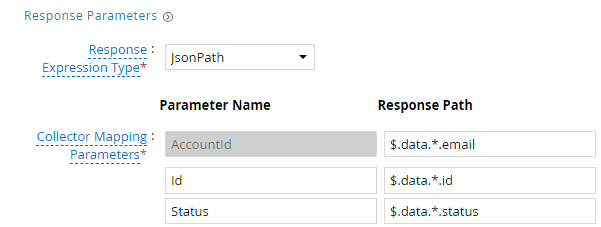
| Request | |
| Method | GET |
| URL | /api/v1/users |
| Query Parameters | |
| fields | id,email,status |
| Request Headers | |
| Accept | application/json |
| Authorization | Bearer ${AuthenticationToken} |
| Response Mappings | |
| AccountId | $.data.*.email |
| Id | $.data.*.id |
| Status | $.data.*.status |
- Click Next. On the Group Data page, enter the following configurations.
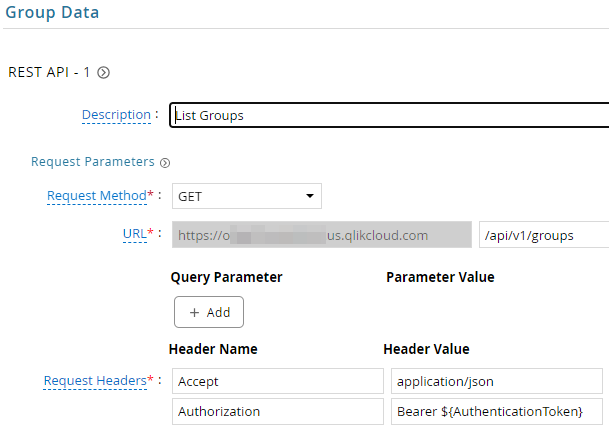
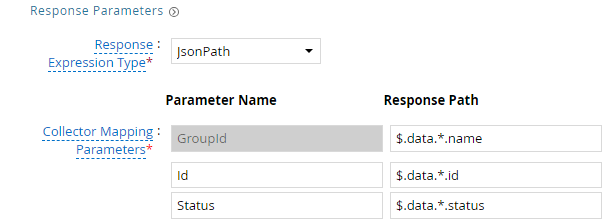
| Request | |
| Method | GET |
| URL | /api/v1/groups |
| Request Headers | |
| Accept | application/json |
| Authorization | Bearer ${AuthenticationToken} |
| Response Mappings | |
| GroupId | $.data.*.name |
| Id | $.data.*.id |
| Status | $.data.*.status |
- Click Next. On the Account Group Membership page, enter the following configurations.
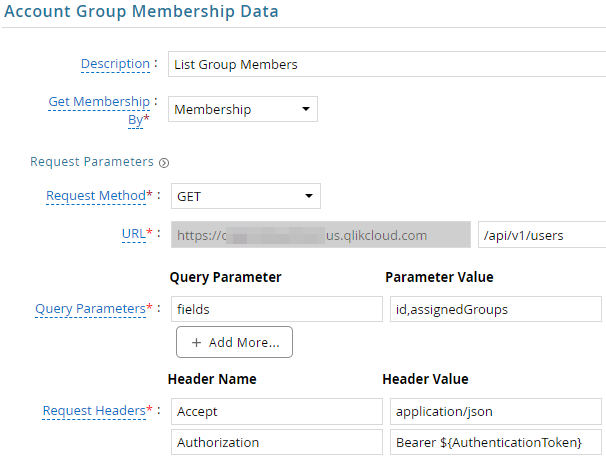
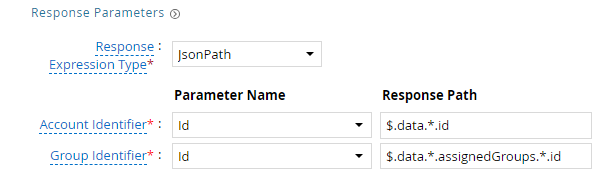
| Request | |
| Method | GET |
| URL | /api/v1/users |
| Query Parameters | |
| fields | id,assignedGroups |
| Request Headers | |
| Accept | application/json |
| Authorization | Bearer ${AuthenticationToken} |
| Response Mappings | |
| Account Identifier | $.data.*.id |
| Group Identifier | $.data.*.assignedGroups.*.id |
- Click Next. In the Map Collector Attributes to Account Attributes, map the collected account attributes.
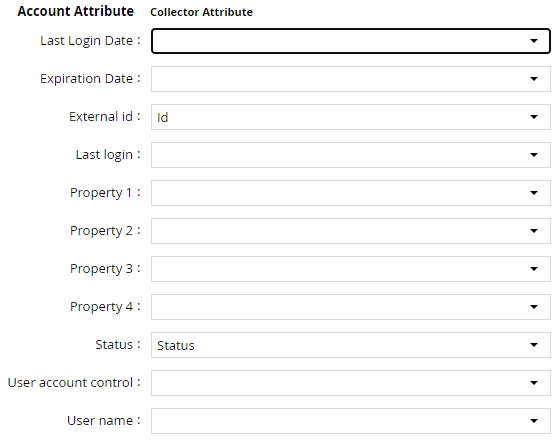
- Click Next. In the Map Collector Attributes to Account Mapping Attributes, map the user reference attribute.

- Click Next. In the Map Collector Attributes to Group Attributes, map the collected group attributes.

- Click Next. In the User Resolution Rules, map the user to account.

- Click Next. In the Member Account Resolution Rules, map the account.

💡 Info: This value MUST always be mapped to the Account Name for any generic REST collector.
- Click Finish. Use the
Testfunction to make sure the configurations are accurate.
Entitlement Collector
This section explains the process for configuring an entitlement collector to collect roles from Qlik application. We will use the RSA G&L Generic REST collector for this purpose.
Steps
- Login to RSA G&L console as AveksaAdmin.
- Navigate to Resources > Applications.
- Click on Qlik.
- Navigate to Collectors tab and click on Create Entitlement Collector. Enter the details as shown below.

- Click Next and enter the connection details as shown in Step 5 of Account Collector.
- Click Next. Select the data types that the collector will be collecting from Qlik.

- Click Next. On the App Role Data page, enter the following configurations.
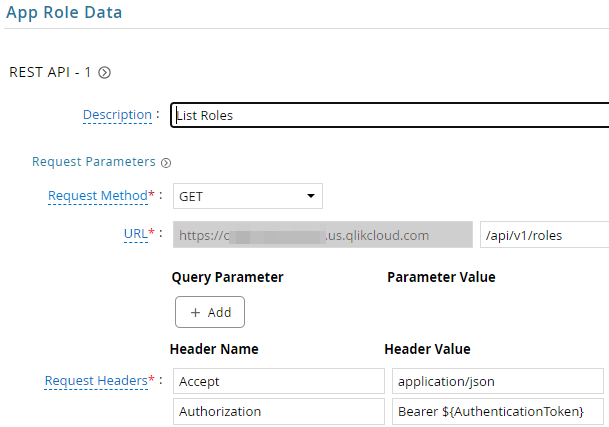
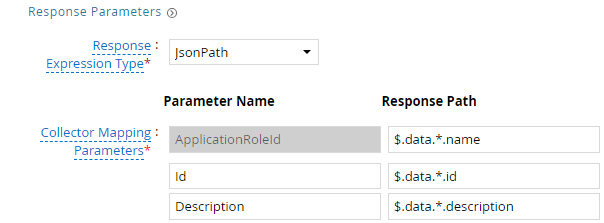
| Request | |
| Method | GET |
| URL | /api/v1/roles |
| Request Headers | |
| Accept | application/json |
| Authorization | Bearer ${AuthenticationToken} |
| Response Mappings | |
| ApplicationRoleId | $.data.*.name |
| Id | $.data.*.id |
| Description | $.data.*.description |
- Click Next. On the App-Role Account Membership collection page, enter the following configurations.
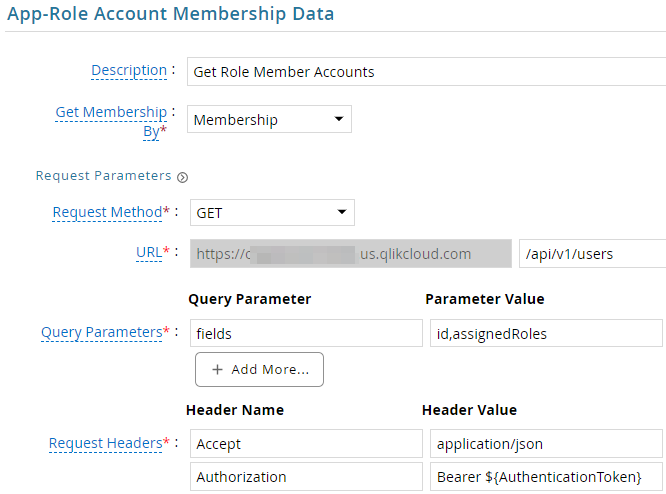
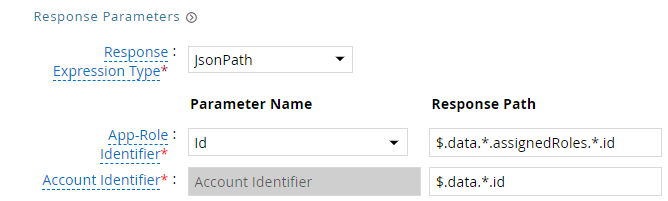
| Request | |
| Method | GET |
| URL | /api/v1/users |
| Query Parameters | |
| fields | id,assignedRoles |
| Request Headers | |
| Accept | application/json |
| Authorization | Bearer ${AuthenticationToken} |
| Response Mappings | |
| Application Role Id | $.data.*.assignedRoles.*.id |
| Account Identifier | $.data.*.id |
- Click Next. On the App-Role Group Membership Data page, enter the following configurations.
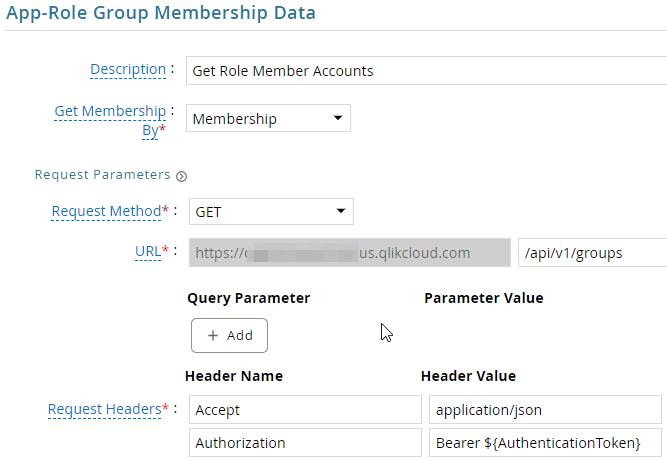
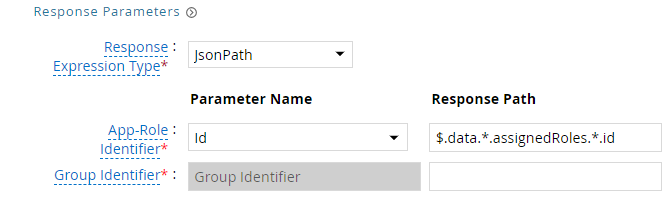
| Request | |
| Method | GET |
| URL | /api/v1/groups |
| Request Headers | |
| Accept | application/json |
| Authorization | Bearer ${AuthenticationToken} |
| Response Mappings | |
| Application Role Id | $.data.*.assignedRoles.*.id |
| Group Identifier | $.data.*.id |
- Click Next. In the Map Collector Attributes to App Role Attributes, map the collected account attributes.
- Click Next. In the Account Evaluation, map the account collector to account value.

- Click Next. In the Group Evaluation, map the account collector to account value.

- Click Next and then click Finish. Use the
Testfunction to make sure the configurations are accurate
Application Setup
This section explains the process of setting up a service account in Qlik for use within the collections process.
Steps
- Login to Qlik Management console https://instance.qlikcloud.com/console/home.
- By default, API keys are disabled. Navigate to Settings and, under API Keys, select Enable API Keys.

- Navigate to API Keys and click on Generate New.
- Click on Generate New Key.
- Provide a suitable name and an expiration period for the key.
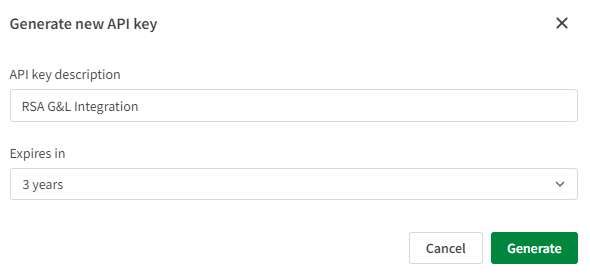
- Click Generate
- Copy and retain the API key.
References
- Qlik Cloud APIs
- Users API
- Groups API
- Roles API
- Generate your first API key
- Generating API keys (Qlik Cloud help)
COL002