Miro✓ Verified

 Miro is a visual collaboration platform built around shared online whiteboards. Teams use it for brainstorming, planning, and diagramming. RSA G&L collects users, groups, group memberships, and user roles through the Miro SCIM API. Miro is a visual collaboration platform built around shared online whiteboards. Teams use it for brainstorming, planning, and diagramming. RSA G&L collects users, groups, group memberships, and user roles through the Miro SCIM API.Identities ❌ | Accounts ✔️ | Groups ✔️ | App Roles ✔️ | Entitlements ❌ |
Miro supports both the REST API 1 and SCIM APIs 2. For the purposes of this article, we will use the SCIM APIs.
Application
Steps
- Login to RSA G&L console as System Administrator.
- Navigate to Resources > Application.
- Click on Create Application and select Other Application.
- Enter the details as shown below.
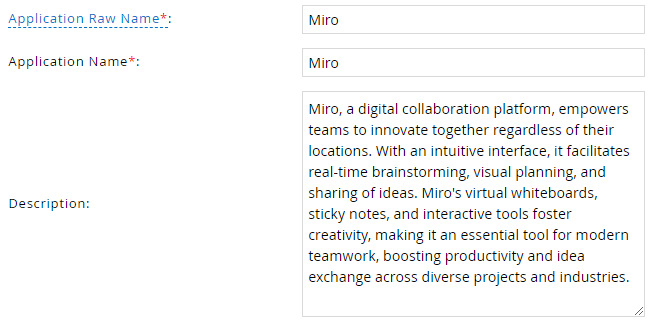
- Click Finish.
Account Collector
This section explains the process for configuring an account collector for the Miro application. We will use the RSA G&L Generic REST collector for this purpose.
Steps
- Login to RSA G&L console as System Administrator.
- Navigate to Resources > Applications.
- Click on Miro.
- Navigate to Collectors tab and click on Create Account Collector. Enter the details as shown below.

- Click Next and enter the connection details.
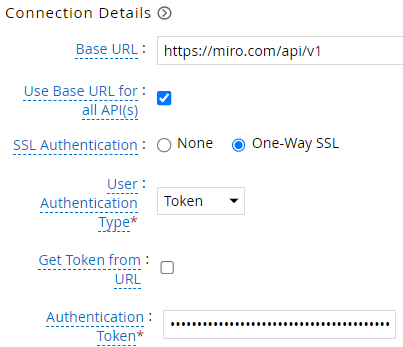
- Click Next. Select the data types that the collector will be collecting from Miro

- Click Next. On the Account Data page, enter the following configurations.
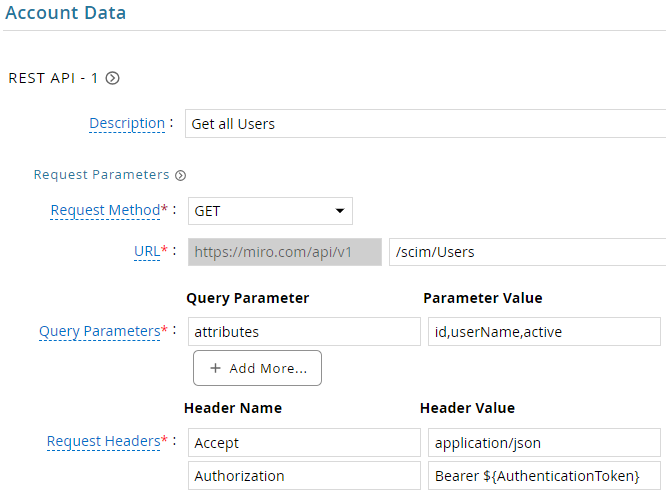
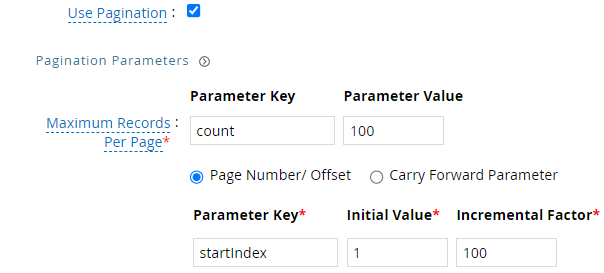
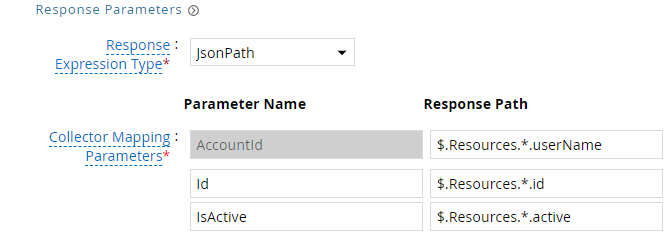
| Request | |
| Method | GET |
| URL | /scim/Users |
| Query Parameters | |
| attributes | id,userName,active |
| Request Headers | |
| Accept | application/json |
| Authorization | Bearer ${AuthenticationToken} |
| Response Mappings | |
| AccountId | $.Resources.*.userName |
| Id | $.Resources.*.id |
| IsActive | $.Resources.*.active |
- Click Next. On the Group Data page, enter the following configurations.
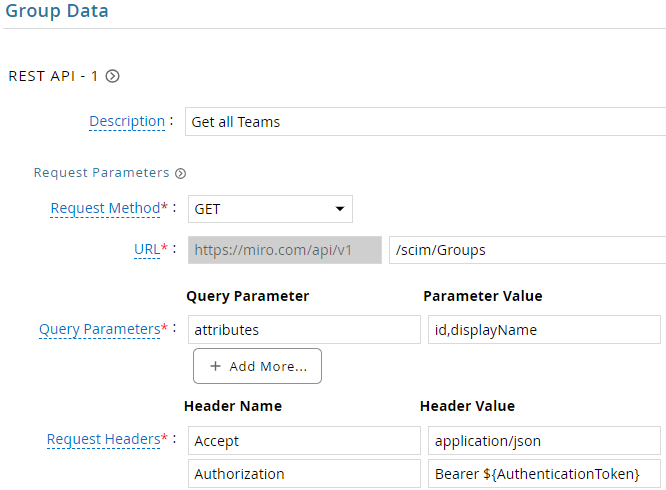
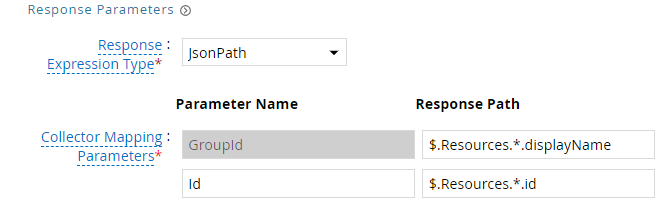
| Request | |
| Method | GET |
| URL | /scim/Groups |
| Query Parameters | |
| attributes | id,displayName |
| Request Headers | |
| Accept | application/json |
| Authorization | Bearer ${AuthenticationToken} |
| Response Mappings | |
| GroupId | $.Resources.*.displayName |
| Id | $.Resources.*.id |
- Click Next. On the Account Group Membership page, enter the following configurations.
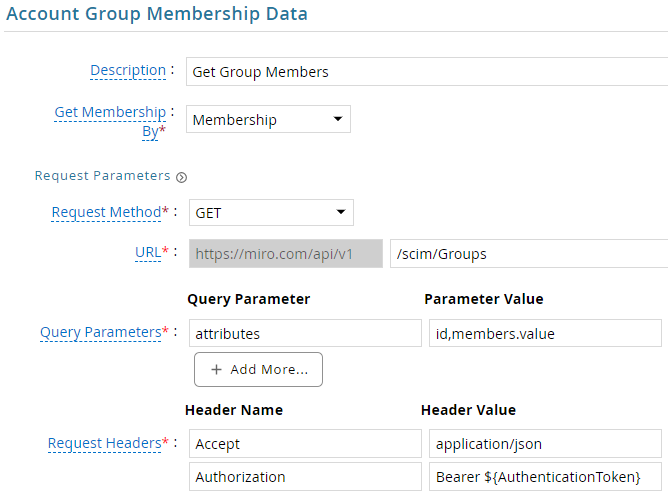
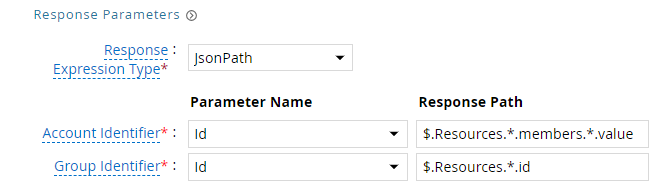
| Request | |
| Method | GET |
| URL | /scim/Groups |
| Query Parameters | |
| attributes | id,members.value |
| Request Headers | |
| Accept | application/json |
| Authorization | Bearer ${AuthenticationToken} |
| Response Mappings | |
| Account Identifier | $.Resources.*.members.*.value |
| Group Identifier | $.Resources.*.id |
- Click Next. In the Map Collector Attributes to Account Attributes, map the collected account attributes.
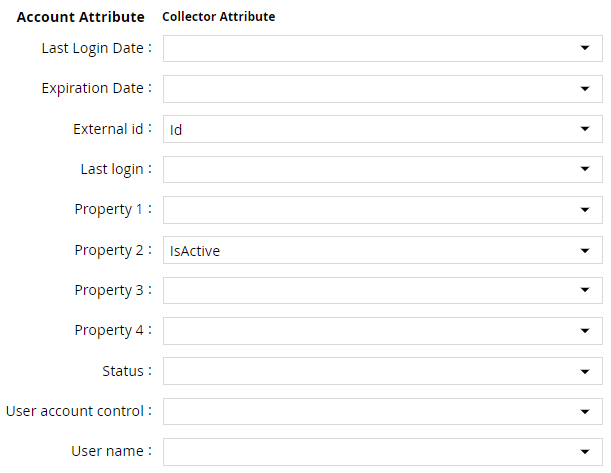
- Click Next. In the Map Collector Attributes to Account Mapping Attributes, map the user reference attribute.

- Click Next. In the Map Collector Attributes to Group Attributes, map the collected group attributes.

- Click Next. In the User Resolution Rules, map the user to account.

- Click Next. In the Member Account Resolution Rules, map the account.

💡 Info: This value MUST always be mapped to the Account Name for any generic REST collector.
- Click Finish. Use the
Testfunction to make sure the configurations are accurate.
Entitlement Collector
This section explains the process for configuring an entitlement collector to collect user roles and assignments from the Miro application. We will use the RSA G&L Generic REST collector for this purpose.
Steps
- Login to RSA G&L console as AveksaAdmin.
- Navigate to Resources > Applications.
- Click on Miro.
- Navigate to Collectors tab and click on Create Entitlement Collector. Enter the details as shown below.

- Click Next and enter the connection details as shown in Step 5 of Account Collector. Leave Use Base URL for all API(s) unchecked.
- Click Next. Select the data types that the collector will be collecting from Miro.

- Click Next. On the App Role Data page, enter the following configurations.
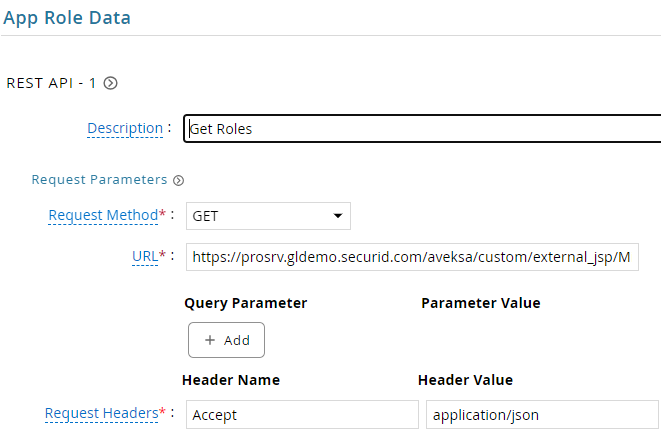
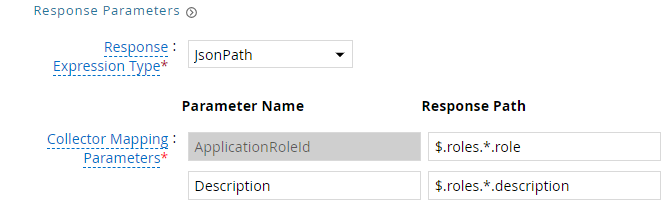
| Request | |
| Method | GET |
| URL | https://instance.securid.com/aveksa/custom/external_jsp/MiroRolesv1.jsp |
| Request Headers | |
| Accept | application/json |
| Response Mappings | |
| ApplicationRoleId | $.roles.*.role |
| Description | $.roles.*.description |
- Click Next. On the App-Role Account Membership collection page, enter the following configurations.
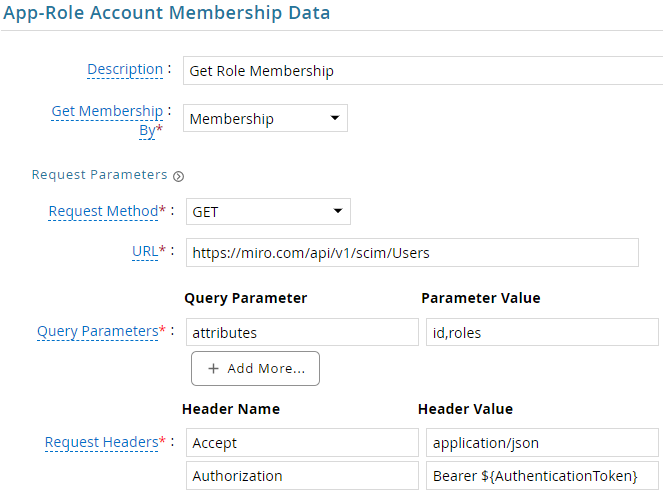
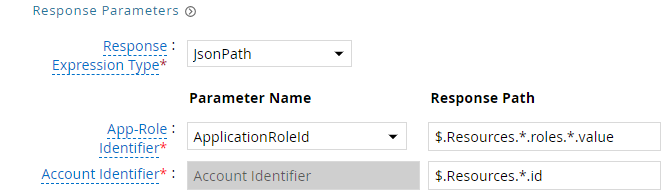
| Request | |
| Method | GET |
| URL | https://miro.com/api/v1/scim/Users |
| Query Parameters | |
| attributes | id,roles |
| Request Headers | |
| Accept | application/json |
| Authorization | Bearer ${AuthenticationToken} |
| Response Mappings | |
| Application Role Id | $.Resources.*.roles.*.value |
| Account Identifier | $.Resources.*.id |
- Click Next. In the Map Collector Attributes to App Role Attributes, map the collected account attributes.

- Click Next. In the Account Evaluation, map the account collector to account value.

- Click Next and then click Finish. Use the
Testfunction to make sure the configurations are accurate.
Application Setup
SCIM
This section explains the process of setting up Miro for integration with G&L using the SCIM APIs.
Steps
- Login to the Miro dashboard at
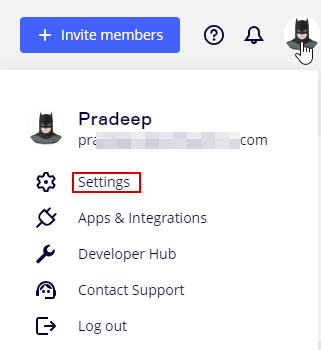
https://miro.com/app/dashboard/. - Click on profile and select Settings.
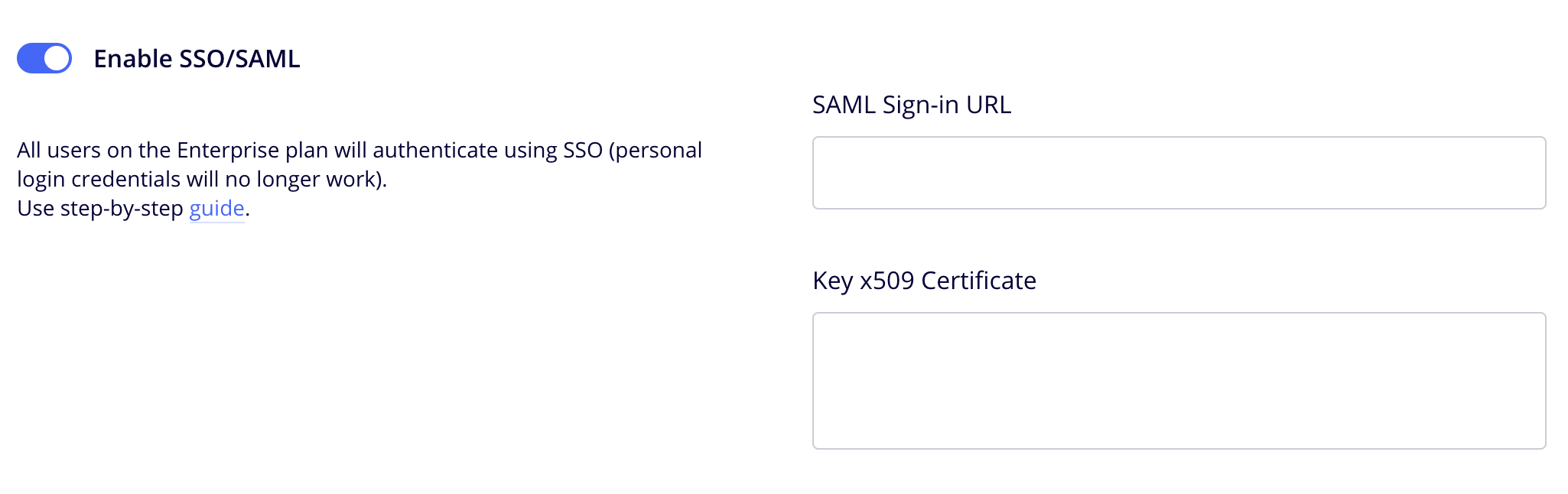
- Navigate to Security & compliance > Authentication page and enable SSO/SAML feature.
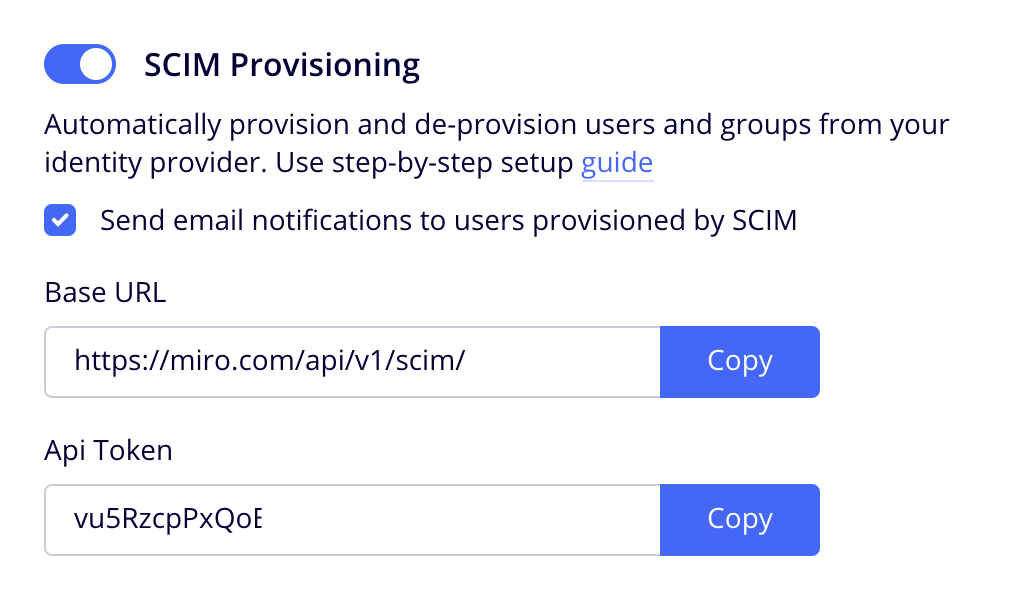
- Navigate to Account > Enterprise integrations page and copy the Base URL and API token
OAuth2
This section explains the process of setting up Miro for integration with G&L using OAuth2 authentication.
Steps
- Login to the Miro dashboard at
https://miro.com/app/dashboard/. - Click on profile and select Settings.
- Under Profile Settings, click on Integrations tab.
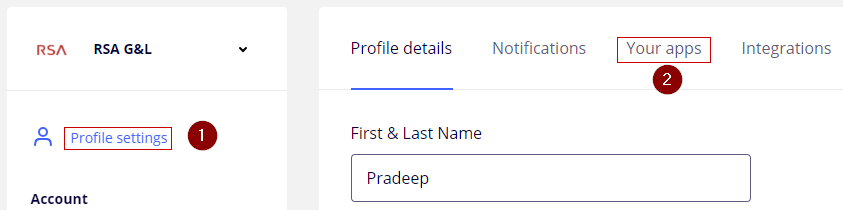
- Click on Create New App.
- Provide a suitable name for the application.
- Select a Developer Team to place the application in. If you do not have a team, go to Teams under User Management and create developer team.
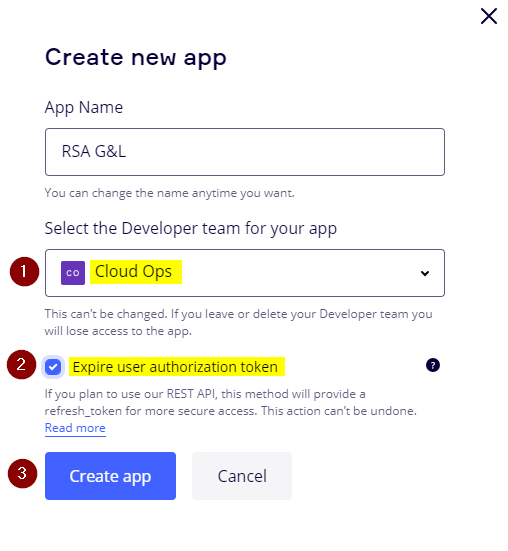
- Click on Create App.
- Copy the
Client IDandClient Secret.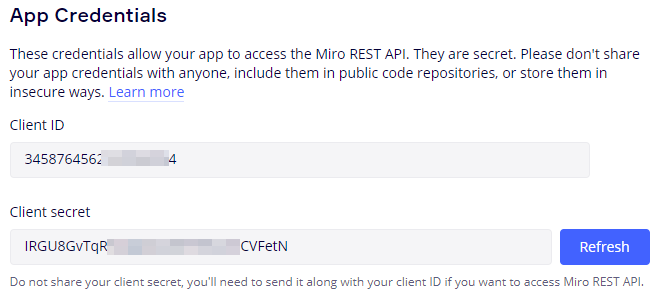
- Add the G&L callback URL to redirect to
https://instance/aveksa/oauth/callback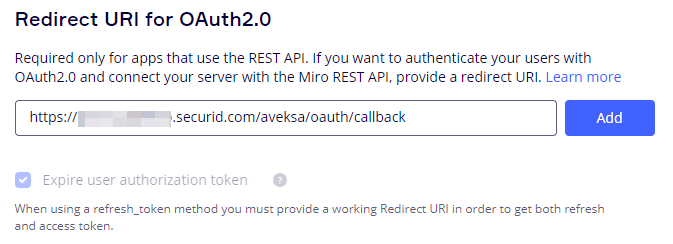
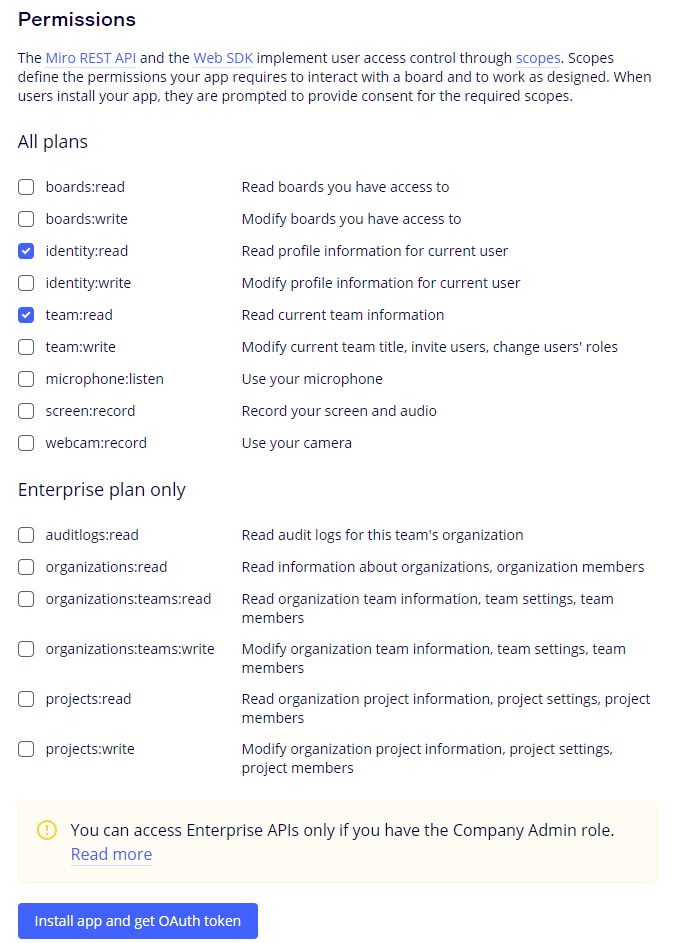
- Provide the necessary permissions to the app and click Install App and Get OAuth Token.
Authentication
OAuth2
This section explains the process of setting up RSA G&L ADC and EDC to acquire the OAuth2 token dynamically from Miro.
Steps
- Login to RSA G&L console as System Administrator.
- Create or Edit a generic REST ADC that will be using OAuth2 authentication.
- On the Connection Details page, configure the following.
| Request | |
| Client ID | CLIENT_ID |
| Client Secret | CLIENT_SECRET |
| Authentication URL | https://miro.com/oauth/authorize |
| Access Token URL | https://api.miro.com/v1/oauth/token |
| Scope | |
- Click on Get OAuth 2.0 Access Token.
- Click on Proceed For Authorization.

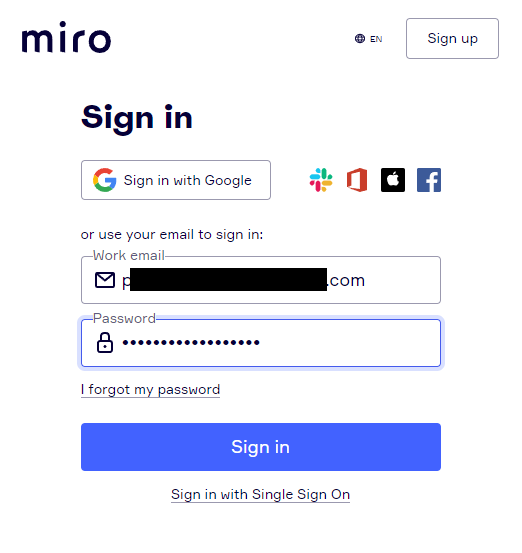
- Login to Miro account.
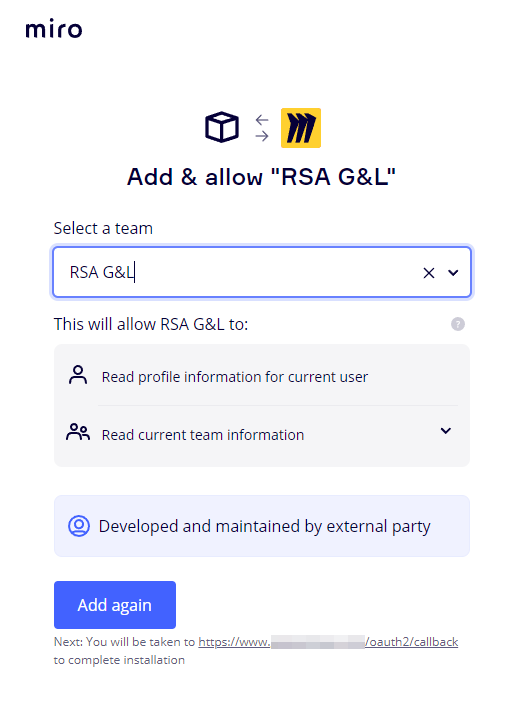
- The below message indicates that RSA G&L has successfully acquired a token.

- Click Close.
- Save the collector configuration. Use the
Testfunction to make sure the configurations are accurate.
References
COL025