Epic EMR✓ Verified

 Epic is an Electronic Medical Records (EMR) system used by hospitals and health systems. RSA G&L collects Epic data from Epic Clarity. Epic is an Electronic Medical Records (EMR) system used by hospitals and health systems. RSA G&L collects Epic data from Epic Clarity.Clarity is Epic's relational reporting database (Oracle or Microsoft SQL Server). It holds an extract of the operational Epic database, so collection queries run without touching the production EMR. Identities ❌ | Accounts ✔️ | Groups ❌ | App Roles ✔️ | Entitlements ❌ |
This guide covers Epic Clarity (SQL Server) as configured in the 2020–2023 timeframe. Column names may differ across Epic release versions.
Epic Objects
Application
Steps
- Login to RSA G&L console as System Administrator.
- Navigate to Resources > Application.
- Click on Create Application and select Other Application.
- Enter the details as shown below.
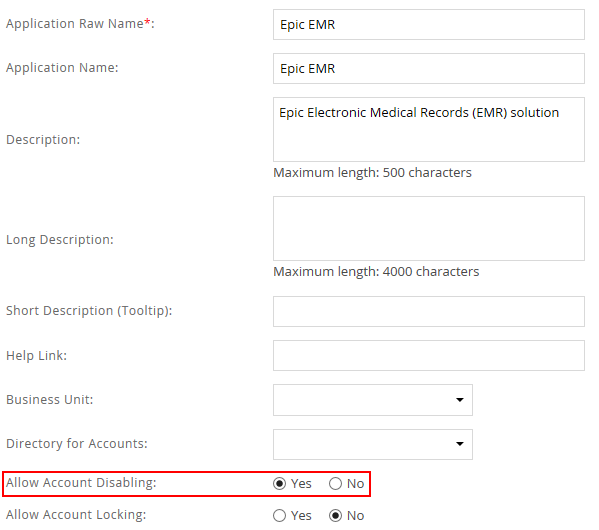
- Click Finish.
Account Collector
This section explains the process for configuring an account collector for the Epic EMR application. We will use the SQL Server database collector for this purpose.
Steps
- Login to RSA G&L console as System Administrator.
- Navigate to Resources > Applications.
- Click on Epic EMR.
- Navigate to Collectors tab and click on Create Account Collector. Enter the details as shown below.
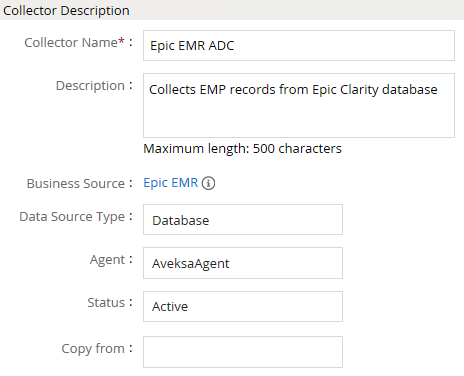
- Click Next and enter the SQL Server database details. Use the Test Connection to make sure the connection details are accurate. Use the latest Microsoft JDBC Driver for SQL Server if NTLM authentication is required.
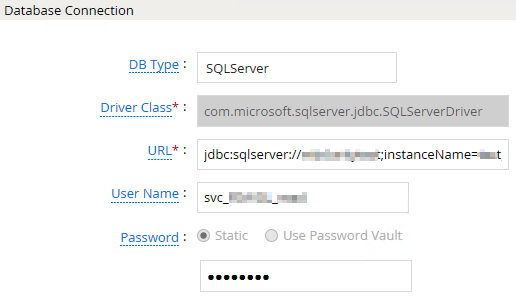
- Click Next. Select the appropriate data that you intend to collect. For the purpose of illustration we will collect accounts and user to account mapping from Epic EMR.
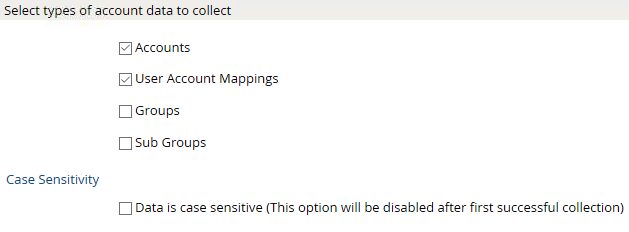
- Click Next. On the Account Data page, enter the following query to collect account information.
SELECT
  EMP.SYSTEM_LOGIN EMP,
  EMP.PROV_ID AS SER,
  EMP.NAME AS displayName,
  EMP.USER_ID userID,
  CASE
    WHEN USER_STATUS_C = 1 THEN 0
    WHEN USER_STATUS_C = 2 THEN 1
    ELSE NULL
  END AS isDisabled,
  LAST_PW_UPDATE AS lastPasswordSetDate,
  LAST_ACCS_DATETIME AS lastLoginDate
FROM CLARITY_EMP EMP
WHERE EMP.SYSTEM_LOGIN IS NOT NULL
The key column mappings for this step are:
| RSA G&L Field | Query Alias | Clarity Column | Notes |
|---|---|---|---|
EMP | SYSTEM_LOGIN | Unique account identifier, used as the primary key | |
| Display Name | displayName | NAME | Full name of the provider or employee |
| External ID | userID | USER_ID | Used in the user-to-account mapping query |
| Provider ID | SER | PROV_ID | Links to SER application entitlements |
| Account Disabled | isDisabled | USER_STATUS_C | 1 (Active) → 0, 2 (Inactive) → 1, otherwise NULL |
| Last Password Set | lastPasswordSetDate | LAST_PW_UPDATE | |
| Last Login | lastLoginDate | LAST_ACCS_DATETIME |
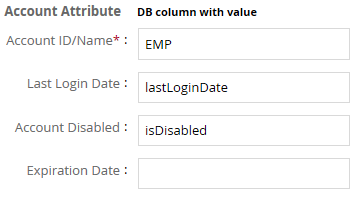
8. Click Next. On the User Account Mappings Data configuration page enter the following query to map the Epic EMR account to user identity.
SELECT
  EMP.SYSTEM_LOGIN EMP,
  EMP.USER_ID userID
FROM CLARITY_EMP EMP
WHERE EMP.SYSTEM_LOGIN IS NOT NULL
- Click Next. In the User Resolution Rules, map the user to account

- Click Finish. Use the Test function to make sure the configurations are accurate.
Entitlement Collector
This section explains the process for configuring an entitlement collector to collect application roles (templates) from Epic EMR. We will use the SQL Server database collector for this purpose.
Steps
- Login to RSA G&L console as System Administrator.
- Navigate to Resources > Applications.
- Click on Epic EMR.
- Navigate to Collectors tab and click on Create Entitlement Collector. Enter the details as shown below.
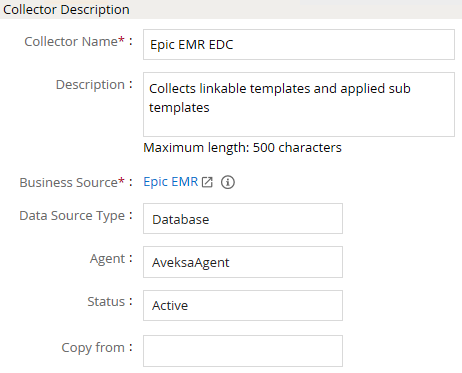
- Click Next and enter the database connection details as shown in Step 5 of Account Collector.
- Click Next. Select the data types that the collector will be collecting from Epic EMR.
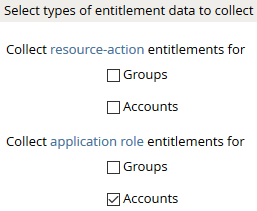
- Click Next. On the General Column Names, map the attribute names.
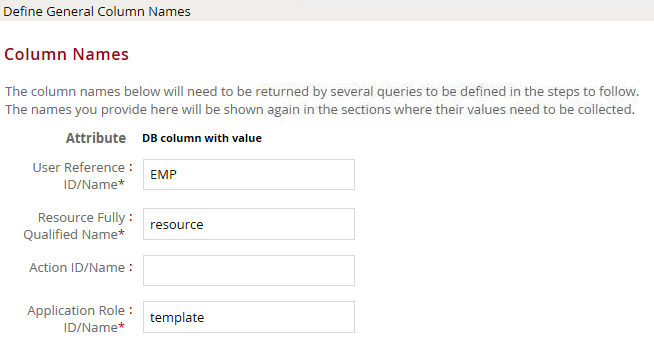
- Click Next. Under Application Role Data section, use the following query to collect admin roles from Epic EMR.
SELECT DISTINCT
  TEMPLT_DSPLY_TITLE AS templateName,
  USER_ID AS template,
  TEMPLT_OWNER_PRIM_C AS owner
FROM CLARITY_EMP_2
WHERE TEMPLT_DSPLY_TITLE IS NOT NULL
The key column mappings for this step are:
| RSA G&L Field | Query Alias | Clarity Column | Notes |
|---|---|---|---|
templateName | TEMPLT_DSPLY_TITLE | Template display name shown in RSA G&L | |
template | USER_ID | Internal template identifier | |
| Owner | owner | TEMPLT_OWNER_PRIM_C | Primary owner category code |
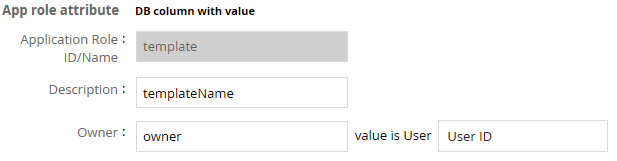
9. Click Next. On the Account Data section, enter the query below to collect mappings for account to roles.
SELECT
  TEMPLATE.LNK_TEMPLT_ID AS role_id,
  EMP.SYSTEM_LOGIN AS account
FROM
  CLARITY_EMP EMP
  LEFT OUTER JOIN EMP_AVAIL_TEMPLT TEMPLATE ON TEMPLATE.USER_ID = EMP.USER_ID
WHERE
  TEMPLATE.LNK_TEMPLT_ID IS NOT NULL
  AND EMP.SYSTEM_LOGIN IS NOT NULL
UNION
SELECT
  SUBTEMPLATE.APPLD_SUBTMPLT_ID AS role_id,
  EMP.SYSTEM_LOGIN AS account
FROM
  CLARITY_EMP EMP
  LEFT OUTER JOIN SUBTEMPLATES SUBTEMPLATE ON SUBTEMPLATE.USER_ID = EMP.USER_ID
WHERE
  SUBTEMPLATE.APPLD_SUBTMPLT_ID IS NOT NULL
  AND EMP.SYSTEM_LOGIN IS NOT NULL
The SUBTEMPLATES table name varies across Epic deployments. Confirm the correct table name or view with your Epic DBA before running the collector.
- Click Next. In the User Evaluation, map the account to the ADC.
| Associated account collector | Account value evaluates to |
|---|---|
| Epic EMR ADC | Account Name |
- Click Next and then click Finish. Use the Test function to make sure the configurations are accurate.
Troubleshooting
Test Connection Fails
- Root Cause: Incorrect database host or port, network firewall restrictions, missing JDBC driver, or unconfigured Windows authentication.
- Resolution:
- Verify the SQL Server hostname, port (default
1433), and Clarity database name are correct. - Confirm the service account has network access to the Clarity database server.
- Ensure the Microsoft JDBC Driver for SQL Server is installed on the RSA G&L server.
- If using Windows or NTLM authentication, append
integratedSecurity=trueto the connection string.
- Verify the SQL Server hostname, port (default
SQL Query Returns Zero Rows
- Root Cause: Missing
SYSTEM_LOGINvalues inCLARITY_EMPor insufficient table permissions. - Resolution:
- Confirm
SYSTEM_LOGINis populated inCLARITY_EMP. Accounts without a system login are excluded by theWHEREclause. - Verify the service account has
SELECTpermission onCLARITY_EMP,CLARITY_EMP_2,EMP_AVAIL_TEMPLT, andSUBTEMPLATES.
- Confirm
SUBTEMPLATES Table Not Found
- Root Cause: Schema variation across Epic deployment versions.
- Resolution:
- Work with your Epic database administrator to verify the exact table or view name for subtemplates in your environment.
- Update the query mapping accordingly.
Collection Errors Mid-Run
- Root Cause: Database timeouts caused by clinical load spikes or network latency.
- Resolution:
- Check the RSA G&L collection logs under Admin → Logs.
- Increase the JDBC connection timeout in the collector settings.
- Schedule the collector to run during off-peak clinical hours.
References
Microsoft and Epic Documentation
- Microsoft JDBC Driver for SQL Server: Connection string parameters, authentication configurations, and timeout settings.
- Epic Systems Documentation and Developer Portal: Reporting specifications and Clarity relational data structures.
COL028