Idira Privilege Cloud

 Idira Privilege Cloud (Palo Alto Networks, formerly CyberArk Privilege Cloud) is an enterprise privileged access management SaaS platform. It secures credentials, controls access to privileged accounts, and audits access across hybrid and cloud infrastructures. Idira Privilege Cloud (Palo Alto Networks, formerly CyberArk Privilege Cloud) is an enterprise privileged access management SaaS platform. It secures credentials, controls access to privileged accounts, and audits access across hybrid and cloud infrastructures.Versions: 8.0.0 P10 |
Introduction
This plugin integrates RSA Governance & Lifecycle (G&L) with Idira Privilege Cloud (Palo Alto Networks Idira, formerly CyberArk Privilege Cloud). It retrieves managed credentials for collectors and connectors using Idira Identity OAuth 2.0 client credentials and the Privilege Cloud PVWA REST API.
Credentials are not cached; each collection or connector execution fetches the current secret directly from Privilege Cloud, ensuring that credential rotation schedules are respected automatically without requiring manual updates in RSA G&L.
Prerequisites
Ensure you have the following before configuring the integration:
- Administrative access to Idira Identity Administration and Privilege Cloud Safe management.
- An active Idira Privilege Cloud tenant (qualified against version 15.0 or later).
- RSA Governance & Lifecycle 8.0.0 Patch 10 or later.
- Outbound HTTPS (TCP port 443) network connectivity from the RSA G&L server and any remote agents to both Idira Identity (
https://<tenant-id>.id.cyberark.cloud) and Privilege Cloud (https://<subdomain>.privilegecloud.cyberark.cloud).
Idira Side Setup
Configure Idira Privilege Cloud for OAuth-based API access by RSA G&L using least-privilege permissions.
This section is provided for reference. Work with your Idira administrator to ensure all configurations comply with enterprise security policies.
Manage space
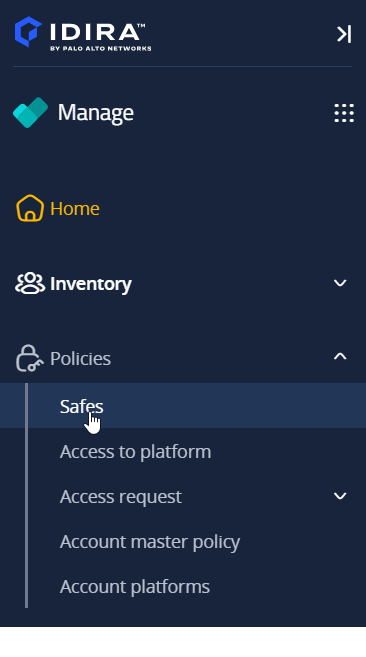
├── Inventory → Identities → Users     (Step 2: Service User)
├── Inventory → Identities → Roles     (Step 3: Role Membership)
└── Policies  → Safes                  (Step 4: Dedicated Safe)

Privilege Cloud space
└── Accounts → Accounts & Requests → Accounts View (Step 5: Target Credential)
Step 1: Identify Tenant URLs and Login Suffix
The plugin requires two tenant endpoints:
| G&L Configuration Field | Description | Format Example |
|---|---|---|
| Identity Tenant URL | Idira Identity OAuth 2.0 token endpoint host | https://<tenant-id>.id.cyberark.cloud |
| Privilege Cloud URL | Privilege Cloud PVWA REST API host | https://<subdomain>.privilegecloud.cyberark.cloud |
Both URLs can be determined using Idira platform discovery:
curl -s https://platform-discovery.cyberark.cloud/api/v2/services/subdomain/<subdomain>
Extract identity_administration.api for the Identity Tenant URL and pcloud.api (without a trailing slash) for the Privilege Cloud URL.
Note your login suffix (for example, cyberark.cloud.12345), visible under your username in the profile menu. The service user uses this same suffix.
Step 2: Create the Service User
- Navigate to Manage → Inventory → Identities → Users and click Add User.
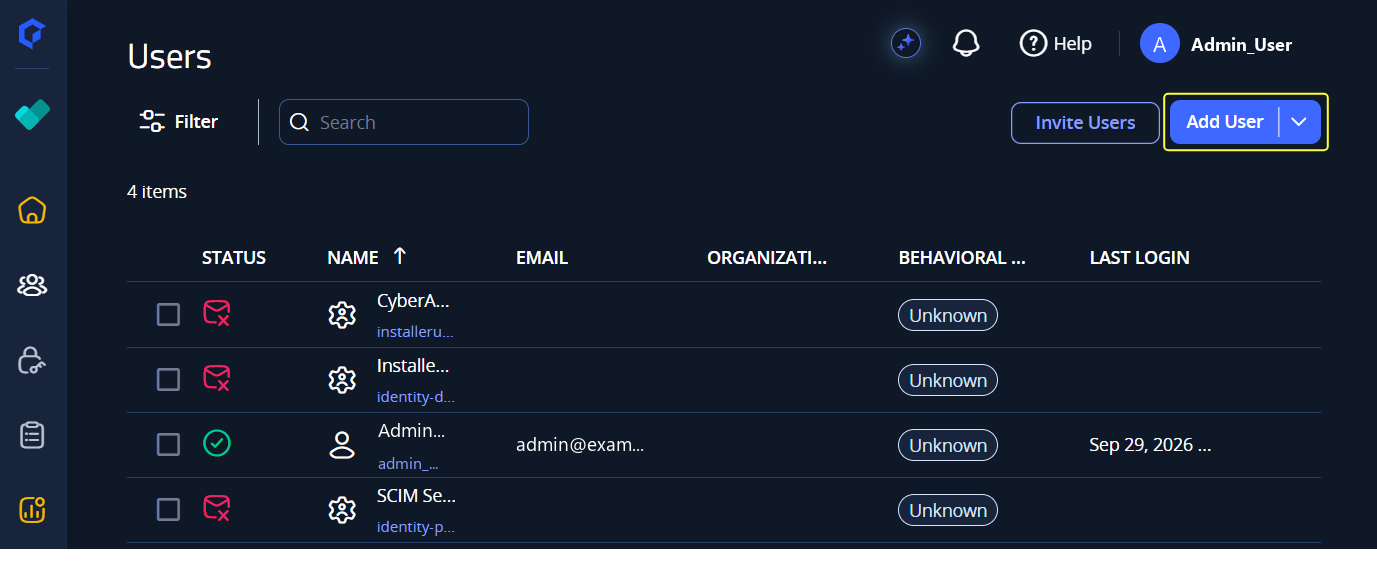
- Complete the Account details:
- Login name: Enter a dedicated name (for example,
svc_glorsvc_rsa_gl_pam). - Suffix: Ensure your tenant login suffix is selected. The full
login@suffixbecomes the Client ID. - Email address: Enter a monitored distribution list or team mailbox.
- Display name: For example,
RSA G&L Service Account.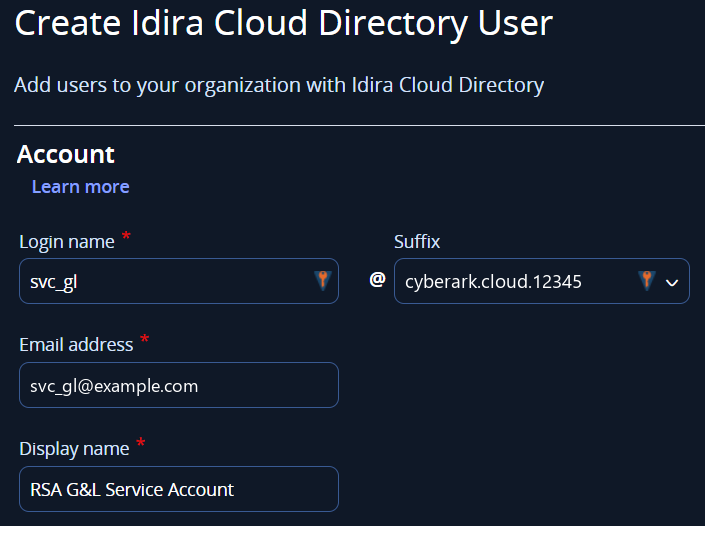
- Login name: Enter a dedicated name (for example,
- Set Password Type to Generated. Click Copy and store this generated password in your secure vault. This value becomes the Client Secret.

- Under Status, select Is OAuth confidential client. Idira automatically enables Is service user and Password never expires.
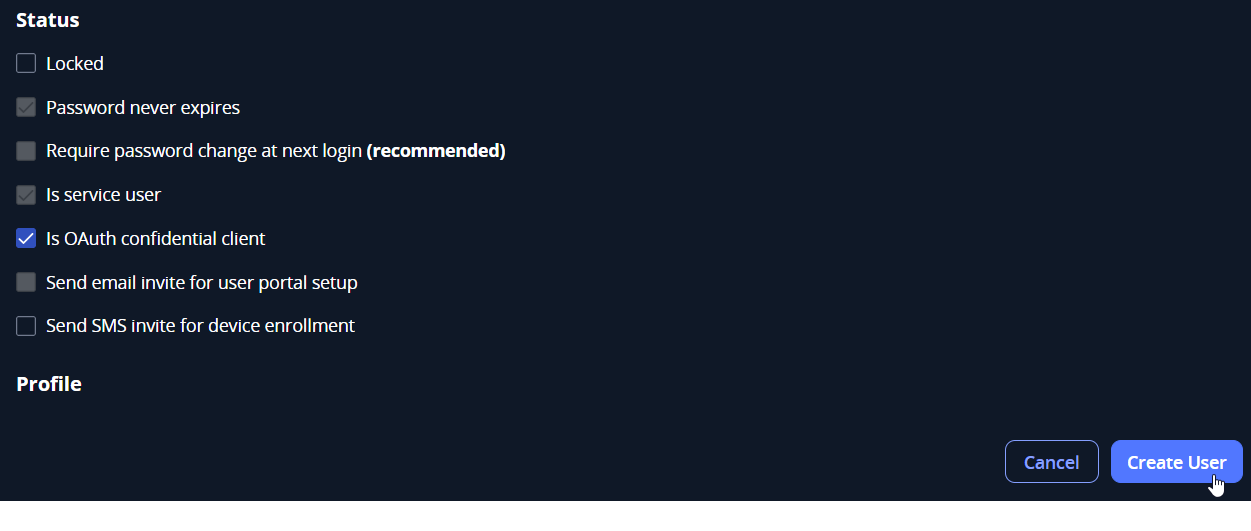
- Click Create User.
Record the generated credentials for RSA G&L:
- Client ID: The full login name (for example,
svc_gl@cyberark.cloud.12345) - Client Secret: The generated password
Step 3: Assign the Privilege Cloud Users Role
- In the Manage space, navigate to Inventory → Identities → Roles.
- Search for
Privilege Cloud Users.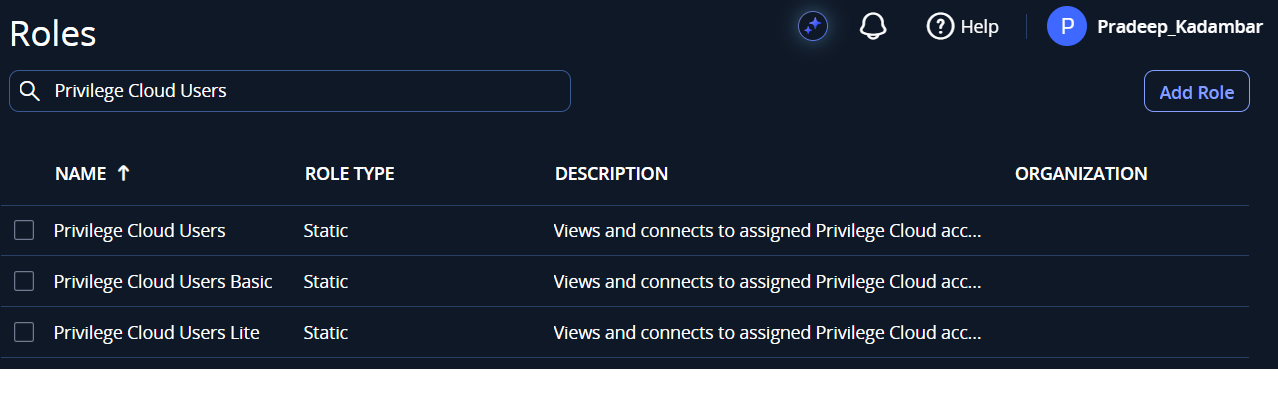
- Open Privilege Cloud Users, select the Members tab, click Add, select the service user, and click Save.
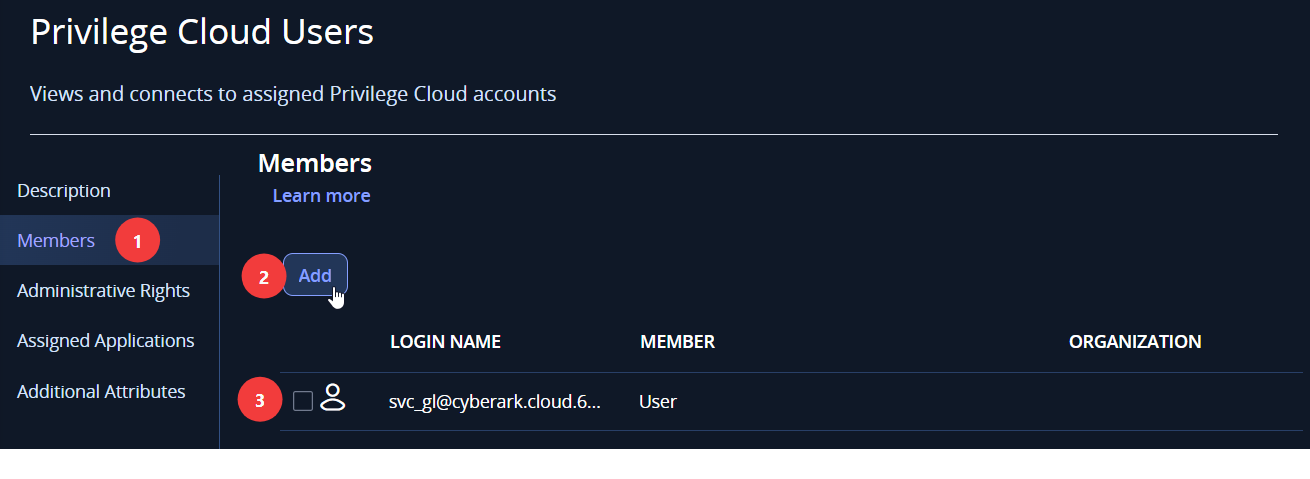
Do not assign the service user to Privilege Cloud Administrators, Safe Managers, or any other administrative role. The service user requires member access to Privilege Cloud Users only.
Step 4: Create a Dedicated Safe and Assign Permissions
To isolate secrets accessed by RSA G&L, create a dedicated Safe.
- Navigate to Manage → Policies → Safes and click Create Safe.
- Define Safe Properties: Enter a Safe Name (for example,
RSA-GL-Integration) and a description. Leave dual-control disabled.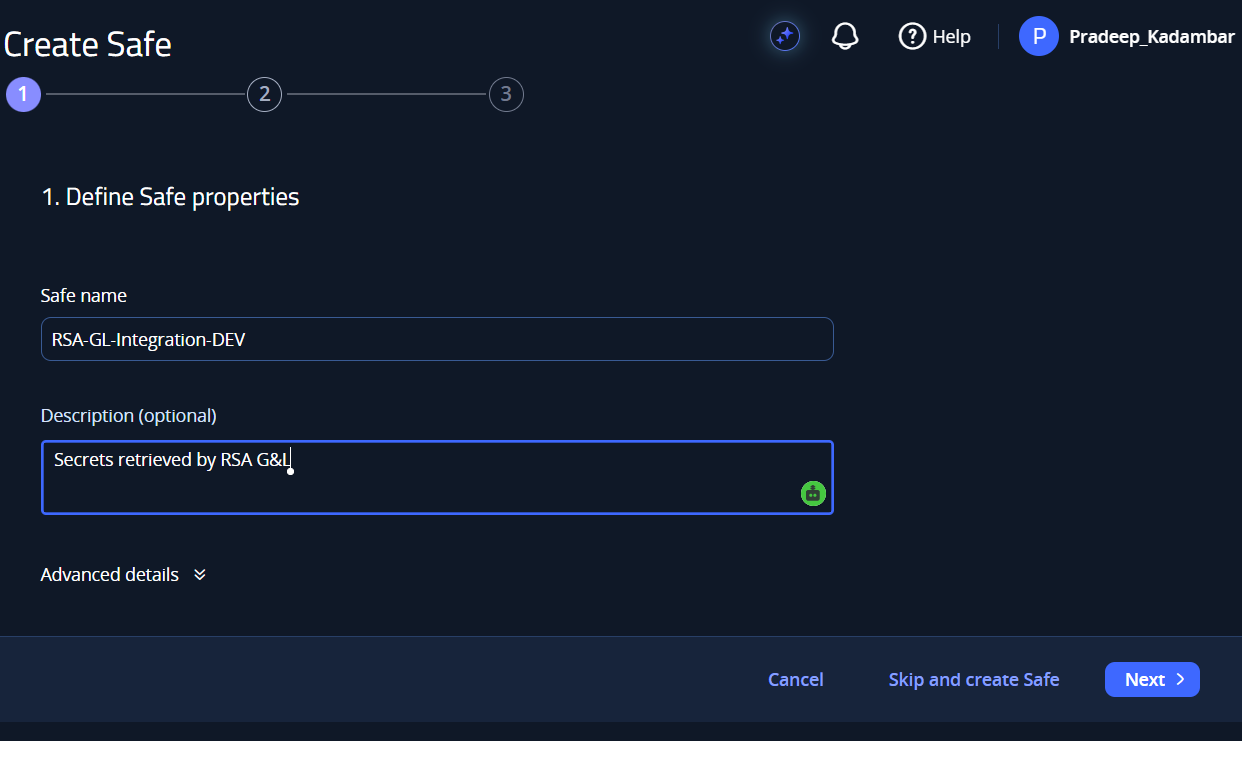
- Select Safe Members: Search for and select the service user created in Step 2.
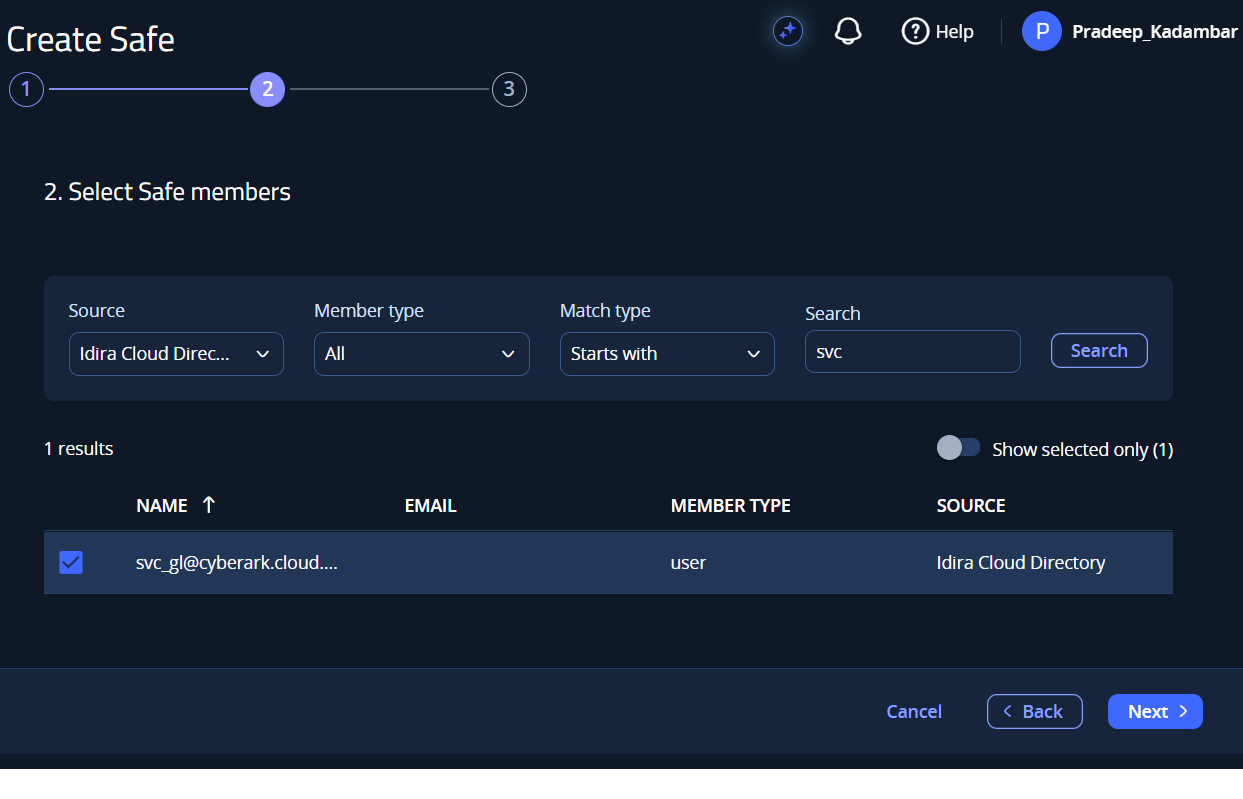
- Set Permissions: Under Access, select List accounts and Retrieve accounts. Clear Use accounts.
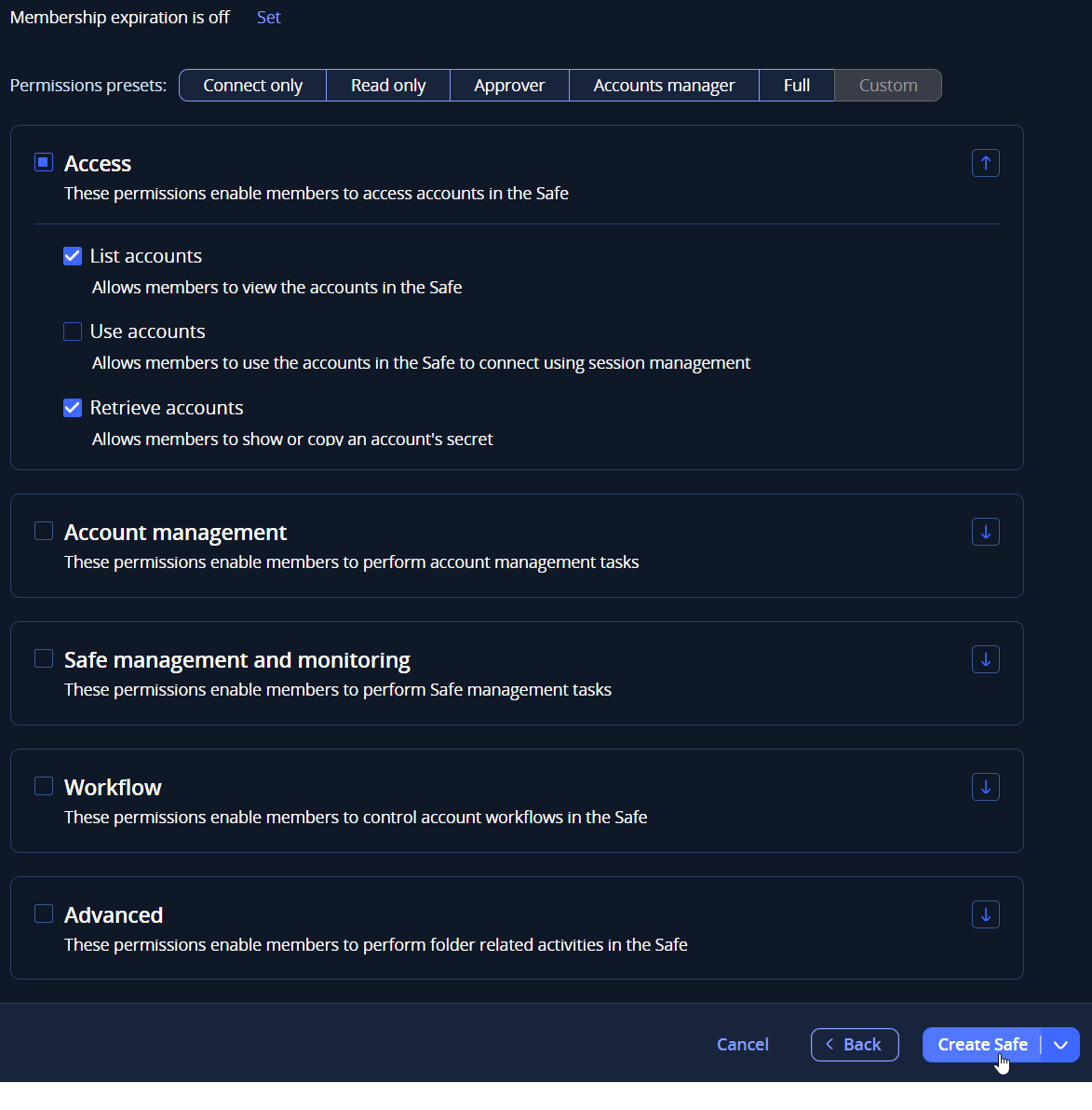
- Click Create Safe.
| Permission | Required | Usage |
|---|---|---|
| List accounts | Yes | Account lookup and connectivity validation |
| Retrieve accounts | Yes | Decrypting and retrieving account passwords |
| Use accounts | No | Interactive sessions (not required by RSA G&L) |
Step 5: Store Target Credentials in Privilege Cloud
Ensure the target account platform is active before adding credentials:
- Navigate to Manage → Policies → Account platforms. Select the platform group (for example, Cloud Service) and activate the required platform if needed.
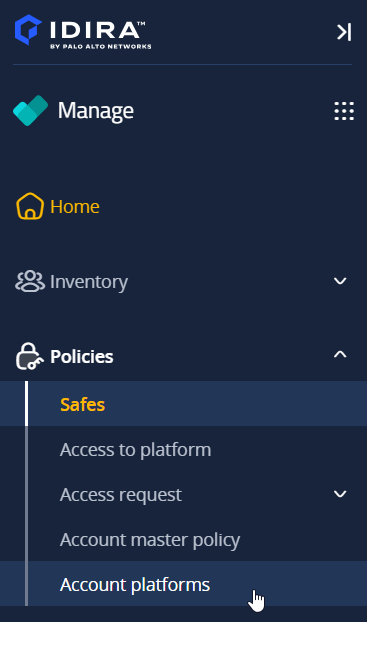
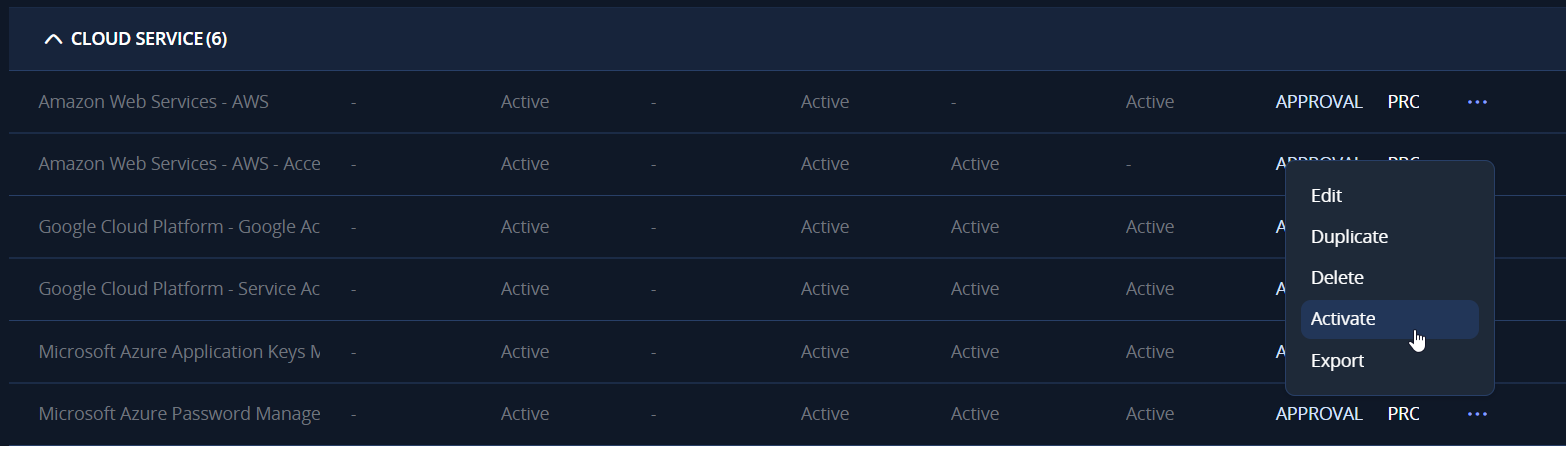
- Switch to the Privilege Cloud space (Navigate ⋮⋮ → Privilege Cloud), go to Accounts → Accounts & Requests → Accounts View, and click Add account.
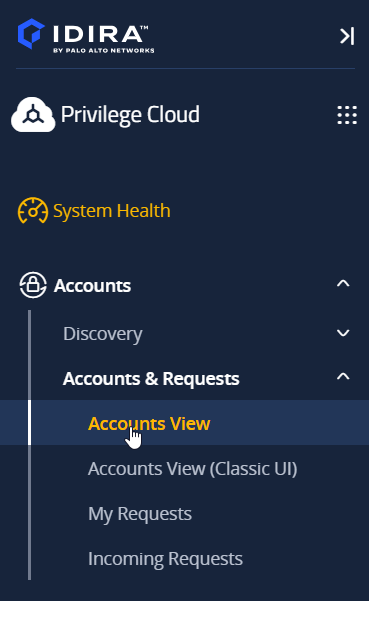
- Select the System type (for example, Cloud Service), the Platform, and select the dedicated Safe (
RSA-GL-Integration).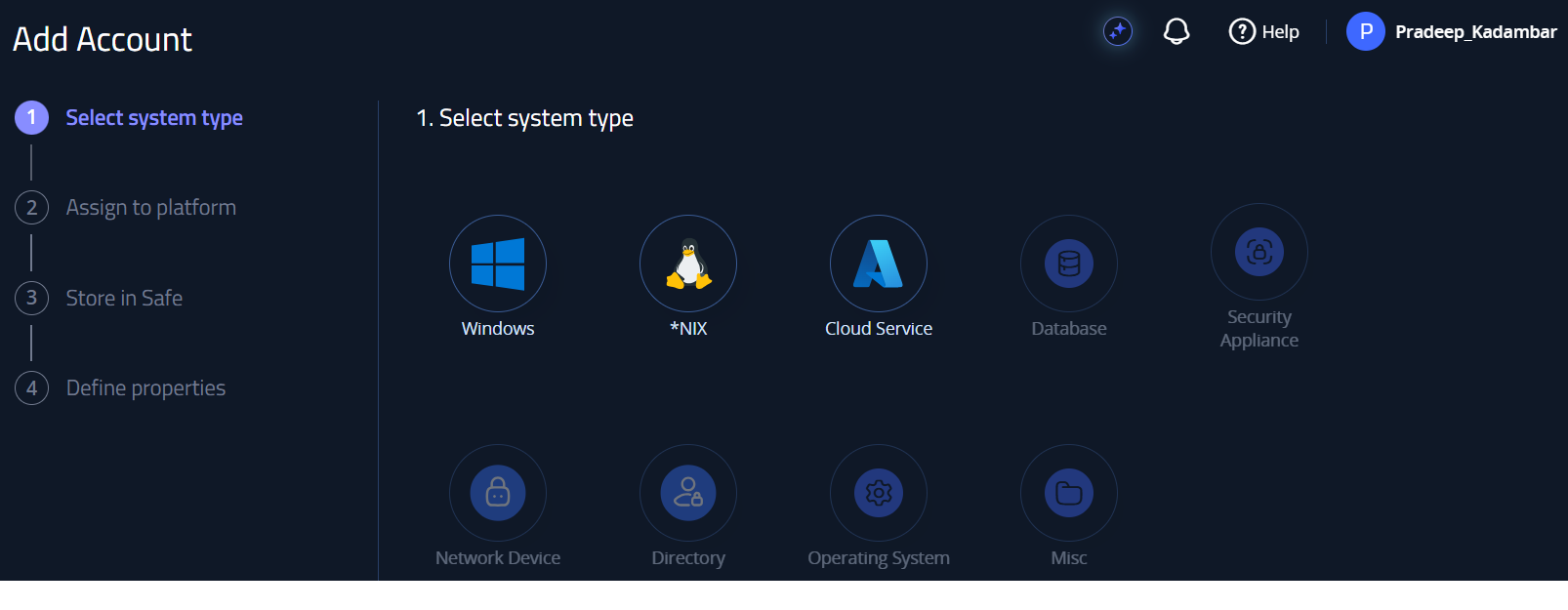
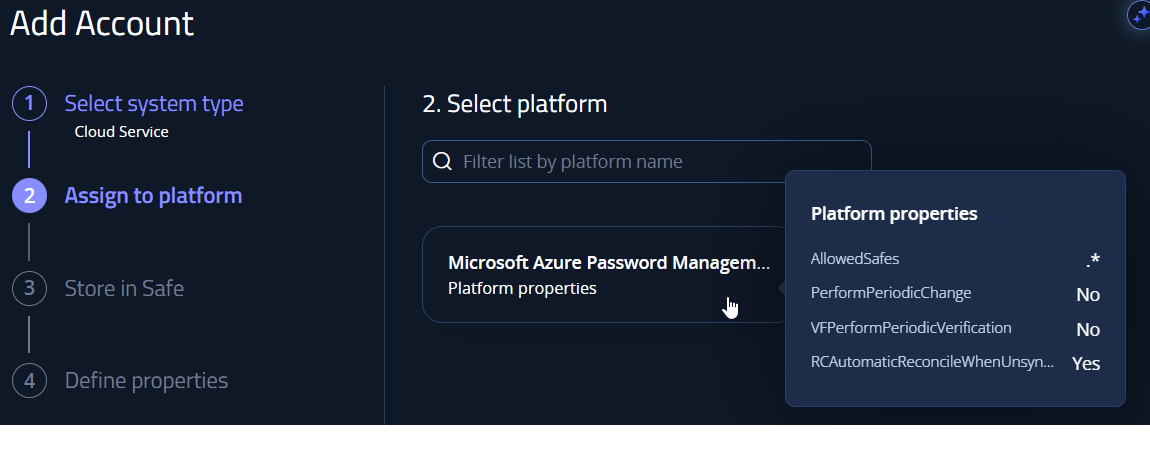
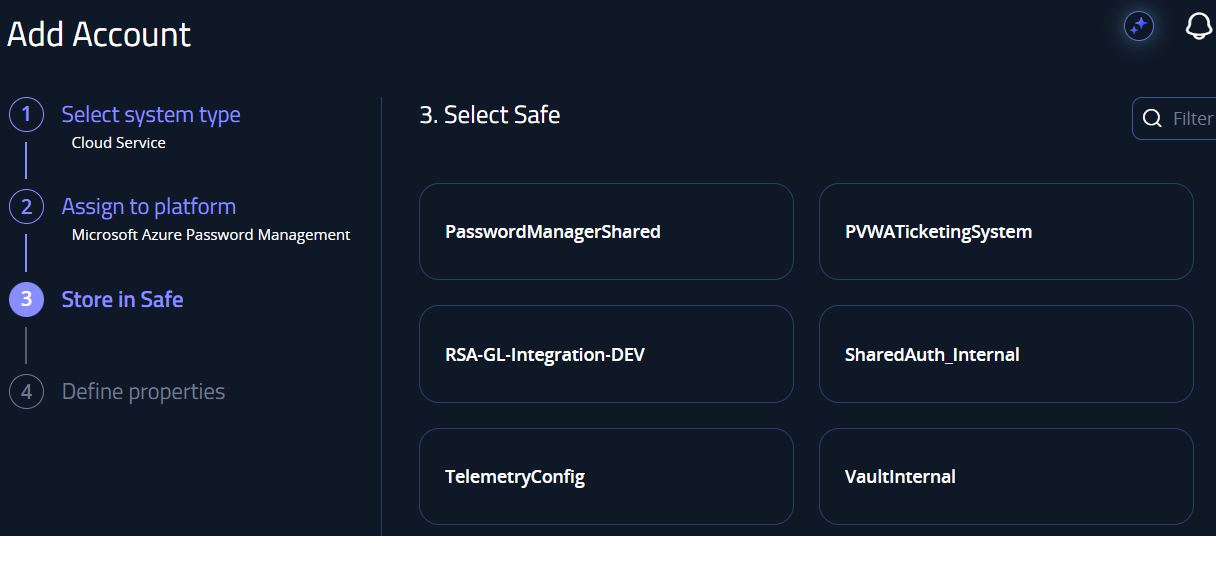
- Enter the account properties:
- Username: The account login or application client ID.
- Address: Target host, domain, or directory ID (if applicable).
- Password: The secret or password value.
- Customize account name: Enter a unique name (for example,
Entra-RSA-GL-Collector).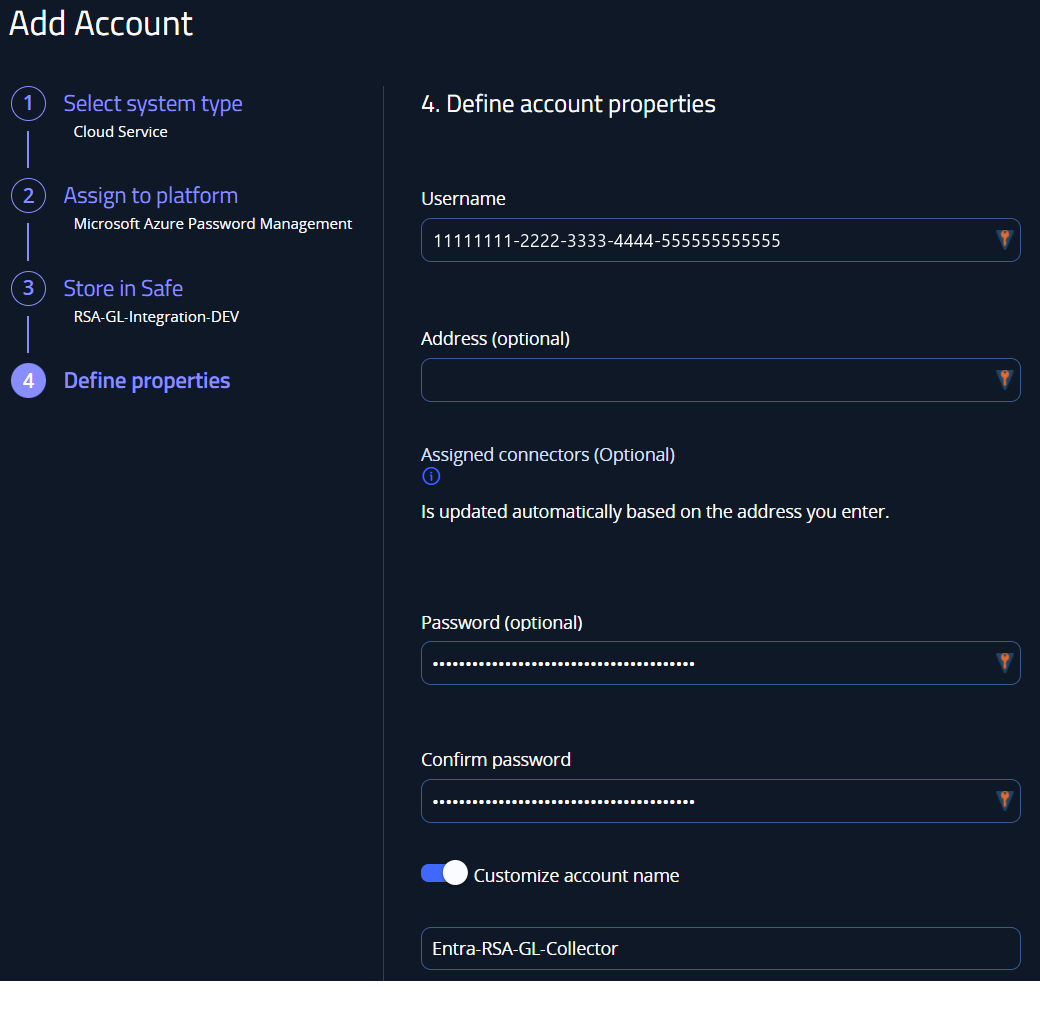
- Click Add.
Installation and Configuration in G&L
Requires RSA Governance and Lifecycle 8.0.0 Patch 10 or later.
Complete the Idira Side Setup before proceeding. You will need the Privilege Cloud URL, Identity Tenant URL, Client ID, and Client Secret.
Step 1: Install the Plugin
- Log in to the RSA G&L UI as a System Administrator.
- Navigate to Admin → System → Password Vault.
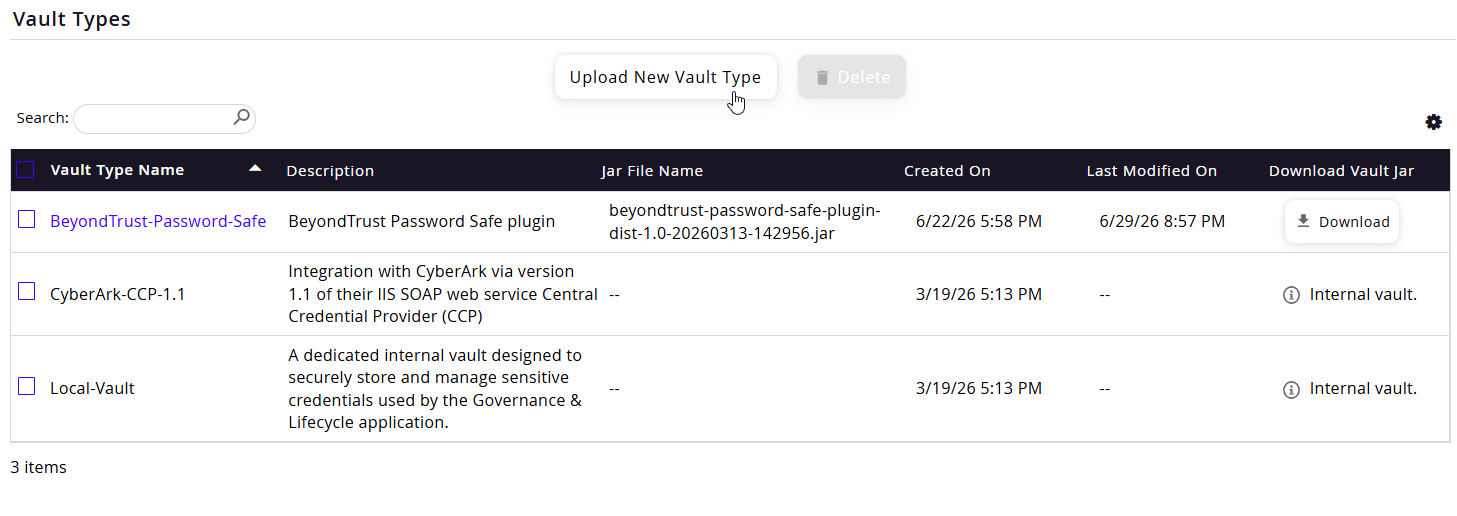
- Under Vault Types, click Upload New Vault Type.
- In the dialog, enter the details:
- Vault Type Name:
Idira-Privilege-Cloud - Description:
Retrieves credentials from Idira Privilege Cloud using OAuth 2.0 client credentials. - JAR File: Click Choose File and select the distribution JAR (
idira-privilegecloud-plugin-dist-1.0-<timestamp>.jar).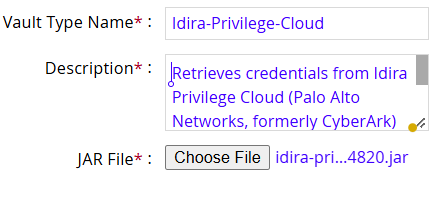
- Vault Type Name:
- Click OK. Idira-Privilege-Cloud appears in the Vault Types list.
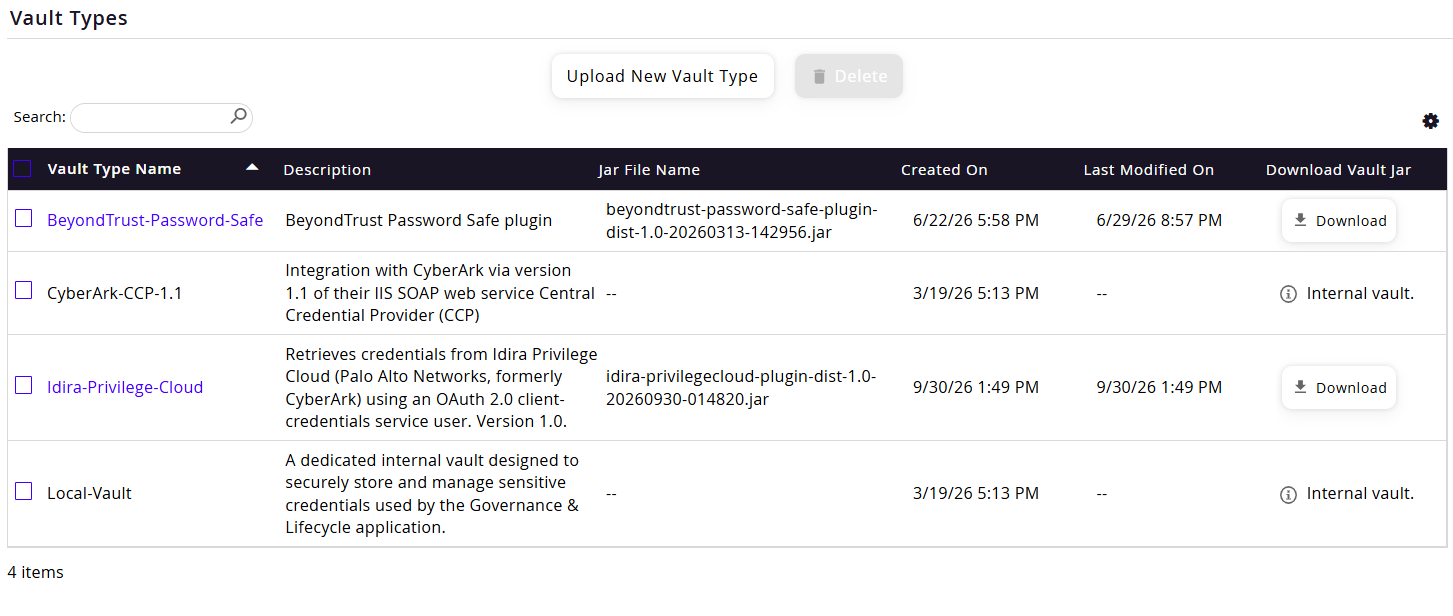
After uploading a new vault type, restart all remote G&L agents to ensure they load the plugin.
Step 2: Configure the Password Vault
-
In the Password Vault Configuration section, select Idira-Privilege-Cloud from the dropdown and click + Create.
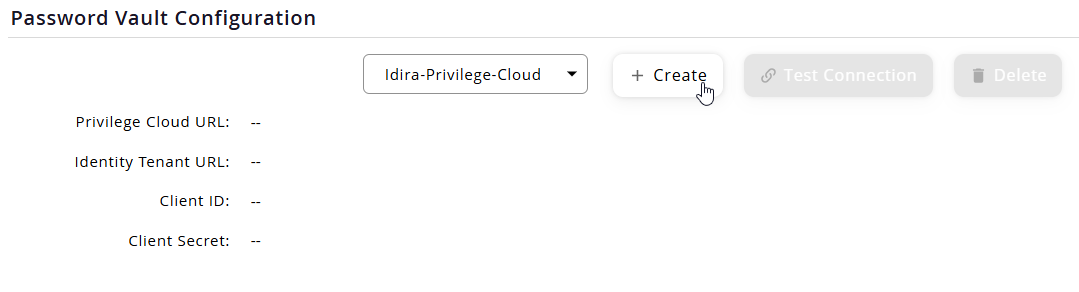
-
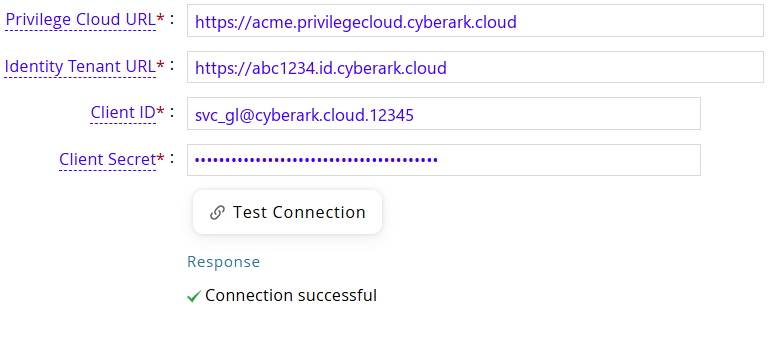
Complete the configuration form:
Field Description Example Privilege Cloud URL Base URL of your Privilege Cloud PVWA instance https://<subdomain>.privilegecloud.cyberark.cloudIdentity Tenant URL Base URL of your Idira Identity Administration tenant https://<tenant-id>.id.cyberark.cloudClient ID Service user login identifier including suffix svc_gl@cyberark.cloud.12345Client Secret Service user generated secret key (masked) •••••••••••••••• -
Click Test Connection. A Connection successful status confirms token retrieval and API communication.
-
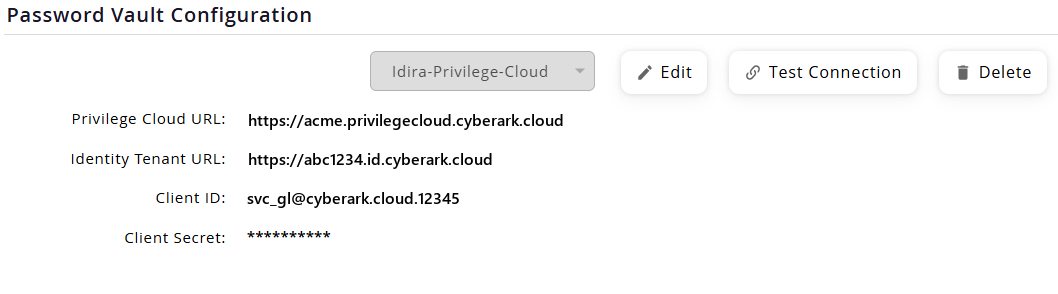
Click OK to save. The saved configuration displays Edit and Test Connection options.
Step 3: Create Vault Profiles
A vault profile maps a specific collector or connector credential to an account stored in an Idira Safe. Create one profile per managed account.
-
Navigate to the Password Vault Profiles section and click + Create Profile.
-
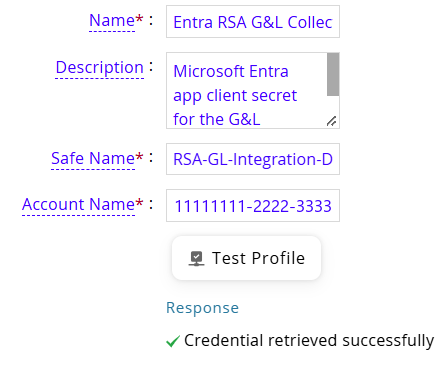
Fill in the profile fields:
Field Description Example Name Display name for this profile Entra RSA G&L CollectorDescription Optional description Microsoft Entra client secretSafe Name Safe where the credential is stored RSA-GL-IntegrationAccount Name Account Name or Username in Privilege Cloud Entra-RSA-GL-Collector -
Click Test Profile. A Credential retrieved successfully response confirms the account was found and its password decrypted.
-
Click OK to save. The profile appears in the list with the identifier formatted as
Safe Name (Account Name).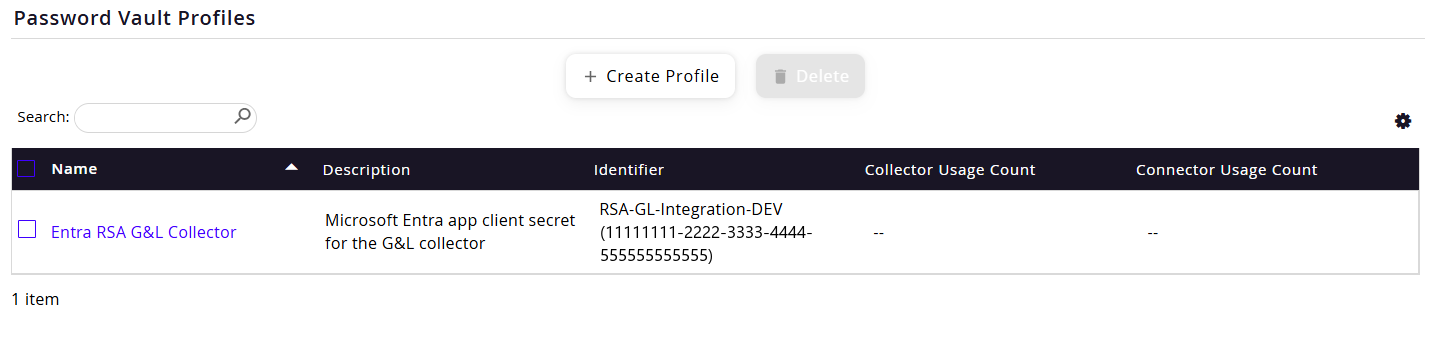
Step 4: Use the Profile in a Collector or Connector
In the collector or connector configuration, keep non-sensitive parameters static and reference the vault profile for the secret:
- Open the collector configuration (for example, Microsoft Entra ID).
- Enter the static Username or Application ID.
- For Password, select Use Password Vault → Existing Profile and choose your profile (
Entra RSA G&L Collector).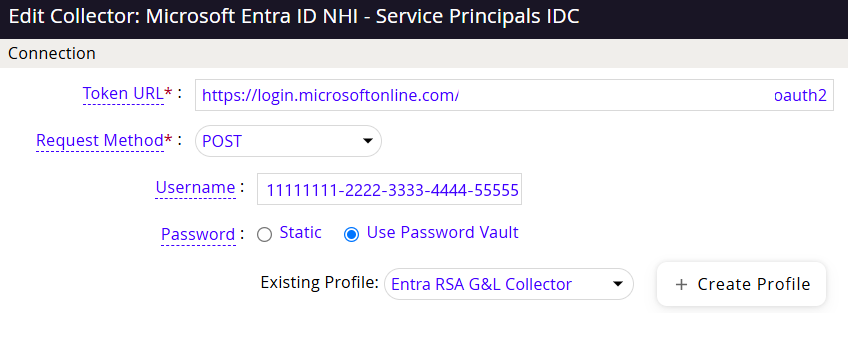
- Click Test, then click Save.
RSA G&L retrieves the current password from Idira Privilege Cloud each time the collector or connector runs.
Known Limitations
- Client Credentials Only: The plugin uses the OAuth 2.0 client credentials grant for machine-to-machine authentication. User interactive authentication and authorization code grants are not supported.
- Dual-Control Safes Not Supported: Safes requiring access approval return HTTP 403. G&L automated background retrieval cannot submit interactive access requests.
- No Check-in / Checkout Locking: Passwords are retrieved on demand without exclusive checkout. Do not configure one-time-password or exclusive checkout policies for credentials used by RSA G&L.
- Exact Account Matching: Privilege Cloud account searches return fuzzy matches. The plugin enforces an exact match against the Account Name first, then the Username within the specified Safe.
- HTTPS Enforced: All endpoints require HTTPS. HTTP redirects are disabled to safeguard credentials.
Troubleshooting
Authentication and Token Errors (HTTP 400)
Error Message:
Idira Identity token exchange failed with status: 400 (access_denied: invalid client creds or client not allowed)
- Root Cause: Invalid Client ID or Client Secret, or the service user is not configured as an OAuth confidential client.
- Resolution:
- Verify the Client ID includes the full login suffix (for example,
svc_gl@cyberark.cloud.12345). - Confirm Is OAuth confidential client is selected for the service user in Idira Identity Administration.
- Reset the service user password in Idira Identity Administration with Require password change at next login cleared, update the secret in RSA G&L, and test the connection.
- Verify the Client ID includes the full login suffix (for example,
API Authorization and Role Membership (HTTP 401)
Error Message:
Idira Accounts API returned error status: 401
- Root Cause: The service user authenticated successfully but is not authorized to query Privilege Cloud APIs, or the Privilege Cloud URL is incorrect.
- Resolution:
- Confirm the service user is a member of the Privilege Cloud Users role.
- Verify the Privilege Cloud URL matches
https://<subdomain>.privilegecloud.cyberark.cloudwithout additional path elements such as/PasswordVault.
Account Lookup and Resolution
Error Message:
No account was found for the provided SafeName and AccountName
- Root Cause: The Safe Name or Account Name does not match any entry in Privilege Cloud, or the service user lacks list permissions on the Safe.
- Resolution:
- Verify the Safe Name matches the Safe in Privilege Cloud exactly (case-insensitive).
- Confirm the Account Name matches either the custom account name or the account username.
- Ensure the service user has List accounts permissions on the Safe.
Error Message:
Multiple accounts found for the provided SafeName and AccountName
- Root Cause: More than one account in the Safe has the same username or account name.
- Resolution:
- In Privilege Cloud, assign a unique custom account name (for example,
Entra-RSA-GL-Collector). - Update the RSA G&L Vault Profile Account Name to specify that unique name.
- In Privilege Cloud, assign a unique custom account name (for example,
Password Retrieval and Safe Permissions (HTTP 403 / 404)
Error Message:
Idira denied immediate password retrieval (403)
- Root Cause: The service user lacks retrieve permissions, or the Safe has dual-control workflow active.
- Resolution:
- Verify the service user has Retrieve accounts permission on the Safe.
- Confirm dual-control approval is disabled on the Safe.
Error Message:
Idira account was not found during password retrieval (404)
- Root Cause: The account was deleted or modified in Privilege Cloud between search lookup and password retrieval.
- Resolution:
- Confirm the account exists in Privilege Cloud.
- Retest the profile in RSA G&L.
Network and TLS Connectivity
Error Message:
Connectivity or parsing error during Idira Identity token exchangeorConnectivity error with Idira Privilege Cloud API
- Root Cause: Network egress restrictions, firewall blocking, proxy interference, or TLS inspection preventing HTTPS communication.
- Resolution:
- Ensure outbound HTTPS (port 443) is open from the RSA G&L server and remote agents to
*.id.cyberark.cloudand*.privilegecloud.cyberark.cloud. - Ensure endpoint URLs begin with
https://. - Confirm intermediate TLS inspection proxies do not intercept or terminate connections without presenting trusted certificates.
- Ensure outbound HTTPS (port 443) is open from the RSA G&L server and remote agents to
Profile Configuration Mismatch
Error Message:
Password vault profile is not an Idira Privilege Cloud profile
- Root Cause: The profile was created under a different vault type.
- Resolution:
- Create a new profile under the Idira-Privilege-Cloud vault configuration.
- Assign the new profile to the target collector or connector.
References
Idira Identity Documentation
- Add service users: Creating service users with OAuth confidential client authentication.
- API token authentication for Idira Identity: OAuth 2.0
/oauth2/platformtokenendpoint reference.
Idira Privilege Cloud Documentation
- Manage Safe members: Safe permissions and member assignment.
- Add accounts: Creating and managing privileged accounts.
- Microsoft Azure Application Keys platform: Platform configuration for application secrets.
- Privilege Cloud REST APIs overview: PVWA REST API specifications.
- Get accounts API:
GET /API/Accountssearch and filter parameters. - Get password value API:
POST /API/Accounts/{id}/Password/Retrieveretrieval specifications.
Industry Standards
- RFC 6749 Section 4.4: Client Credentials Grant: OAuth 2.0 framework specification.